System Compare
SSD vs HDD: Speed, Lifespan and Which to Buy
SSD vs HDD compared: real speeds, boot times, lifespan, noise and price per TB, plus NVMe vs SATA and how to check which drive your Windows PC has.
On this page
SSD vs HDD: an SSD is 4–50 times faster than an HDD, silent, tougher and uses less power, so Windows boots in seconds and apps open instantly. An HDD is much cheaper per terabyte, which makes it good for backups and big media libraries. Use an SSD for Windows and apps, and an HDD only for bulk storage.
If you are buying a PC, upgrading an old one or adding storage, the choice between an SSD and an HDD changes how the whole computer feels. This guide compares SSD vs HDD on speed, lifespan, noise and price, explains NVMe vs SATA, and shows how to check which kind of drive your PC has right now.
SSD vs HDD at a Glance
| HDD | SATA SSD | NVMe SSD | |
|---|---|---|---|
| Sequential speed | 80–200 MB/s | About 550 MB/s | 3,500–12,000+ MB/s |
| Random access | Very slow (moving parts) | Fast | Fastest |
| Windows boot | 30–90 s | 10–20 s | 8–15 s |
| Noise and shock | Audible, fragile when running | Silent, shock-resistant | Silent, shock-resistant |
| Price per TB | Lowest | Higher | Similar to SATA SSD |
| Best for | Backups, media archives | Upgrading older PCs | Windows, apps, games |
Speed: Why an SSD Feels So Much Faster
An HDD stores data on spinning platters read by a moving arm. Every time Windows needs a small file in a different place, the arm has to move, which takes milliseconds. Windows reads thousands of small files to boot and open apps, so those delays add up. An SSD has no moving parts and reaches any file almost instantly. That is why a cheap SSD makes a bigger difference to everyday speed than a faster CPU, and why HDD PCs so often show 100% disk usage.
NVMe vs SATA SSDs
- SATA SSDs look like small 2.5-inch drives and use the same connection as HDDs. Perfect for upgrading older laptops and desktops.
- NVMe SSDs are small M.2 sticks that plug straight into the motherboard. They are several times faster than SATA and cost about the same.
- In daily use, both feel dramatically faster than an HDD; NVMe mainly helps with large file copies, game loading and video editing.
Check your motherboard or laptop specs for a free M.2 slot and which PCIe generation it supports before buying.
Lifespan and Reliability
SSDs wear out slowly as they are written to; their rating is given in TBW (terabytes written). A typical 1 TB SSD is rated for 600 TBW or more, which is decades of normal home use. HDDs fail mechanically: motors and heads wear out, and drops while running can damage them. Both can fail without warning, so keep backups either way, and check health now and then; our guide to checking hard drive health shows how.
Which Drive Does Your PC Have?
-
Use Task Manager
Press Ctrl + Shift + Esc, open Performance and select each Disk. The type, SSD or HDD, is shown under the drive name.
-
Or Optimize Drives
Search Start for "Defragment and Optimize Drives". The Media type column lists Solid state drive or Hard disk drive.
-
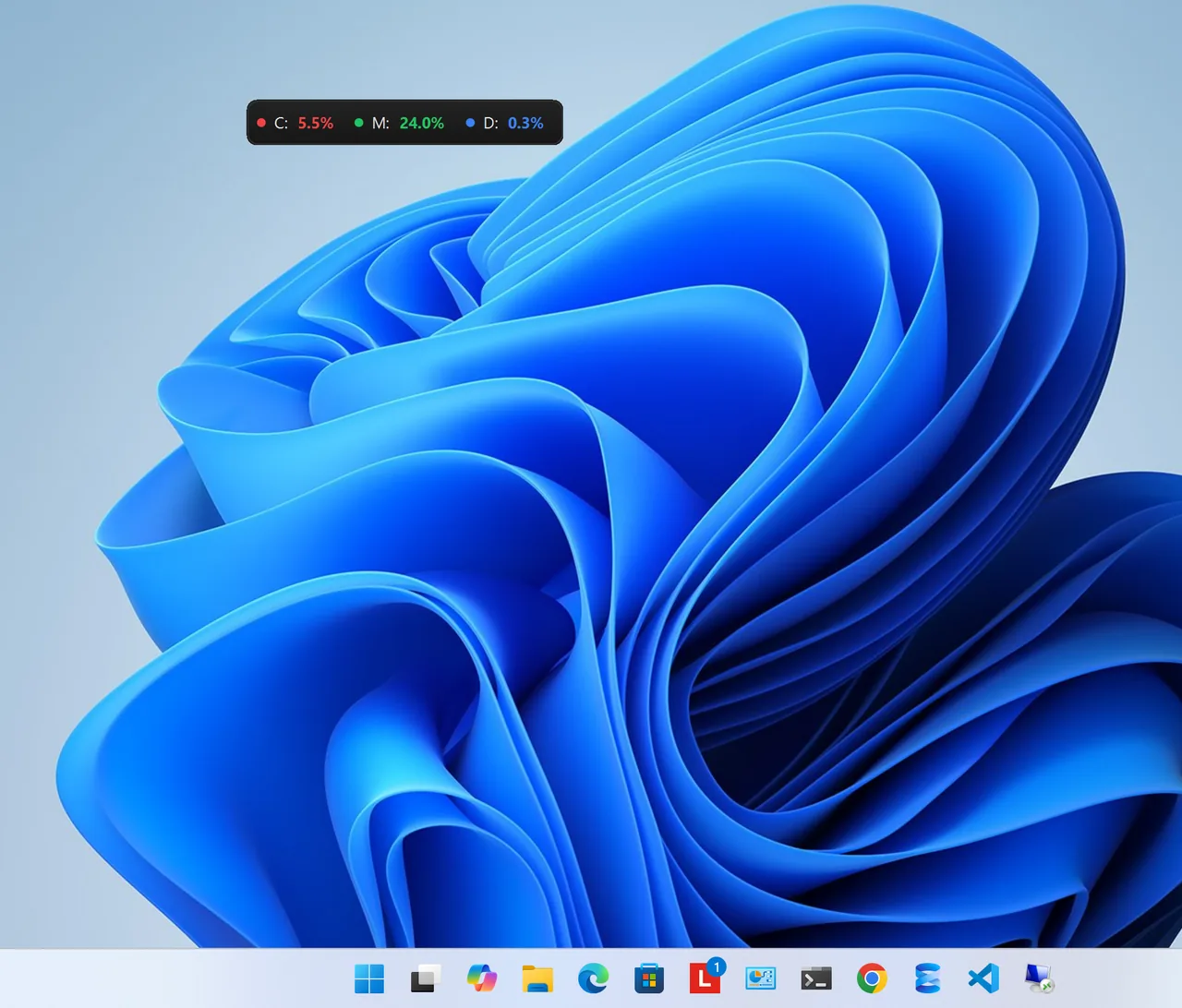
Or see full details in an app
Resource Monitors lists every drive with its model, type (SSD, HDD or NVMe), capacity, partitions and live read and write activity.
Upgrading from HDD to SSD
- Pick the right type: 2.5-inch SATA for older laptops, M.2 NVMe if there is a slot.
- Choose at least 500 GB; 1 TB is the sweet spot for Windows, apps and some games.
- Clone the old drive with the SSD maker's free tool, or install Windows fresh and restore your files.
- Keep the old HDD as a second drive for backups or media if your PC has room.
Verdict
- Choose an SSD for the drive Windows runs on. Every PC benefits.
- Choose an HDD for cheap, large storage: backups, photo and video archives, a home media server.
- Best setup: an NVMe SSD for Windows and apps, plus an HDD or external drive for bulk files.
How Much SSD Space Do You Need?
- 256 GB: tight for Windows 11 plus apps after a year of updates. Only for light use with cloud storage.
- 500 GB: enough for Windows, office apps, photos and a few games.
- 1 TB: the sweet spot for most people, including gamers with a handful of large titles.
- 2 TB or more: big game libraries, video editing and anyone who wants to stop managing space.
Keep 15–20% of an SSD free; very full SSDs slow down and wear slightly faster.
FAQ
Is an SSD worth it for an old PC?
Yes. It is usually the single best upgrade: boot and app launch times drop from minutes to seconds.
Do SSDs need defragmenting?
No. Windows runs TRIM on SSDs automatically instead. Do not run a manual defrag on an SSD.
Which lasts longer, SSD or HDD?
For normal home use, a modern SSD typically outlasts an HDD, because it has no moving parts. Both need backups.
Does an SSD improve gaming?
It cuts loading times a lot and stops stutter in games that stream data. It does not raise FPS by itself.
Conclusion
SSDs win on speed, silence and durability; HDDs win on price per terabyte. Run Windows on an SSD, keep an HDD for big, cheap storage, and check which one your PC has today. For more tools, see all system apps for Windows.