System How-to
How to Check Hard Drive Health on Windows 11 & 10
Check hard drive and SSD health on Windows: built-in Drive health in Settings, a PowerShell command, CHKDSK and S.M.A.R.T., plus warning signs of failure.
On this page
To check hard drive health on Windows 11, open Settings, System, Storage, Advanced storage settings, Disks & volumes, select the drive and choose Properties: NVMe SSDs show estimated remaining life and temperature. For any drive, run Get-PhysicalDisk in PowerShell and read HealthStatus. A S.M.A.R.T. monitor gives the full picture and warns before a drive fails.
Time: 2 minutes · Cost: free · Works on: Windows 11 and Windows 10
Drives rarely fail without warning. Slow file copies, clicking noises, freezes and files that will not open are often the first signs, and by then your photos and documents are at risk. The good news is that every modern drive tracks its own health. This guide shows how to check hard drive health on Windows, for both SSDs and HDDs, and what to do if the numbers look bad.
What Is S.M.A.R.T.?
S.M.A.R.T. (Self-Monitoring, Analysis and Reporting Technology) is a set of counters built into every hard drive and SSD: reallocated sectors, read errors, power-on hours, temperature and, on SSDs, how much of the drive's write life is used. Windows reads some of these values; dedicated tools read all of them.
Method 1: Drive Health in Settings (Windows 11)
-
Open Disks & volumes
Go to Settings, System, Storage, then Advanced storage settings, Disks & volumes.
-
Open the drive's properties
Select the drive (not a partition) and choose Properties.
-
Read Drive health
NVMe SSDs show Estimated remaining life, Available spare and Temperature. Windows also warns here, and with a notification, if the drive is at risk. SATA SSDs and HDDs usually do not show this section; use Method 2 or 4.
Method 2: PowerShell (Any Drive)
Open Terminal as administrator and run:
Get-PhysicalDisk | Select-Object FriendlyName, MediaType, HealthStatus, OperationalStatusHealthy and OK are what you want. Warning or Unhealthy means back up now. For more detail, including wear, temperature and error counts:
Get-PhysicalDisk | Get-StorageReliabilityCounter | Select-Object DeviceId, Wear, Temperature, ReadErrorsTotal, PowerOnHoursWear is the percentage of an SSD's life used. Some drives leave fields blank; that is a limit of the drive, not a problem.
Method 3: CHKDSK (File System Errors)
CHKDSK checks the file system rather than the hardware. Run it if files are corrupt or Windows asks to repair a drive:
chkdsk C: /scanThe scan runs online without a restart. If it finds problems, run chkdsk C: /f and restart to fix them. On HDDs, /r also checks for bad sectors, but it can take hours.
Method 4: A S.M.A.R.T. Monitor
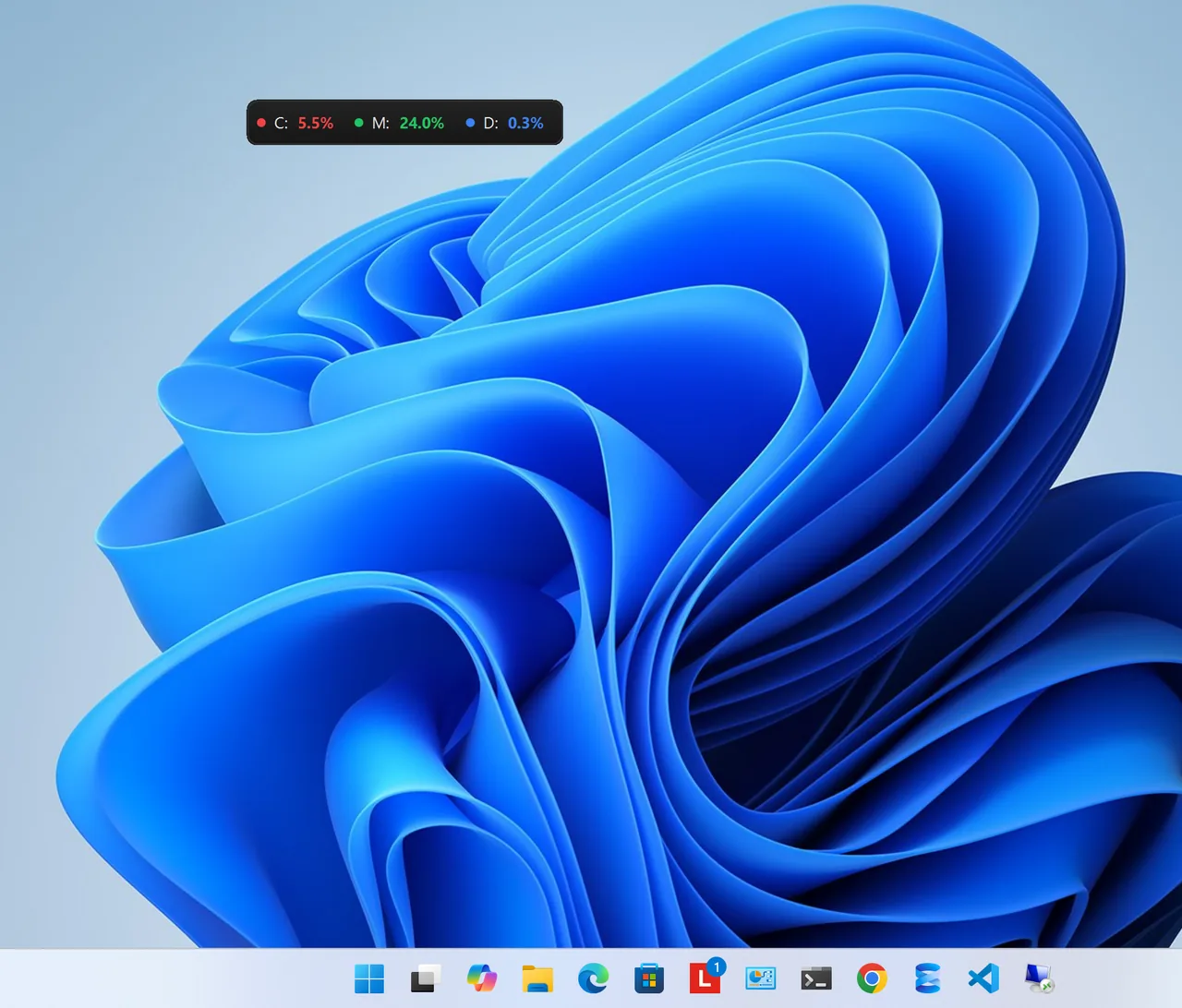
Resource Monitors shows every drive's model, type (SSD, HDD or NVMe), capacity and live read and write activity for free. Its Premium Drive Health feature reads the full S.M.A.R.T. data with predictive failure analysis, so you get a warning before the drive dies, along with temperature sensors and battery health.
Drive makers also offer free tools, such as Samsung Magician, WD Dashboard, Crucial Storage Executive and Seagate SeaTools, which read their own drives in detail and update firmware.
How to Read the Results
| Value | Good | Act now |
|---|---|---|
| HealthStatus | Healthy | Warning or Unhealthy |
| SSD remaining life | Above 20% | Below 10% |
| Reallocated / pending sectors (HDD) | 0 | Any number that keeps rising |
| Temperature | Under 50 °C (HDD), under 70 °C (NVMe) | Constantly higher |
Warning Signs of a Failing Drive
- Clicking, grinding or repeated spin-up sounds from an HDD.
- Very slow file copies or long freezes when opening files.
- Files or folders that suddenly will not open, or disappear.
- Blue screens mentioning the disk, or Windows asking to repair the drive at every boot.
What to Do If the Drive Is Failing
- Back up first, starting with the files you cannot replace. Do not run long scans before you have a copy.
- Replace the drive. SSDs are cheap, and moving from an HDD to an SSD makes the PC much faster too; see SSD vs HDD.
- Clone the old drive to the new one, or reinstall Windows and restore your backup.
A nearly full drive is not a failing drive, but it does slow Windows down: see how to free up disk space on Windows 11. To find your drive's exact model, see how to check PC specs.
FAQ
How long do SSDs and hard drives last?
Typically 5–10 years for SSDs and 3–6 years for HDDs in normal use. Health counters tell you more than age does.
Does CHKDSK check SSD health?
No. CHKDSK checks the file system. Use Drive health in Settings, PowerShell or a S.M.A.R.T. tool for the hardware.
Why does Settings not show Drive health?
Windows shows it mainly for NVMe SSDs. SATA SSDs and HDDs need PowerShell or a S.M.A.R.T. app.
Is wmic diskdrive get status still useful?
WMIC is deprecated and being removed from Windows 11. Use Get-PhysicalDisk in PowerShell instead.
Conclusion
Check Drive health in Settings for NVMe SSDs, run Get-PhysicalDisk for any drive, and use a S.M.A.R.T.
monitor if you want early warnings. If anything looks wrong, back up before you do anything else. For more tools, see
all system apps for Windows.