Network Fix
Wi-Fi Not Showing Up on Windows 11? 10 Fixes
Wi-Fi not showing up on Windows 11? Bring back a missing Wi-Fi option or fix 'no networks found' with airplane mode, driver, service and reset fixes.
On this page
If Wi-Fi is not showing up on Windows 11, turn airplane mode on and off, check for a physical Wi-Fi switch or Fn key, and restart the PC. If the Wi-Fi button is missing entirely, open Device Manager, enable or reinstall the wireless adapter, and make sure the WLAN AutoConfig service is running. If Wi-Fi is on but your network is not listed, restart the router and check that its band (2.4 or 5 GHz) is supported.
Time: 5–20 minutes · Cost: free · Works on: Windows 11 (and Windows 10)
You click the network icon and the Wi-Fi button is gone, or Wi-Fi is on but the list says "No Wi-Fi networks found". Either way you cannot connect. When Wi-Fi is not showing up on Windows 11, the cause is almost always one of three things: the adapter is switched off, its driver has failed, or the PC cannot see your router's signal. This guide helps you find out which, then fixes it.
Which Problem Do You Have?
| Symptom | Likely cause | Go to |
|---|---|---|
| No Wi-Fi button in Quick Settings or Settings | Adapter disabled, driver missing or failed | Fix 3–7 |
| Wi-Fi is on but "No Wi-Fi networks found" | Radio off, hardware switch, service stopped | Fix 1–2, 6 |
| Other networks show, but not yours | Router band, hidden SSID or channel | Fix 8–9 |
| Wi-Fi disappears after sleep | Power management turns the adapter off | Fix 5 |
If your network shows up but the connection keeps dropping, that is a different problem: see Wi-Fi keeps disconnecting on Windows 11.
10 Fixes for Wi-Fi Not Showing Up
-
Toggle airplane mode and restart
Press Win+A, turn Airplane mode on, wait 10 seconds, turn it off. Then restart the PC (Restart, not Shut down, because Fast Startup keeps the driver state across a shutdown).
-
Check the Wi-Fi key or switch
Many laptops have an Fn key with an antenna icon (often F2, F5 or F12) or a small switch on the side. Press or flip it once and wait a few seconds. Some laptops also have a wireless setting in the BIOS/UEFI; make sure WLAN is enabled there.
-
Enable the adapter
Press Win+R, type
ncpa.cpland press Enter. If the Wi-Fi adapter is grey and says Disabled, right-click it and choose Enable. You can also do this in Settings > Network & internet > Advanced network settings. -
Check Device Manager
Right-click Start > Device Manager > Network adapters. Look for a name with Wireless, Wi-Fi, WLAN or 802.11. A down arrow means it is disabled (right-click > Enable device). A yellow warning means the driver failed. If no wireless adapter is listed, choose View > Show hidden devices and Action > Scan for hardware changes.
-
Stop Windows turning the adapter off
In Device Manager, double-click the Wi-Fi adapter > Power Management tab and untick Allow the computer to turn off this device to save power. This fixes Wi-Fi vanishing after sleep on many laptops.
-
Start the WLAN AutoConfig service
Press Win+R, type
services.msc, find WLAN AutoConfig, set Startup type to Automatic and click Start. Without this service Windows cannot scan for networks. -
Reinstall or roll back the driver
Right-click the adapter in Device Manager > Uninstall device (leave "delete driver" unticked) and restart; Windows reinstalls it. If Wi-Fi broke after an update, open the adapter's Driver tab and choose Roll Back Driver. Still nothing? Download the latest Wi-Fi driver from your laptop maker on another device and install it from a USB stick.
-
Check the router's band and channel
Older adapters see only 2.4 GHz, and some cannot use 5 GHz channels above 48 or 6 GHz Wi-Fi 6E. If phones see your network but the PC does not, enable the 2.4 GHz band on the router or set 5 GHz to a channel between 36 and 48. Background: 2.4 GHz vs 5 GHz Wi-Fi.
-
Connect to a hidden network manually
If the router hides its name, it never appears in the list. Open Settings > Network & internet > Wi-Fi > Manage known networks > Add network, type the exact name, security type and password, and tick Connect even if this network is not broadcasting.
-
Network reset
Settings > Network & internet > Advanced network settings > Network reset reinstalls every network adapter and restores default settings. It removes saved Wi-Fi passwords. Details in reset network settings on Windows 11.
Check the Adapter from the Command Line
This command shows whether Windows sees a wireless adapter at all, and its radio state:
netsh wlan show interfaces"There is no wireless interface on the system" means Windows cannot see the adapter: go back to Device Manager and the driver fixes. If an interface is listed with "Radio status: Hardware Off", use the Fn key or switch. "Software Off" means airplane mode or Windows has turned it off.
To list the networks Windows can see, with signal strength and band, run:
netsh wlan show networks mode=bssidAfter Wi-Fi Is Back: Check the Connection
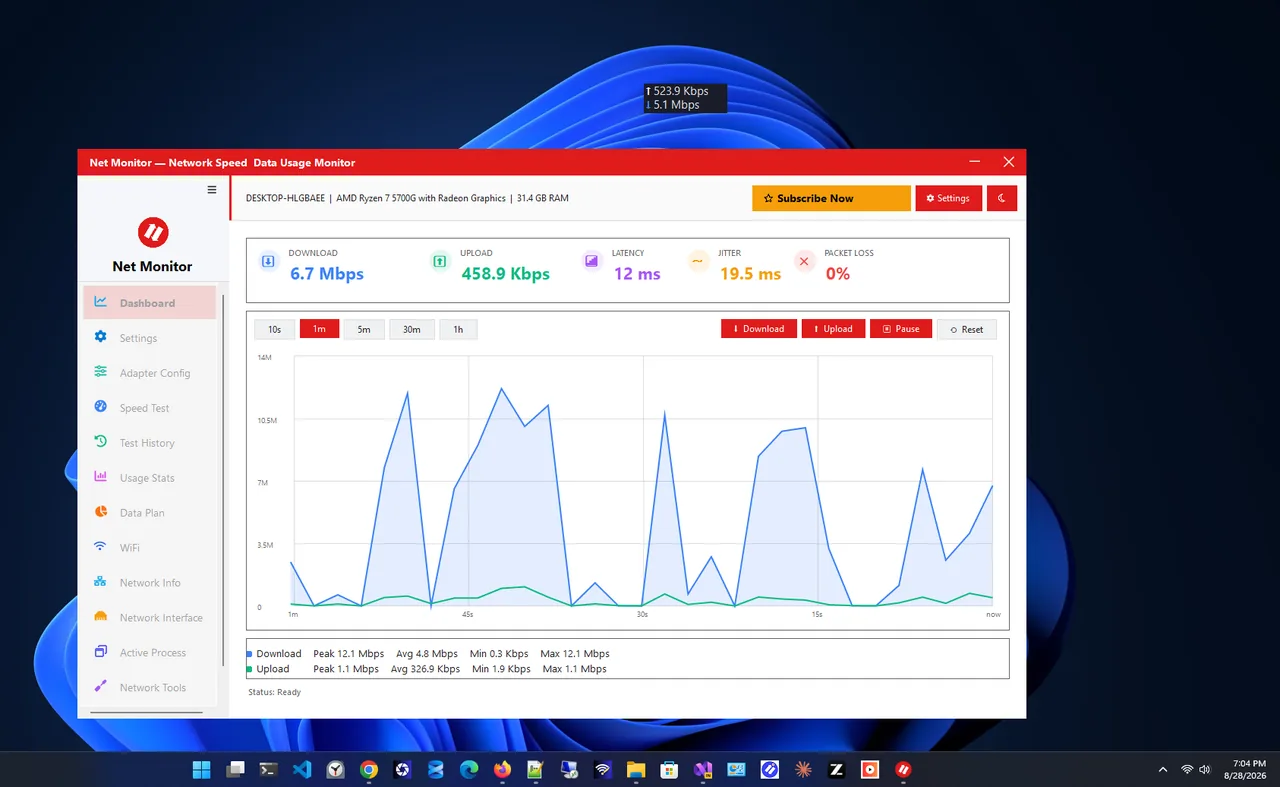
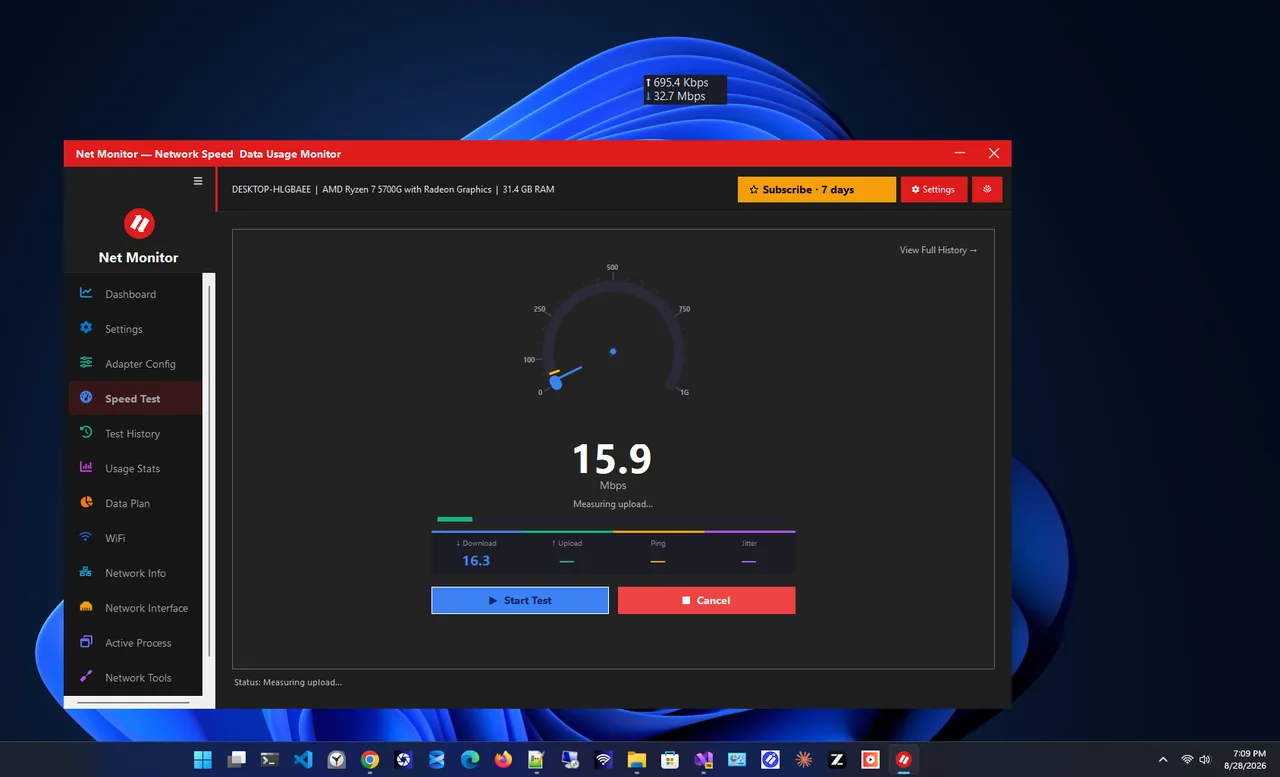
Once you are connected, make sure the link is healthy. Net Monitor shows your live download and upload speed, keeps a usage history and runs a speed test, so you can see straight away whether the adapter is delivering normal speed or still struggling.
When It Is a Hardware Problem
If the adapter never appears in Device Manager, even after a BIOS check and a driver install, the Wi-Fi card may have failed or come loose. A USB Wi-Fi adapter is a cheap test: if it works, the internal card is the problem. Desktop PCs without Wi-Fi need an adapter or an Ethernet cable.
FAQ
Why did the Wi-Fi option disappear in Windows 11?
Usually the Wi-Fi driver failed after an update or sleep, or the adapter was disabled. Restart, then check Device Manager and reinstall or roll back the driver.
Why does my phone see my Wi-Fi but my laptop does not?
Your router may be using a band or channel the laptop's adapter does not support, such as 6 GHz or high 5 GHz channels. Enable 2.4 GHz or pick channel 36–48.
Will a network reset delete my files?
No. It only reinstalls network adapters and removes saved network settings like Wi-Fi passwords and VPN adapters.
How do I turn Wi-Fi on without the Wi-Fi button?
Enable the adapter in ncpa.cpl or Device Manager. Once the adapter and driver work, the Wi-Fi button comes back in Quick Settings.
Conclusion
When Wi-Fi is not showing up on Windows 11, start simple: airplane mode, the Fn key and a restart. Then check that the adapter is enabled and its driver works, and that WLAN AutoConfig is running. If only your network is missing, the router's band or channel is the likely cause. Browse more network apps for Windows.