System Explainer
Are Registry Cleaners Safe? The Honest Answer
Are registry cleaners safe, and do they speed up Windows 11? What they really do, the risks, when a registry fix helps and how to back up first.

On this page
Reputable registry cleaners are generally safe if they back up the registry first and only remove clearly orphaned entries, but they rarely make Windows 10 or 11 noticeably faster. Leftover registry keys take a tiny amount of space and Windows ignores them. A registry fix is useful for specific problems, such as broken file associations or traces of an uninstalled app. For real speed gains, focus on startup apps, disk space and drivers. Avoid tools that promise huge speed-ups or show scary error counts.
Many PC cleaner apps advertise "1,248 registry errors found!" and promise a faster PC. Microsoft, on the other hand, does not support registry cleaners. So are registry cleaners safe, and are they worth using? This guide explains what the registry is, what cleaners actually change, the real risks and benefits, and how to use one carefully if you decide to.
What Is the Windows Registry?
The registry is a database where Windows and apps store settings: which program opens .pdf files, what runs at startup, hardware configuration, user preferences and much more. It contains hundreds of thousands of entries. When you uninstall an app, some of its entries often stay behind. These leftovers are what registry cleaners target.
What Registry Cleaners Do
- Remove keys for apps that are no longer installed.
- Delete references to files and folders that no longer exist (missing shared DLLs, old shortcuts, MRU lists).
- Fix broken file associations and invalid uninstall entries.
- Remove startup entries that point to missing programs.
Do Registry Cleaners Speed Up Windows?
Not noticeably on modern Windows. A few thousand orphaned keys add up to a few megabytes in a database Windows reads very efficiently, and it only reads the keys it needs. Removing them does not change boot time or app speed in any way you can measure. Claims of big speed improvements are marketing. What does make a PC faster is covered in how to speed up Windows 11: startup apps, free disk space, drivers, and an SSD.
The Risks
| Risk | What can happen | How to avoid it |
|---|---|---|
| Deleting a needed key | An app stops working or loses settings; rarely Windows features break | Use tools that back up first; review before deleting |
| Aggressive "deep" scans | More false positives | Use safe/default scan levels only |
| Scareware cleaners | Inflated error counts to sell a licence; some bundle adware | Use well-known apps from the Microsoft Store or the maker's site |
| No restore option | Mistakes cannot be undone | Create a restore point and registry backup |
When a Registry Fix Does Help
- Broken file associations after an uninstall, such as files that open in the wrong app or with an error.
- Leftovers blocking a reinstall, where an app says it is already installed.
- Startup entries for deleted programs that show errors at sign-in.
- Context menu clutter from apps you removed.
In these cases, a targeted fix solves a visible problem, which is the honest reason to use a registry tool.
How to Use a Registry Cleaner Safely
-
Create a restore point
Search "Create a restore point", select the C: drive, click Create. This lets you roll back the registry and system files if anything goes wrong.
-
Back up the registry
Open
regedit, select Computer at the top, choose File > Export and save the .reg file. Good cleaners also make their own backup automatically. -
Use a reputable tool on its default scan
Review the list before deleting, and skip anything related to drivers, security software or apps you still use.
-
Restart and test
Open your main apps. If something misbehaves, restore the backup or use System Restore.
A Balanced All-in-One Option
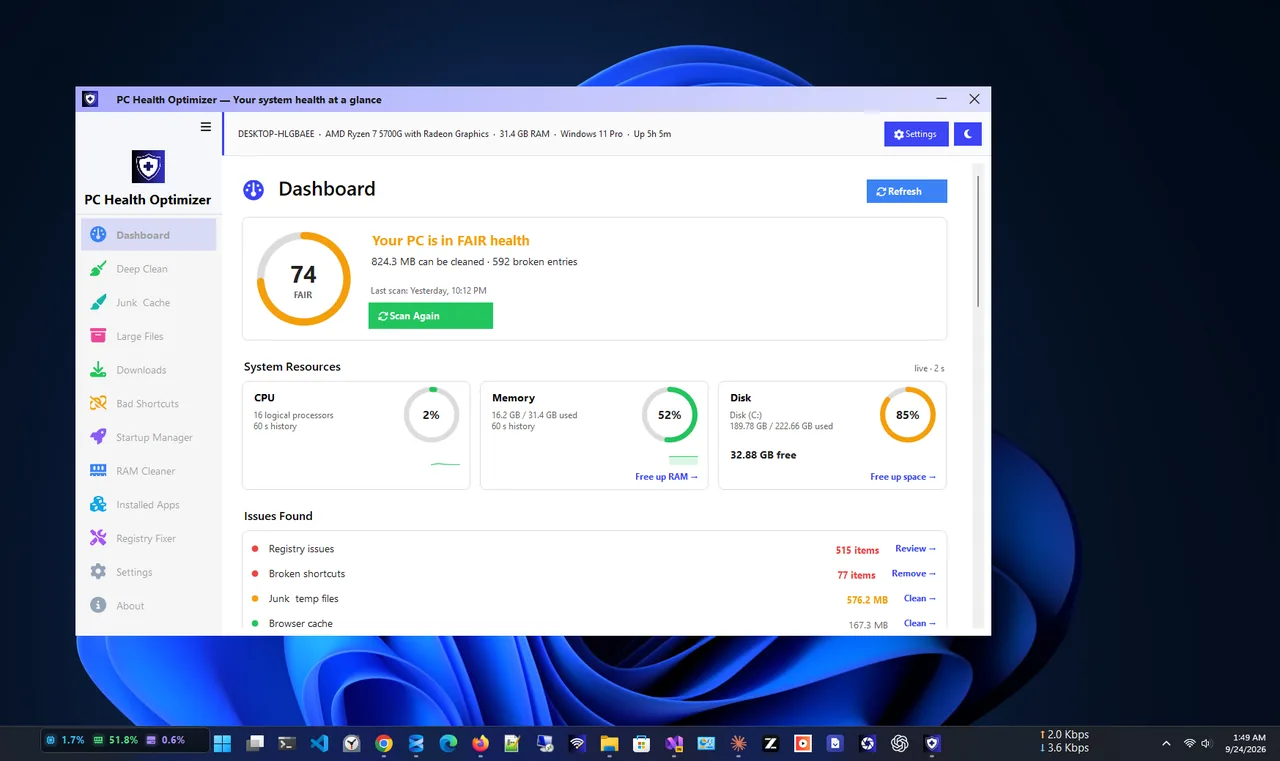
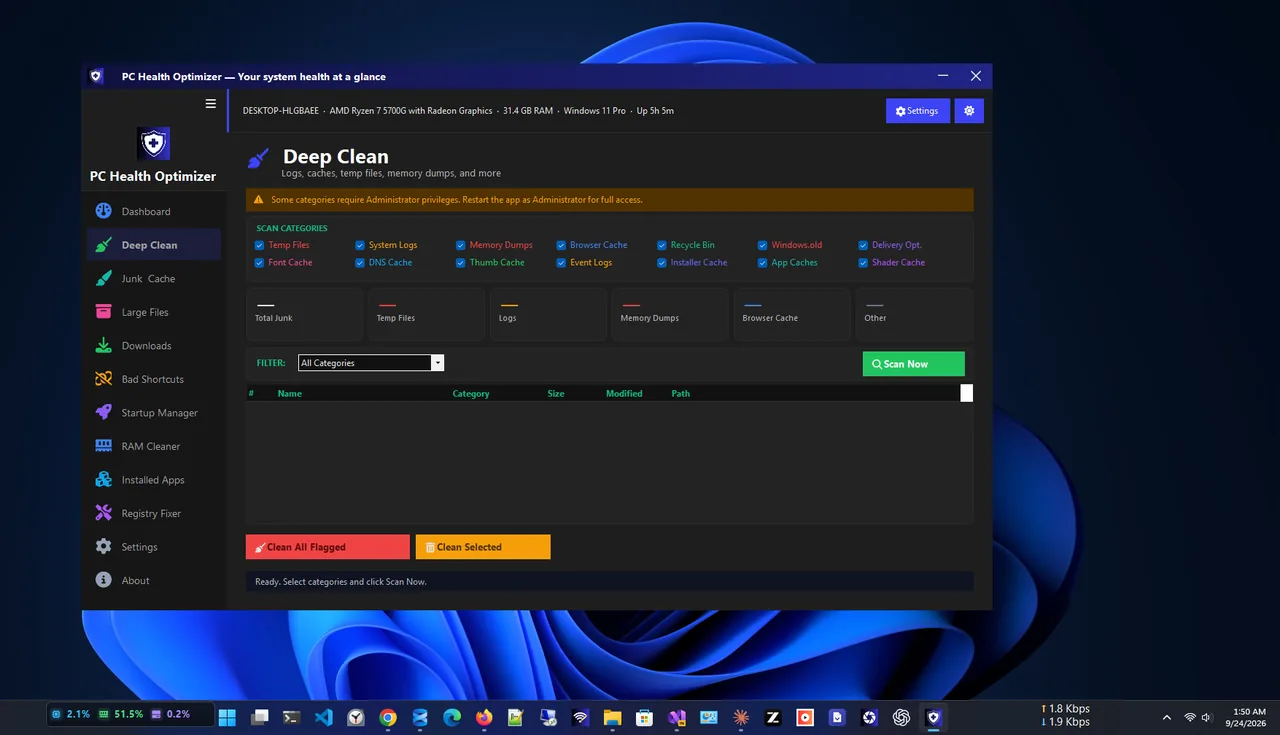
PC Health Optimizer includes a registry fixer as one part of a broader toolkit, next to a junk cleaner, startup manager and RAM view, with a health score that shows what is worth fixing. The junk cleaner and startup manager are where most of the real benefit comes from; the registry fixer is there for leftover entries after uninstalls.
For the bigger wins, see free up disk space on Windows 11 and disable startup programs on Windows 11.
Are Registry Cleaners Safe? Better Alternatives
- Uninstall apps properly through Settings > Apps, and use the maker's removal tool for antivirus software.
- Fix file associations in Settings > Apps > Default apps instead of editing the registry.
- Remove dead startup entries in Task Manager > Startup apps.
- Repair Windows itself with
sfc /scannowand DISM if something seems broken.
FAQ
Does Microsoft recommend registry cleaners?
No. Microsoft does not support them and warns that incorrect registry changes can cause problems. Windows does not need regular registry cleaning.
Can a registry cleaner break Windows?
Rarely with reputable tools on default settings, but it is possible. Always keep a restore point and registry backup.
How often should I clean the registry?
Only when you have a specific problem, such as leftovers after uninstalling an app. There is no need for a schedule.
Is CCleaner's registry cleaner safe?
Its default scan is conservative and offers a backup. The same advice applies: back up, review, and do not expect speed gains.
Conclusion
Reputable registry cleaners are safe when used with a backup, but they do not make modern Windows faster. Use them to fix specific leftovers, and put your effort into startup apps, disk space and drivers for real speed. Explore more system utilities for Windows 11.