System How-to
How to Disable Startup Programs on Windows 11
Disable startup programs on Windows 11 for a faster boot: Settings, Task Manager, the Startup folder and hidden tasks, plus which apps are safe to stop.
On this page
To disable startup programs on Windows 11, open Settings, Apps, Startup and switch off the apps you do not need when Windows starts. Task Manager's Startup apps tab (Ctrl + Shift + Esc) does the same and shows each app's startup impact. Disabled apps still work; they just do not open by themselves.
Time: 3 minutes · Cost: free · Works on: Windows 11 and Windows 10
Every app you install wants to start with Windows: chat apps, game launchers, updaters, cloud sync, printer helpers. Each one adds seconds to boot time and uses memory all day. When you disable startup programs on Windows 11, the PC starts faster and feels quicker, and nothing is uninstalled. This guide shows four ways to do it and what is safe to switch off.
Method 1: Settings
-
Open Startup settings
Press Win + I, then go to Apps, Startup.
-
Sort by impact
Use Sort by and choose Startup impact. Apps marked High slow boot the most.
-
Switch off what you do not need
Turn the switch off for each app you do not need the moment Windows starts. The change applies at the next restart.
Method 2: Task Manager
Press Ctrl + Shift + Esc and select Startup apps on the left. You see each app's publisher, status and startup impact. Right-click an app and choose Disable. Right-click and choose Open file location if you do not recognise a name.
Tip: right-click a column header and add CPU at startup to see exactly how much each app costs.
Method 3: The Startup Folder
Some programs start from a shortcut in the Startup folder instead. Press Win + R, type shell:startup and press Enter for your account, or shell:common startup for all users. Delete shortcuts you do not want; this only removes the shortcut, not the program. You can also add your own shortcuts here to start an app automatically.
Method 4: Use a Startup Manager
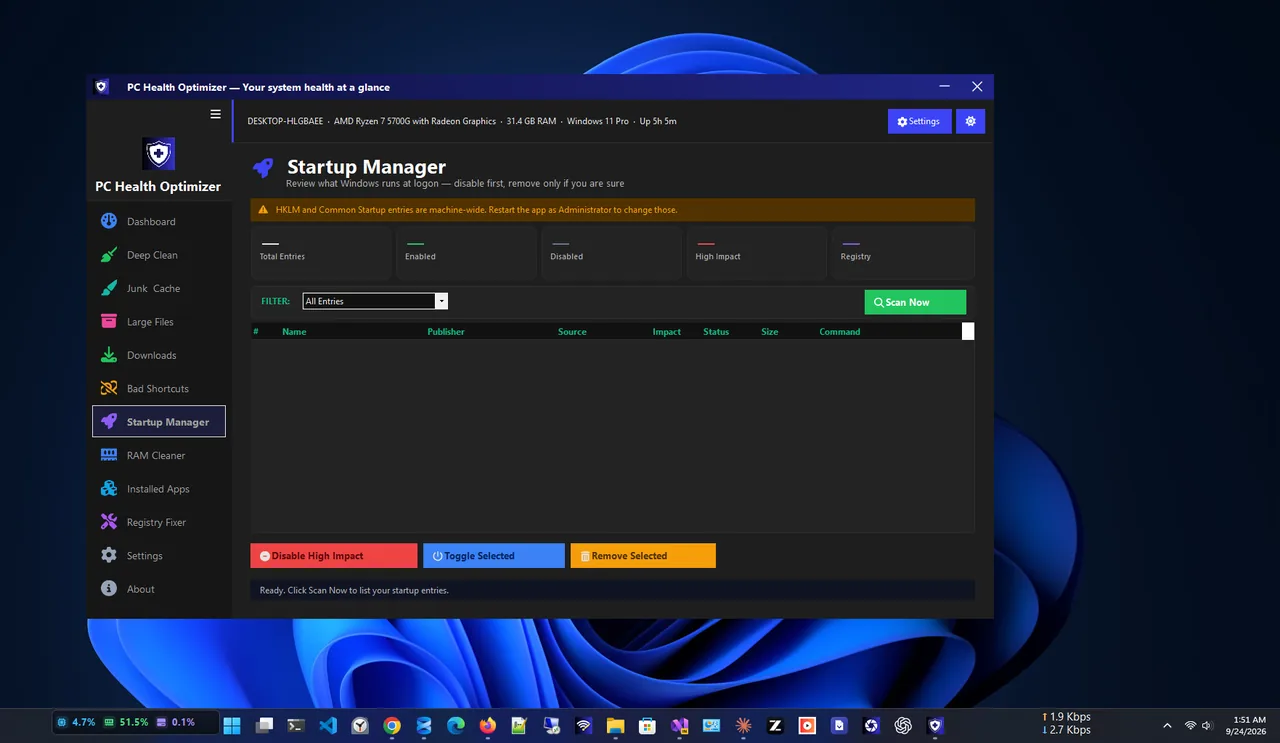
PC Health Optimizer includes a Startup Manager that lists apps that start with Windows and lets you disable them in one place, next to its junk cleaner and RAM cleaner. It is free, with no account and no internet connection needed.
What Is Safe to Disable?
| Usually safe to disable | Usually keep enabled |
|---|---|
| Chat apps (Teams personal, Discord, Skype, WhatsApp) | Antivirus and security apps |
| Game launchers (Steam, Epic, EA, Battle.net) | Touchpad, audio and graphics control panels |
| Music and video apps (Spotify) | Cloud sync you rely on (OneDrive, Google Drive) |
| Updaters and helpers (Adobe, Java, browser updaters) | Keyboard, pen or hotkey utilities you use |
| Microsoft Edge and Copilot startup boosts | Backup software with a schedule |
Not sure about an app? Disable it, restart and use the PC for a day. If something is missing, switch it back on. Nothing breaks permanently.
Apps That Still Start (Hidden Startup)
- The app's own setting. Many apps re-enable themselves. Turn off "Start with Windows" or "Open at login" inside the app's settings too.
- Task Scheduler. Search Start for Task Scheduler and open Task Scheduler Library. Updaters often run from here; disable tasks only for apps you recognise.
- Services. Leave services alone unless you know what they do. In
msconfig, tick "Hide all Microsoft services" before changing anything.
Measure the Difference
Restart before and after, and time how long until the desktop is usable. On a PC with many startup apps, cutting them often saves 10–30 seconds and frees several hundred MB of memory. If boot is still slow, the drive may be nearly full: see how to free up disk space, or follow the full list in speed up Windows 11.
Troubleshooting
- The Startup page is empty. Update Windows. Task Manager's Startup apps tab shows the same list.
- A disabled app is back. It re-enabled itself; turn off its own start-with-Windows option.
- A device stopped working after disabling. Re-enable the maker's helper app, such as audio or touchpad software.
More boot fixes are in Windows 11 slow boot.
FAQ
Does disabling startup programs delete them?
No. The apps stay installed and work normally when you open them. They just do not launch by themselves.
How many startup programs should I have?
As few as possible: security software, device helpers and the one or two apps you open every single time.
What does Startup impact mean?
Windows measures how much CPU and disk time each app uses during boot. High means it noticeably slows startup.
Is it the same on Windows 10?
Yes. Settings, Apps, Startup and Task Manager's Startup tab work the same way on Windows 10.
Conclusion
Open Settings, Apps, Startup, sort by impact and switch off what you do not need. Check the Startup folder and the apps' own settings for anything that keeps coming back. It is the easiest speed win on any Windows PC. For more tools, see all system apps for Windows.