System Explainer
How Long Do SSDs Last? Lifespan and TBW Explained
How long do SSDs last? Most last 5 to 10+ years. What TBW and wear level mean, how to check SSD health on Windows, and signs of a failing drive.

On this page
Most SSDs last 5 to 10 years or more in normal use. Their lifespan is rated in TBW (terabytes written): a typical 1 TB SSD is rated for 600 TBW, and an average home user writes 10–30 GB a day, which would take over 50 years to reach. In practice, SSDs are more likely to be replaced for being too small or slow than to wear out. Check health regularly and keep backups anyway, because any drive can fail suddenly.
SSDs have a reputation for "wearing out" because flash memory cells survive only a limited number of writes. So how long do SSDs last in real life? Much longer than most people expect. This guide explains how SSD wear works, what the TBW and warranty numbers mean, how to check your drive's health on Windows, and the signs that it is time to replace it.
How Long Do SSDs Last? How They Wear Out
An SSD stores data in NAND flash cells. Every time a cell is erased and rewritten, it wears slightly. The drive's controller spreads writes evenly across all cells (wear levelling) and keeps spare cells to replace worn ones. Reading data causes almost no wear, so a drive full of photos and games that you mostly read barely ages. What matters is how much you write.
TBW, DWPD and Warranty
| Capacity | Typical TBW (consumer) | Years at 30 GB/day |
|---|---|---|
| 500 GB | 300 TBW | about 27 years |
| 1 TB | 600 TBW | about 55 years |
| 2 TB | 1,200 TBW | about 110 years |
| 4 TB | 2,400 TBW | about 220 years |
- TBW is the amount of data the maker guarantees you can write under warranty. Tests show many drives go well beyond it.
- DWPD (drive writes per day) is used for business drives: how many times the full capacity can be written daily during the warranty.
- Warranty is usually 3–5 years or the TBW, whichever comes first.
QLC vs TLC vs MLC
Cells that store more bits are cheaper but endure fewer writes. TLC (3 bits per cell) is the common middle ground. QLC (4 bits) is cheapest per GB with lower TBW, fine for games and media libraries but less ideal for heavy video editing. MLC (2 bits) is now rare and mostly in pro drives.
What Actually Kills SSDs
- Controller or firmware failure, not cell wear, is the most common cause of sudden death. Keep firmware updated.
- Power loss and surges can corrupt data on drives without power-loss protection.
- Heat: fast NVMe drives throttle above about 70°C; constant high heat ages components.
- Very heavy writes: video capture, databases, virtual machines and swap-heavy workloads on a nearly full drive.
Unlike hard drives, SSDs have no moving parts, so drops and vibration are not a concern. The full comparison is in SSD vs HDD.
How to Check SSD Health on Windows
-
Windows Settings
Settings > System > Storage > Advanced storage settings > Disks & volumes > select the SSD > Properties. Under Drive health, Windows shows estimated remaining life, available spare and temperature for NVMe drives.
-
PowerShell
PowerShell (Admin)Get-PhysicalDisk | Get-StorageReliabilityCounter | Select-Object DeviceId, Wear, Temperature, PowerOnHours, ReadErrorsTotalWear is the percentage of rated life used. Some drives do not report every value.
-
The maker's tool
Samsung Magician, WD Dashboard, Crucial Storage Executive and Kingston SSD Manager show total data written and update firmware.
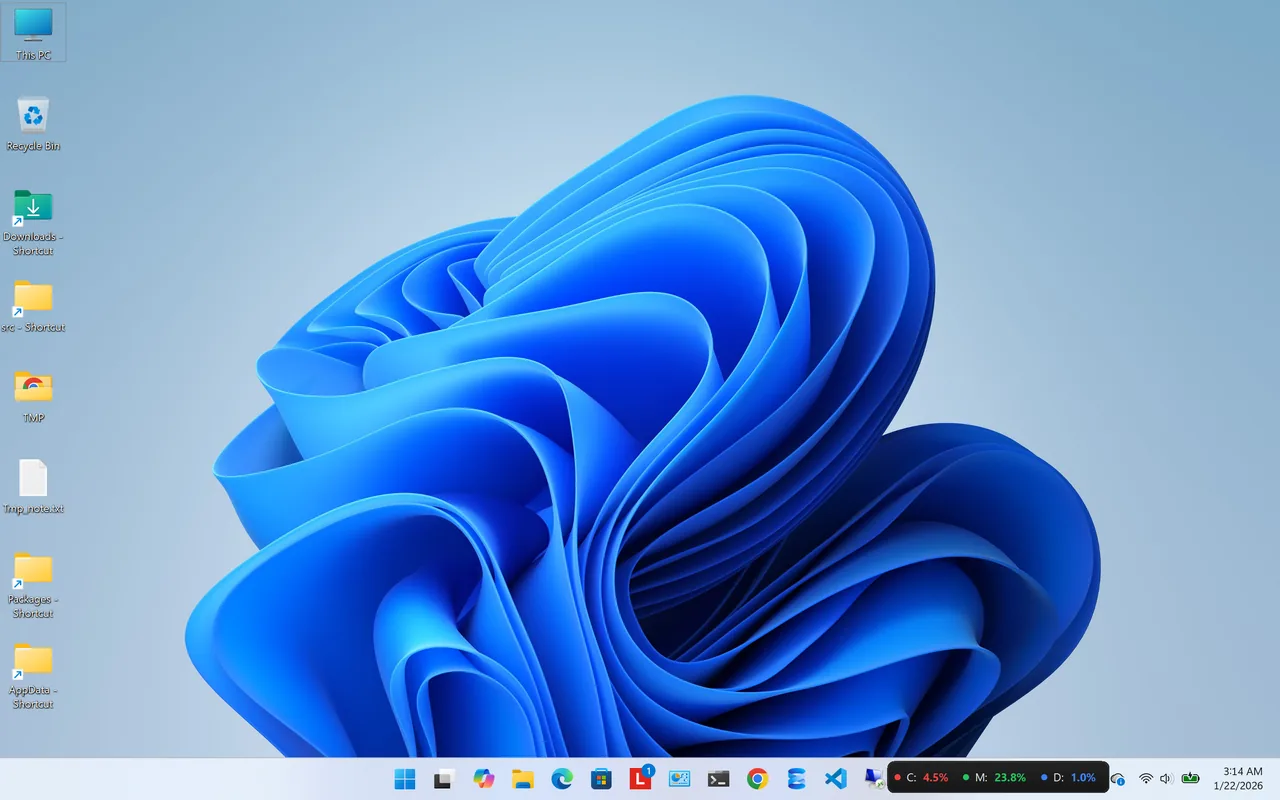
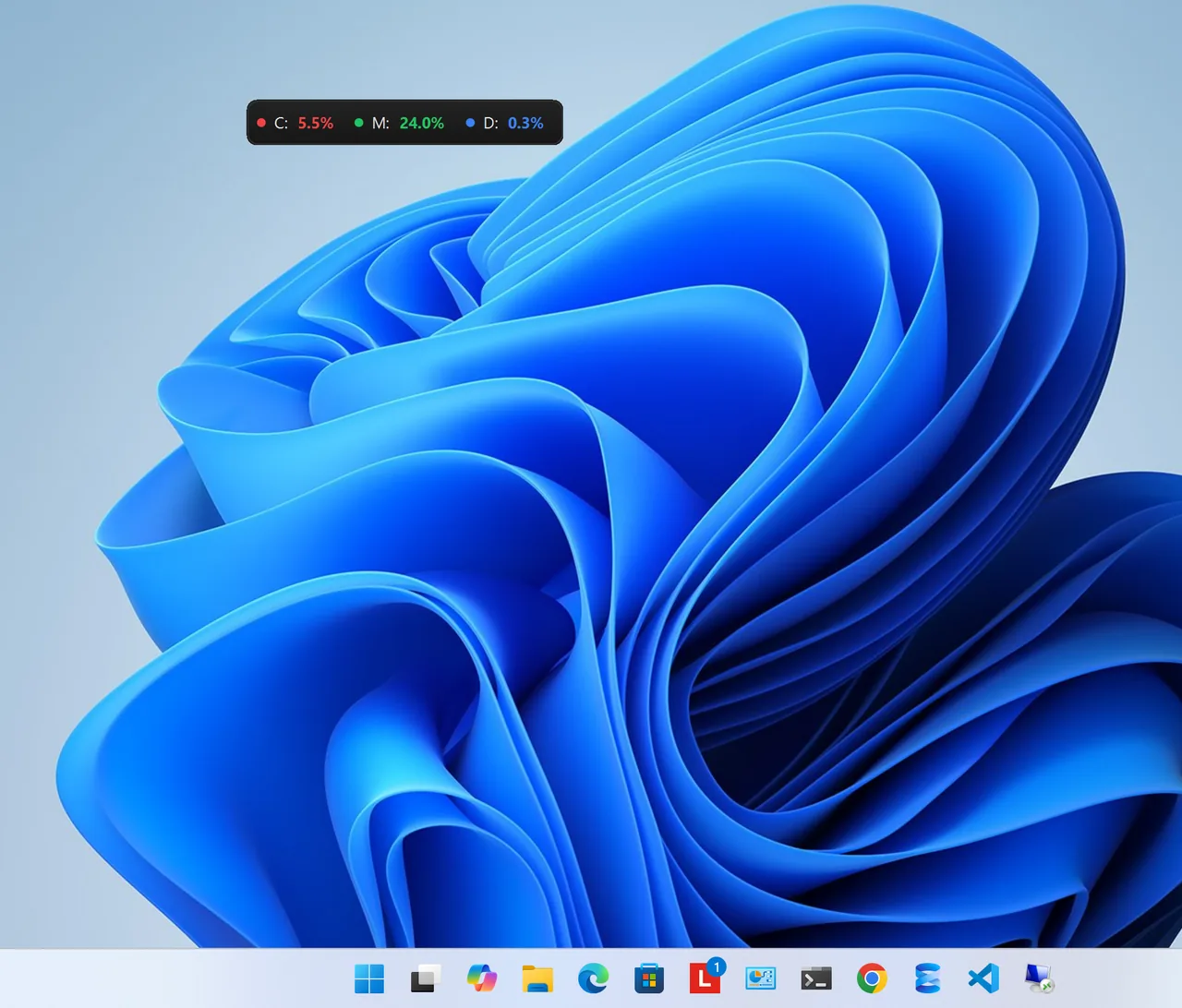
For day-to-day monitoring, Resource Monitors shows CPU, RAM, disk and drive health in a small widget, so a drive that starts reporting problems does not go unnoticed. More methods are in check hard drive health on Windows.
Warning Signs of a Failing SSD
- Wear or "percentage used" above 90%, or Windows warning about drive health.
- Files that fail to open or copy, and frequent "repairing disk" messages.
- The drive turning read-only (many SSDs lock to read-only at end of life so you can copy data off).
- Crashes, freezes or the drive disappearing from BIOS.
If you see these, back up immediately and replace the drive.
How to Make Your SSD Last Longer
- Leave free space. Keep 10–20% empty so wear levelling has room. See free up disk space on Windows 11.
- Keep TRIM on. Windows runs it automatically through Optimize Drives; do not defragment SSDs manually.
- Update firmware with the maker's tool.
- Do not disable the page file or use "SSD tweaker" tools; modern Windows already handles SSDs well.
FAQ
Do SSDs last longer than hard drives?
Generally yes. SSDs have no moving parts and typically outlast HDDs in laptops and desktops, though both can fail without warning.
Does an SSD lose data if left unpowered?
Over long periods, yes. A healthy consumer SSD keeps data for at least a year unpowered, but do not use one as long-term cold storage.
Is gaming bad for an SSD?
No. Games mostly read data. Installs and updates write, but far below the TBW limit.
What happens when an SSD reaches its TBW?
Usually nothing immediately. The warranty ends and the risk of errors rises gradually. Many drives keep working well past their rating.
Conclusion
SSDs last 5–10+ years for most people, and normal home use comes nowhere near their TBW rating. Sudden controller failure is a bigger risk than wear, so check health occasionally, update firmware and keep backups. Explore more system utilities for Windows 11.