System Fix
C Drive Full on Windows 11? Find What Filled It
C drive full on Windows 11? Find what is using the space: hibernation file, restore points, WinSxS, Windows.old, temp files and hidden app caches.
On this page
When the C drive is full on Windows 11, open Settings > System > Storage to see which category is largest, then check the usual hidden space users: the hibernation file (hiberfil.sys), System Restore points, Windows.old after an upgrade, the WinSxS component store, temp files and app caches. Run Disk Cleanup with Clean up system files, limit restore-point space, and move large personal folders to another drive.
Time: 15–30 minutes · Cost: free · Works on: Windows 11 (and Windows 10)
The C: bar is red, Windows warns about low disk space, and you are sure you have not saved that much. A C drive full on Windows 11 "for no reason" almost always has a reason: hidden system files, caches and leftovers that File Explorer does not show. This guide focuses on finding what filled the drive. For a general clean-up checklist, see how to free up disk space on Windows 11.
Step 1: Check Windows Storage Settings
Settings > System > Storage shows usage by category: Apps, Temporary files, System & reserved, Documents, Pictures and Other. Click Show more categories. The biggest bar tells you where to look next. Under Advanced storage settings > Storage used on other drives, you can see the same for each drive.
Step 2: The Usual Hidden Space Users
| What | Typical size | Safe fix |
|---|---|---|
| Hibernation file (hiberfil.sys) | 40–75% of RAM size | powercfg /h /type reduced, or powercfg /h off on desktops |
| Page file (pagefile.sys) | 2–16 GB+ | Leave on automatic; do not delete |
| System Restore points | Up to 5–10% of the drive | Limit the max usage (below) |
| Windows.old (after an upgrade) | 10–30 GB | Disk Cleanup > Previous Windows installation(s) |
| WinSxS component store | 5–15 GB | DISM /Online /Cleanup-Image /StartComponentCleanup |
| Temp files and update cache | 1–20 GB | Disk Cleanup or Storage > Temporary files |
| App caches (browsers, Teams, Steam, Adobe) | 1–50 GB | Clear in each app, or move libraries |
| Downloads and Recycle Bin | Varies | Review and empty |
Step 3: Fix It
-
Run Disk Cleanup with system files
Search "Disk Cleanup", choose C:, click Clean up system files. Tick Windows Update Cleanup, Delivery Optimization Files, Temporary files, Recycle Bin and (if present) Previous Windows installation(s).
-
Limit System Restore space
Search "Create a restore point" > select C: > Configure. Set Max Usage to about 3–5% and click Delete if you want to remove old points. Keep protection on.
-
Shrink or turn off hibernation
Terminal (Admin)powercfg /h /type reducedReduced keeps Fast Startup working with a smaller file. On a desktop that never hibernates,
powercfg /h offremoves the file entirely but also disables Fast Startup. -
Clean the component store
Run
DISM /Online /Cleanup-Image /StartComponentCleanupin Terminal (Admin). Never delete files from C:\Windows\WinSxS by hand. -
Find large files and folders
Old videos, ISO files, virtual machines and game installs often hide in Downloads or Documents. See how to find large files on Windows 11.
-
Remove duplicates
Phone backups and repeated downloads create many copies. Guide: find and remove duplicate files on Windows.
-
Turn on Storage Sense
Settings > System > Storage > Storage Sense on. Set it to clean temp files, empty the Recycle Bin after 30 days, and make OneDrive files online-only when unused.
-
Move personal folders and games
Right-click Documents, Pictures or Videos > Properties > Location > Move, to a second drive. Move game libraries in Steam (Settings > Storage) or Xbox app settings.
One-Click Deep Clean
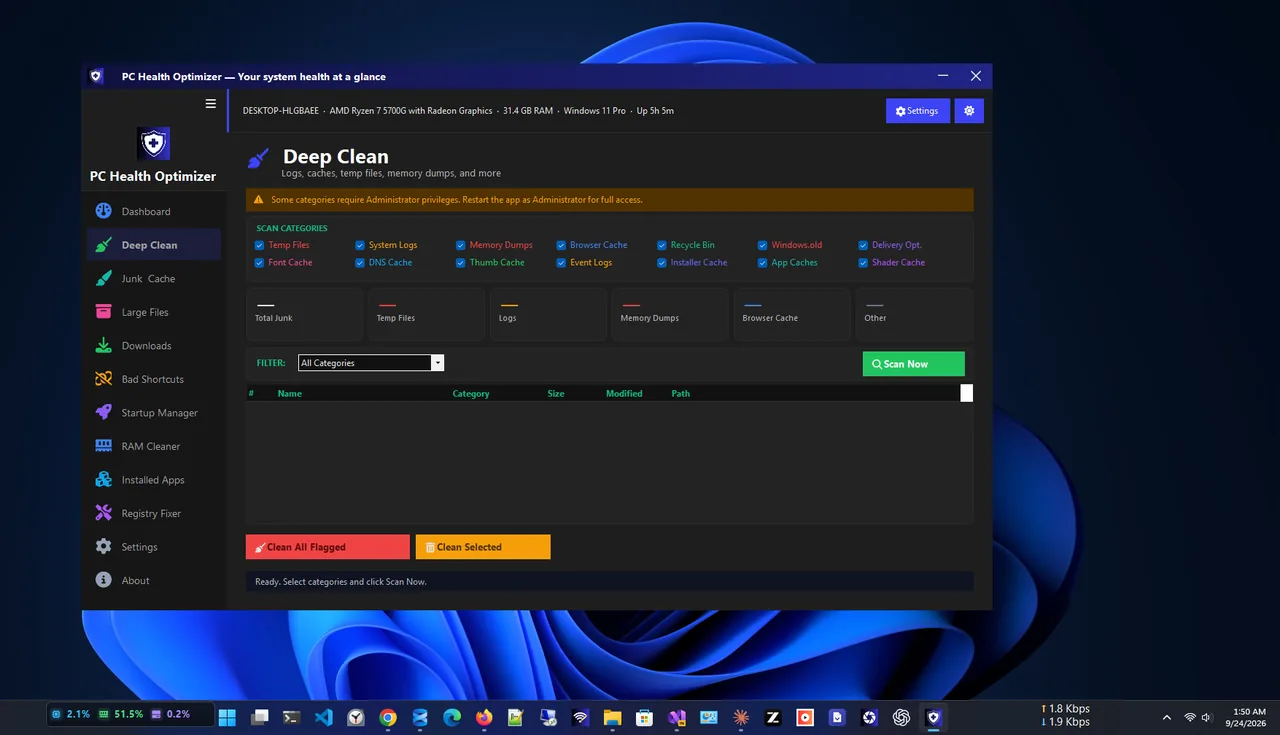
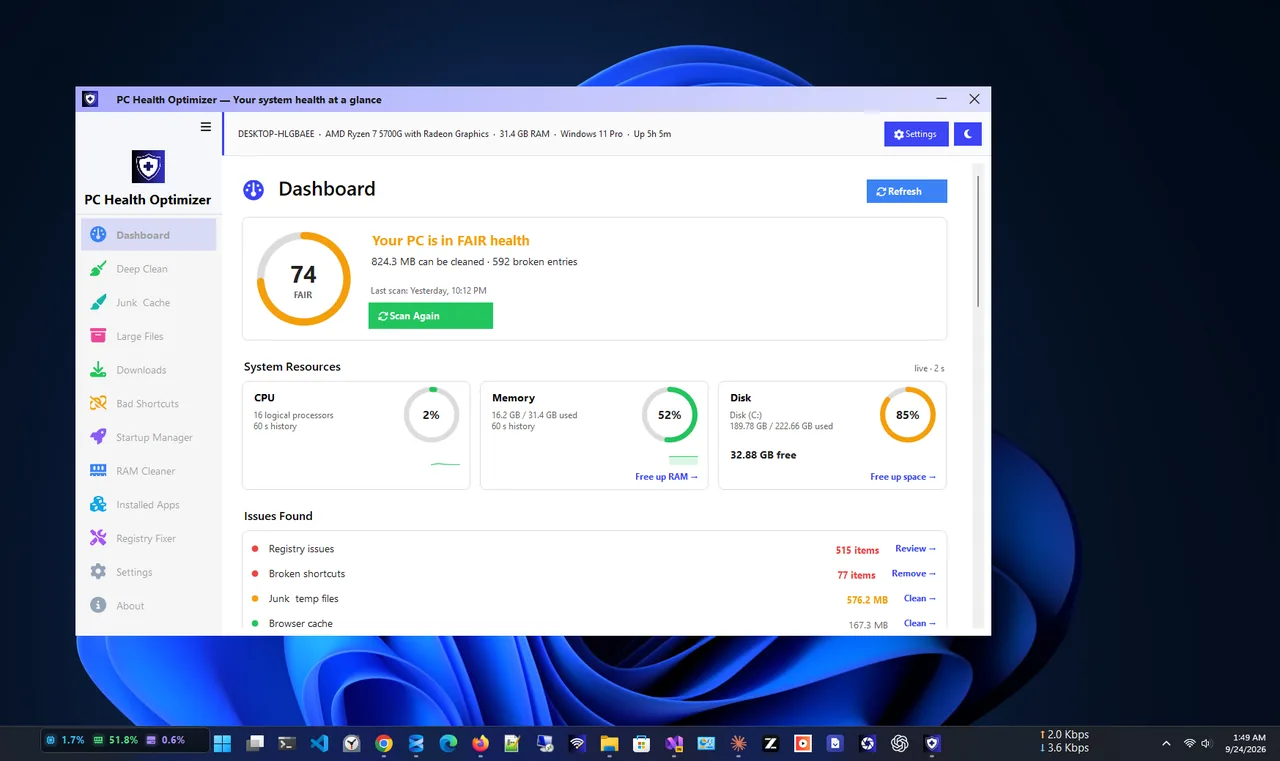
PC Health Optimizer runs a Deep Clean scan for logs, caches and temporary files and shows how much each category takes before you delete anything, alongside a health score and startup manager. It is a quick way to clear the junk part of a full C: drive.
What Not to Delete
- Anything in C:\Windows, C:\Windows\WinSxS or C:\Program Files by hand.
- pagefile.sys and swapfile.sys (manage through Settings only).
- The Installer folder (C:\Windows\Installer); apps need it to update and uninstall.
C Drive Full on a Small SSD?
Laptops with 128–256 GB drives fill up fast. Besides cleaning, consider an SD card or USB drive for media, OneDrive Files On-Demand for documents, or replacing the SSD with a larger one; many laptops use a standard M.2 slot, and cloning the old drive takes about an hour.
See Folder Sizes on the C Drive
To find big folders, open File Explorer, right-click a folder and choose Properties, starting with C:\Users\YourName. For a faster overview, run this in PowerShell to list the largest folders in your user profile:
Get-ChildItem $env:USERPROFILE -Directory | ForEach-Object {
  [pscustomobject]@{ Folder = $_.Name; GB = [math]::Round((Get-ChildItem $_.FullName -Recurse -File -ErrorAction SilentlyContinue | Measure-Object Length -Sum).Sum / 1GB, 2) }
} | Sort-Object GB -Descending
FAQ
Why does my C drive keep filling up by itself?
Updates, restore points, browser and app caches, and OneDrive or phone sync add files over time. Storage Sense and restore point limits keep it in check.
What is "System & reserved" in Storage?
Windows files, the page file, hibernation file, restore points and reserved storage for updates. Reduce it with the hibernation and restore point steps.
How much free space should C: have?
At least 10–15%, and 20 GB or more for smooth Windows updates.
Is it safe to delete Windows.old?
Yes, using Disk Cleanup, once you are happy with the new Windows version. You can no longer roll back.
Conclusion
A full C drive on Windows 11 is usually hidden system data: hibernation, restore points, Windows.old, WinSxS and caches. Check Storage settings, run Disk Cleanup with system files, limit restore points and move big folders, then let Storage Sense keep it tidy. Explore more system utilities for Windows 11.