System Fix
High Memory Usage on Windows 11? 10 Fixes
High memory usage on Windows 11? Find which app is using your RAM, tell normal caching from a real problem, and fix leaks, startup apps and browsers.
On this page
To fix high memory usage on Windows 11, open Task Manager (Ctrl+Shift+Esc), sort Processes by Memory and close or update the top app; browsers with many tabs are the most common cause. Then disable unneeded startup apps, restart the PC to clear memory leaks, scan for malware and make sure virtual memory is set to automatic. If memory is full during normal work every day, you need more RAM.
Time: 10–20 minutes · Cost: free · Works on: Windows 11 and Windows 10
Task Manager shows memory at 85–95%, the PC stutters when you switch apps, and the disk light flickers constantly. High memory usage on Windows 11 has a few common causes, and some of what looks like a problem is actually Windows using free RAM wisely. This guide helps you tell the difference, find what is using your memory, and fix it.
Is High Memory Usage Normal?
Windows keeps recently used files in RAM (the standby cache) so they open faster, and hands that memory back instantly when an app needs it. "Unused RAM is wasted RAM." So high usage alone is not a problem. It is a problem when:
- Task Manager's In use figure (not cached) stays above about 85% during normal work.
- The Committed value (Performance > Memory) is close to its limit.
- The PC slows down, apps reload tabs, or the disk is busy because Windows is paging to the drive.
Find What Is Using Your RAM
In Task Manager > Processes, click the Memory column. Expand groups (the arrow) to see individual browser tabs and helpers. Performance > Memory shows In use, Available, Committed and Cached, plus a graph that reveals whether usage creeps up over hours, the classic sign of a memory leak.
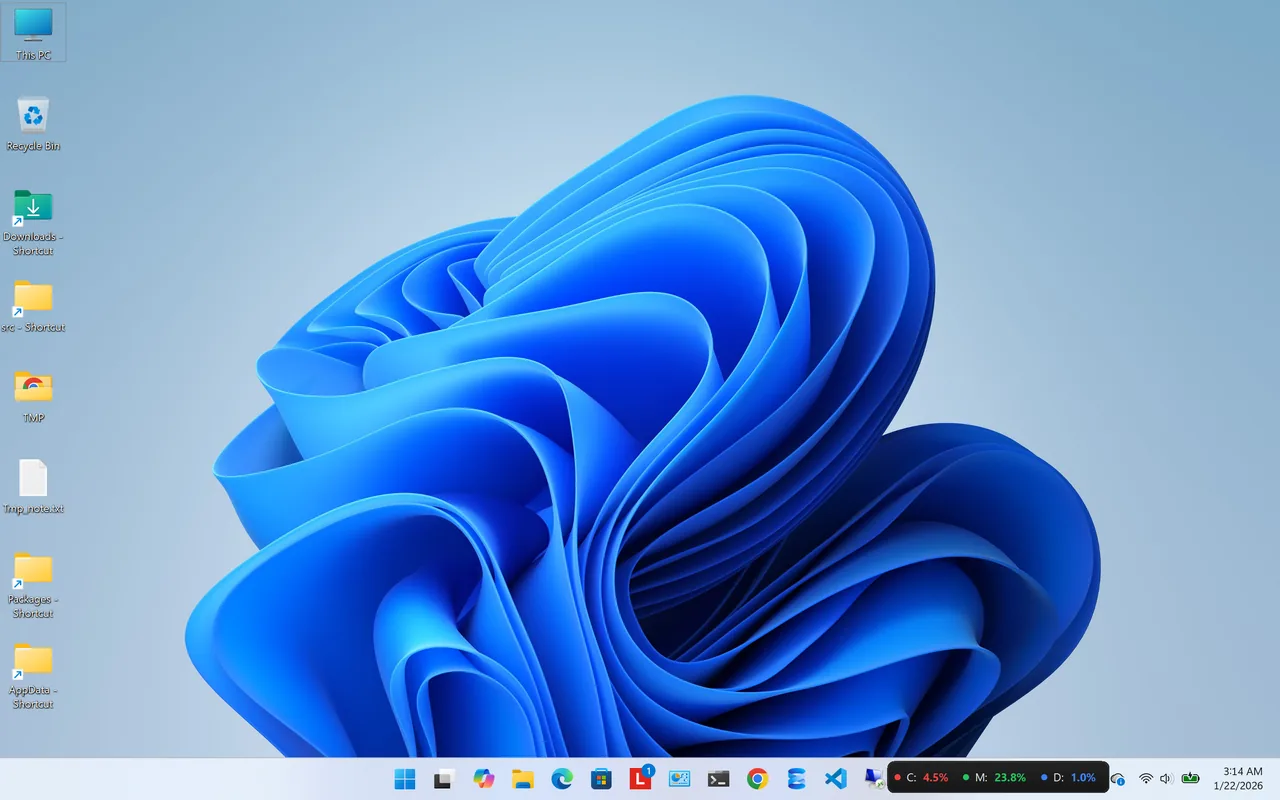
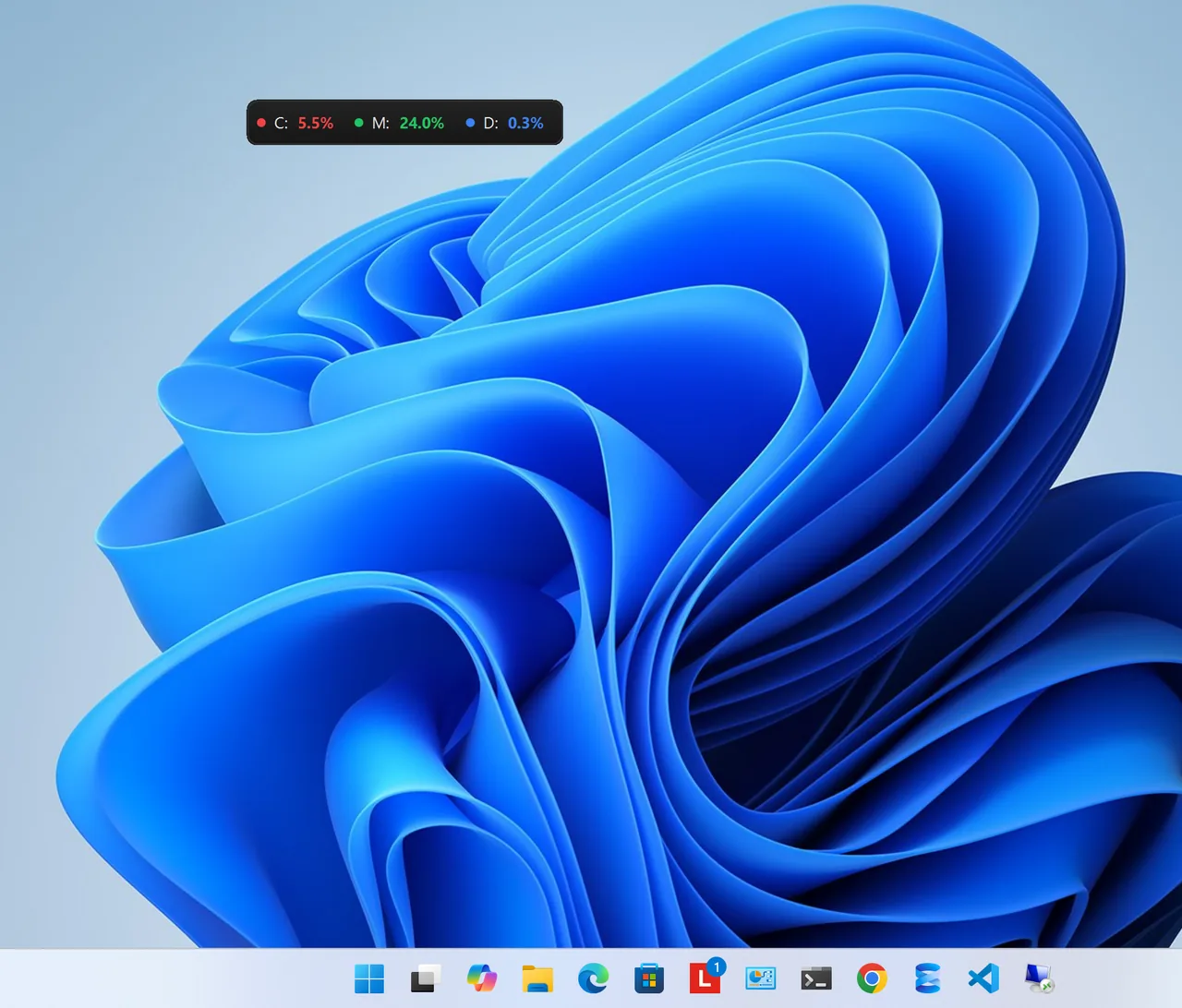
To keep an eye on memory without opening Task Manager, Resource Monitors shows CPU, RAM and disk usage in a small desktop widget next to the taskbar, so you see memory climbing as it happens.
10 Fixes for High Memory Usage
-
Close or tame the browser
Each tab can use 100–500 MB. Close tabs you do not need, remove unused extensions, and turn on Edge's Sleeping tabs or Chrome's Memory Saver (Settings > Performance).
-
Restart the PC
A restart (not a shutdown with Fast Startup) clears memory leaks from apps and drivers. If usage climbs back within hours, note which process grows.
-
Update or reinstall the leaking app
An app whose memory keeps growing has a leak. Update it; if it persists, reinstall or replace it. Graphics, audio and network drivers can leak too: update them.
-
Disable startup apps
Task Manager > Startup apps. Disable chat apps, launchers and updaters you do not need running all day. See disable startup programs on Windows 11.
-
Scan for malware
Windows Security > Virus & threat protection > Scan options > Full scan. Miners and adware use memory and CPU in the background.
-
Set virtual memory to automatic
Win+R >
sysdm.cpl> Advanced > Performance Settings > Advanced > Virtual memory > Change. Tick Automatically manage paging file size for all drives. A disabled or tiny page file causes "out of memory" errors. -
Check the Memory Compression and System processes
"Memory Compression" holding a lot of RAM is normal; it means Windows is compressing pages instead of writing them to disk. "System" or "Non-paged pool" growing to several GB points to a driver leak: update chipset, network and antivirus drivers.
-
Turn off visual effects
Settings > Accessibility > Visual effects > Transparency and Animation effects off. A small gain on PCs with 4–8 GB.
-
Check for disk activity caused by paging
If disk sits at 100% when memory is full, Windows is paging. More RAM or fewer open apps is the real fix; see 100% disk usage on Windows 11.
-
Add more RAM
8 GB is tight for Windows 11 with a modern browser; 16 GB is comfortable for most people. See how much RAM you need, and check your RAM speed and type before buying.
What Does Not Help
- "RAM booster" apps that force memory free push cached data out, so apps reload slower. Windows manages the cache better.
- Disabling SysMain (Superfetch) rarely helps on SSD systems and can make app launches slower.
If the CPU is maxed out rather than memory, see high CPU usage on Windows 11.
FAQ
Why is my RAM usage high when nothing is open?
Background apps, startup programs, Windows services and cached files use memory. Cached memory is freed when needed; check the In use figure.
What is a normal memory usage for Windows 11?
About 2.5–4 GB at idle on a typical PC, more with many startup apps. 40–60% with a browser open on 8 GB is common.
Is 90% memory usage bad?
If the PC is slow at 90%, yes: Windows is paging to disk. If it stays responsive, much of it may be cache.
Does Windows 11 use more RAM than Windows 10?
Slightly, mainly due to widgets, Teams and new background features. Disabling unneeded startup apps closes most of the gap.
Conclusion
High memory usage on Windows 11 is a problem only when the PC slows down. Find the top process in Task Manager, tame the browser, disable startup apps and restart to clear leaks. If memory is still full every day, 16 GB of RAM is the lasting fix. Explore more system utilities for Windows 11.