System How-to
How to Check RAM Speed on Windows 11 (MHz and DDR)
Check RAM speed on Windows 11 in Task Manager or PowerShell: see MT/s, DDR4 or DDR5 and slots used, and why RAM can run slower than its XMP speed.
On this page
To check RAM speed on Windows 11, open Task Manager (Ctrl+Shift+Esc) > Performance > Memory. The Speed line shows the current speed, for example 3200 MT/s, along with slots used and form factor. For DDR type and each module's rated speed, run Get-CimInstance Win32_PhysicalMemory | Select PartNumber, Speed, ConfiguredClockSpeed, SMBIOSMemoryType in PowerShell (type 26 = DDR4, 34 = DDR5).
Time: 1 minute · Cost: free · Works on: Windows 11 and Windows 10
You bought 3600 MHz memory, but is it actually running at 3600? Or you want to add a stick and need to match the speed and type. Windows can tell you without opening the PC. This guide shows how to check RAM speed on Windows 11, how to tell DDR4 from DDR5, and why memory often runs slower than the number on the box.
Method 1: Task Manager
-
Open Task Manager
Press Ctrl+Shift+Esc and select Performance (the graph icon).
-
Click Memory
The top right shows total capacity and sometimes the DDR type. Below the graph, read Speed (current effective speed), Slots used (for example 2 of 4), Form factor (DIMM for desktops, SODIMM for laptops) and Hardware reserved.
Method 2: PowerShell (Per Module)
Get-CimInstance Win32_PhysicalMemory |
Select-Object BankLabel, Manufacturer, PartNumber, @{n='GB';e={$_.Capacity/1GB}}, Speed, ConfiguredClockSpeed, SMBIOSMemoryType- Speed: the module's rated speed (from its SPD chip).
- ConfiguredClockSpeed: the speed it is running at now.
- SMBIOSMemoryType: 26 = DDR4, 34 = DDR5, 24 = DDR3. Laptops with soldered memory may show 0; check the PartNumber instead.
- PartNumber: search it online to find the exact kit, timings and voltage.
Method 3: CPU ZX
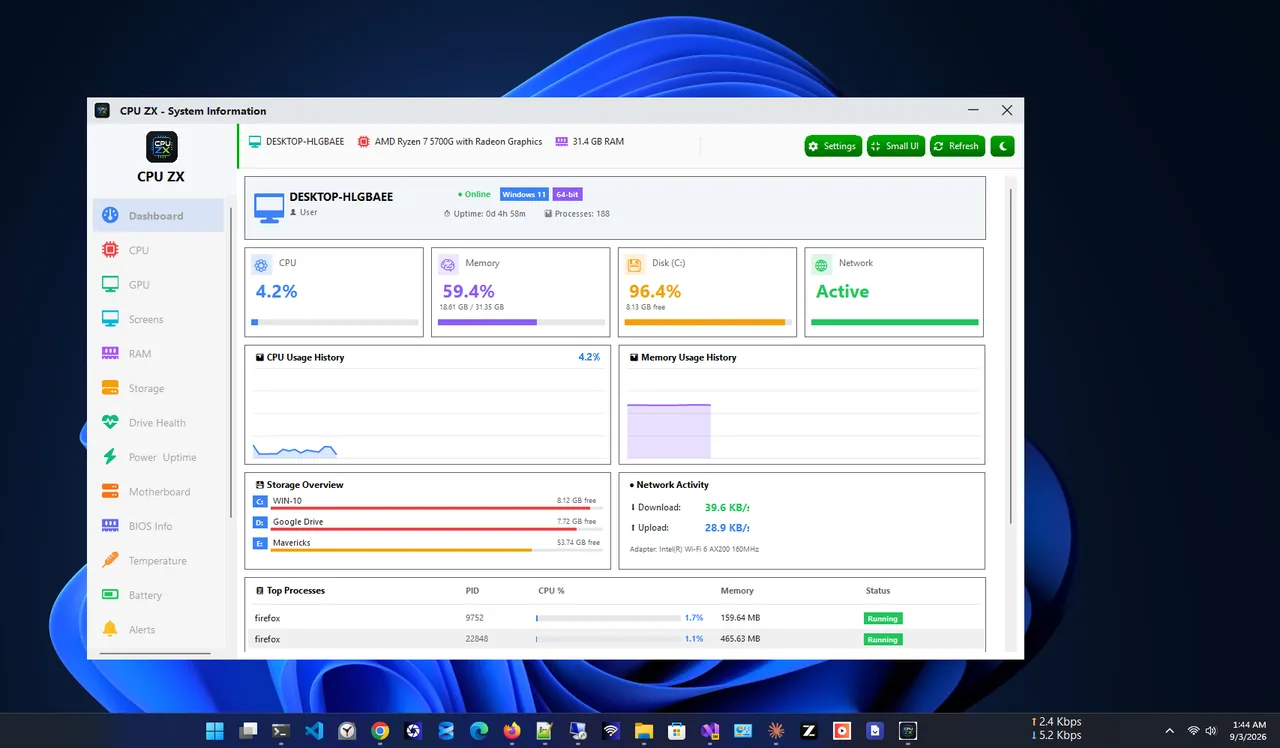
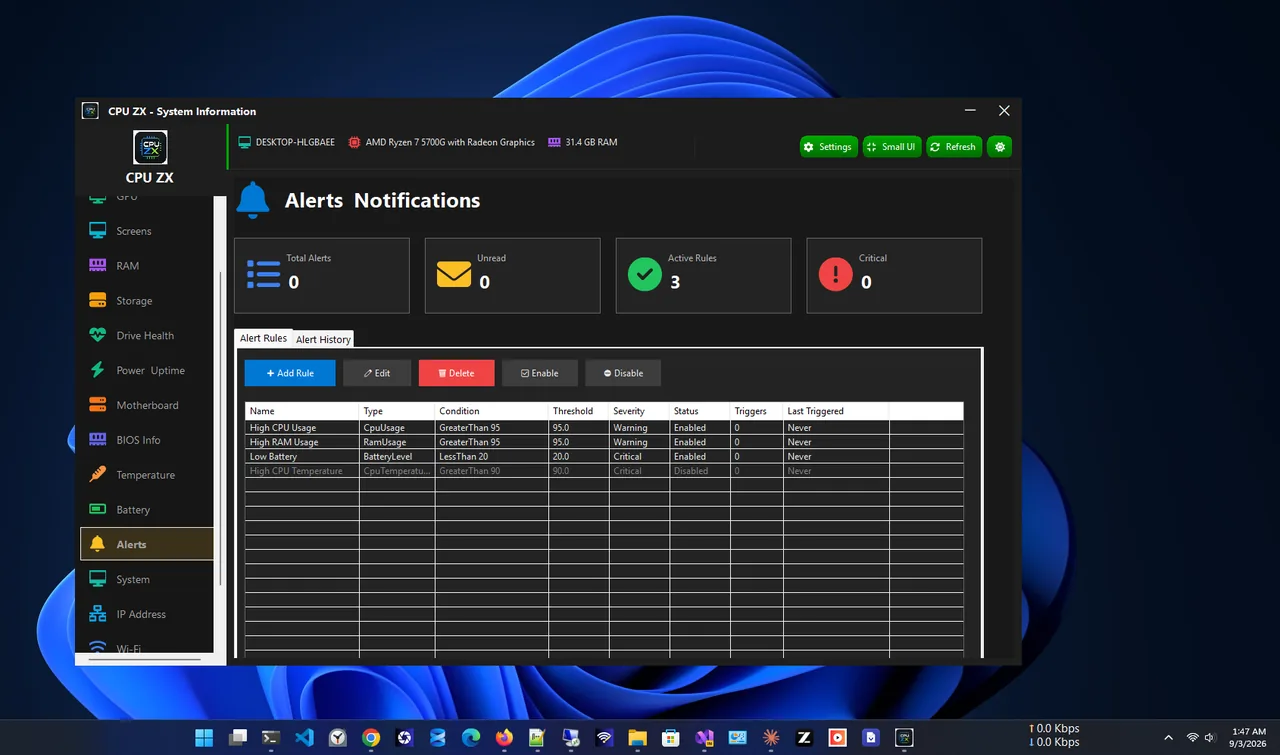
CPU ZX shows live RAM usage next to CPU, storage and motherboard information on one dashboard, so you can check memory alongside the board you are upgrading. To see which slots and speeds the board supports, also check your motherboard model.
MHz vs MT/s: Why the Numbers Differ
DDR memory transfers data twice per clock cycle. "DDR4-3200" runs a 1600 MHz clock and makes 3200 million transfers per second (MT/s). Marketing and many tools say "3200 MHz", Task Manager says 3200 MT/s, and some utilities show 1600 MHz. They all describe the same speed.
Why Is My RAM Slower Than Advertised?
By default, RAM runs at a safe standard speed (for example DDR4-2133/2400 or DDR5-4800). The higher speed on the box is an overclocking profile called XMP (Intel) or EXPO (AMD) that you must turn on in the BIOS/UEFI:
-
Enter the BIOS
Settings > System > Recovery > Advanced startup > Restart now > Troubleshoot > Advanced options > UEFI Firmware Settings. Or press Del/F2 during start-up.
-
Enable XMP or EXPO
Look for XMP, D.O.C.P., EXPO or Memory Profile, choose Profile 1, save and exit. Check Task Manager again afterwards.
Other reasons: mixing modules of different speeds (all run at the slowest), four sticks on some boards (lower supported speed), or a CPU or laptop that caps memory speed.
Typical RAM Speeds
| Type | Standard speeds | Common XMP/EXPO kits |
|---|---|---|
| DDR3 | 1333–1600 MT/s | 1866–2133 MT/s |
| DDR4 | 2133–3200 MT/s | 3200–3600 MT/s |
| DDR5 | 4800–5600 MT/s | 6000–6400 MT/s |
Speed matters less than having enough capacity; see how much RAM you need. If memory is constantly full, read high memory usage on Windows 11.
Check RAM Speed Before an Upgrade
-
Note type, speed and size
Use the PowerShell command above to record DDR type, rated speed, capacity per module and part number.
-
Count free slots
Task Manager's "Slots used" shows how many are taken. Laptops often have one or two slots, and some have memory soldered to the board.
-
Match or replace
For the best stability, buy a matched kit with the same speed and timings, or replace all modules at once. Two modules (dual channel) are faster than one large module.
-
Check the motherboard limits
The board's specification page lists maximum capacity and supported speeds. A DDR4 board cannot use DDR5 modules; they do not physically fit.
Laptop RAM Speed
Many thin laptops use soldered LPDDR5 or LPDDR5X memory running at 6400–8533 MT/s. It cannot be upgraded or overclocked, and XMP does not apply. Task Manager still shows the speed, and the PartNumber may be blank.
Speed Is Not Everything: Timings
Two kits with the same speed can perform slightly differently because of their CAS latency (CL), the first number in the timings printed on the module, such as 16-18-18-38. Lower is better at the same speed. As a rough guide, DDR4-3200 CL16 and DDR5-6000 CL30 are popular sweet spots. Search the PartNumber from PowerShell to find your kit's timings.
FAQ
How do I know if I have DDR4 or DDR5?
Check SMBIOSMemoryType in PowerShell (26 is DDR4, 34 is DDR5), or search the module's PartNumber. Speeds of 4800 MT/s and above are DDR5.
Is it safe to enable XMP?
Yes for most systems; it is a tested profile from the RAM maker. If the PC becomes unstable, disable it or choose a slower profile.
Can I mix RAM speeds?
Usually yes, but all modules run at the speed of the slowest. Matching kits are more stable.
Does faster RAM improve gaming?
Modestly, mostly with integrated graphics and some CPU-heavy games. Capacity matters more for everyday use.
Conclusion
Task Manager > Performance > Memory shows your RAM speed in seconds, and PowerShell adds the DDR type and each module's rated speed. If the speed is lower than the box, enable XMP or EXPO in the BIOS. Explore more system utilities for Windows 11.