System How-to
How to Check Motherboard Model on Windows (4 Ways)
Check your motherboard model on Windows 11 or 10 with System Information, PowerShell or a free app. Find maker, model and revision without opening the PC.
On this page
To check your motherboard model on Windows, press Win+R, type msinfo32 and press Enter. In System Summary, read BaseBoard Manufacturer and BaseBoard Product (the model). Or run Get-CimInstance Win32_BaseBoard | Select Manufacturer, Product, Version in PowerShell. On laptops and pre-built PCs the board name is often a maker's code, so search it together with your PC model.
Time: 1 minute · Cost: free · Works on: Windows 11 and Windows 10
Before you upgrade RAM or a CPU, update the BIOS or download chipset drivers, you need to know which motherboard is in your PC. You do not have to open the case. This guide shows how to check your motherboard model on Windows in four ways, how to read the result, and what to do when Windows shows something unhelpful like "To be filled by O.E.M.".
Method 1: System Information
-
Open System Information
Press Win+R, type
msinfo32and press Enter. Or search "System Information" in Start. -
Read the BaseBoard lines
In System Summary, find BaseBoard Manufacturer (for example ASUSTeK, Gigabyte, MSI, ASRock), BaseBoard Product (the model, such as ROG STRIX B650-A GAMING WIFI) and BaseBoard Version (revision). The same page shows the BIOS version and date.
Method 2: PowerShell
Get-CimInstance Win32_BaseBoard | Select-Object Manufacturer, Product, Version, SerialNumberThis works on every current Windows version. The older wmic baseboard get product,manufacturer command still works on some PCs, but WMIC is deprecated and removed by default from recent Windows 11 versions, so use PowerShell.
Method 3: CPU ZX
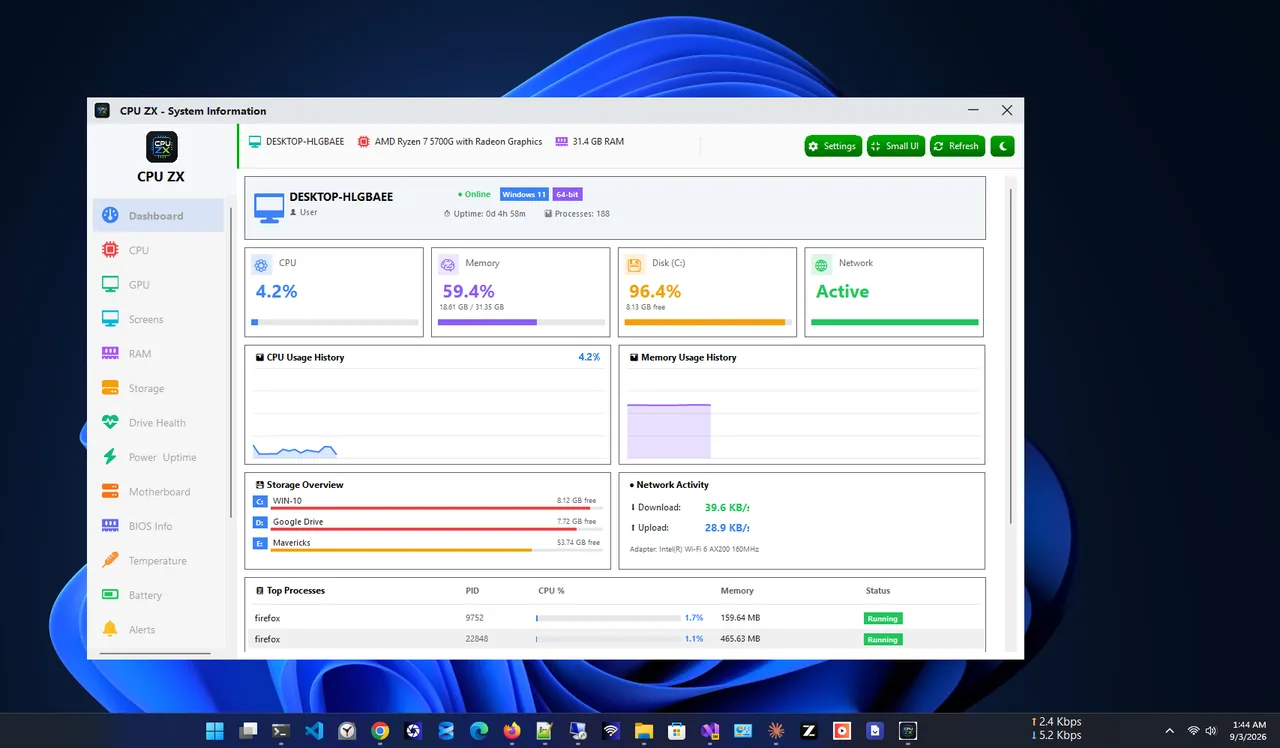
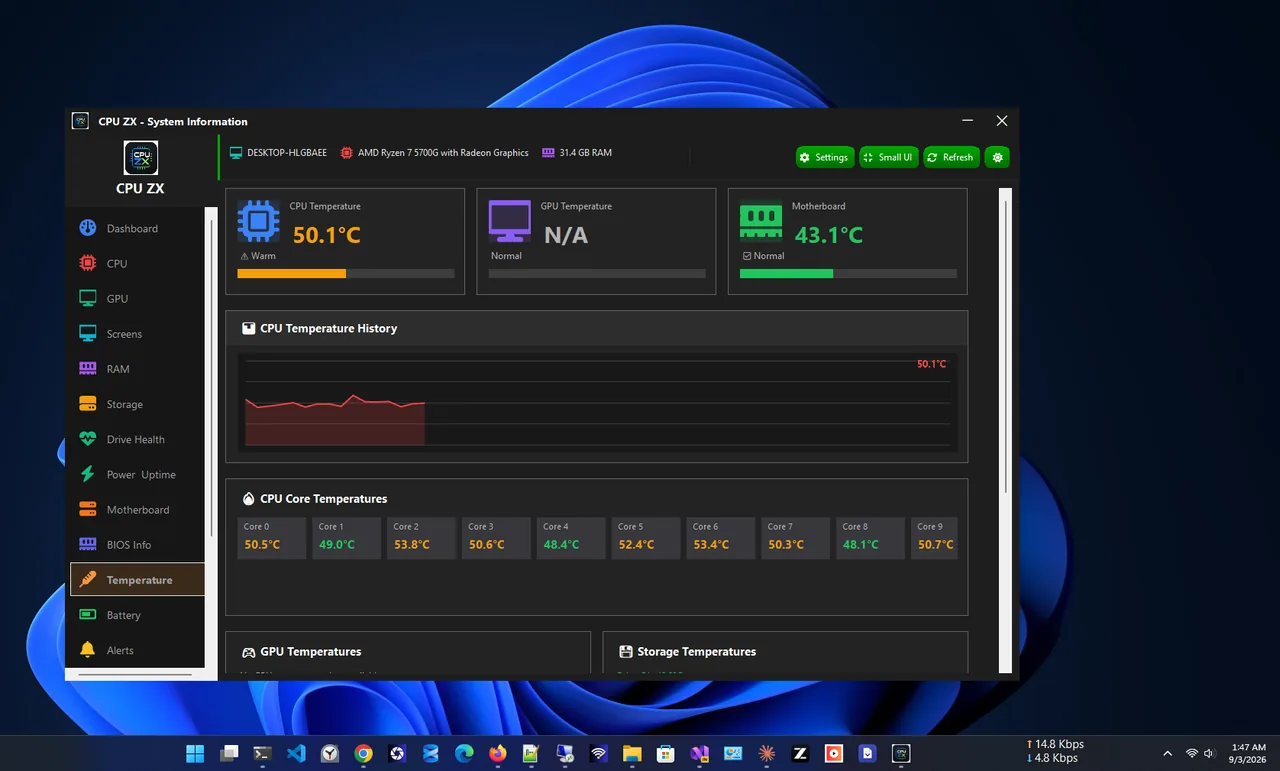
CPU ZX shows live CPU, RAM, storage and motherboard information on one dashboard, so you can see the board model next to the processor and memory you are planning to upgrade, without running commands.
Method 4: Look at the Board
On a desktop, switch off, unplug, open the side panel and look for the model printed on the board, usually between the CPU socket and the graphics card slot or near the RAM slots. The box and invoice also list it. This is the most reliable way when Windows shows placeholder text.
"To Be Filled by O.E.M." or Strange Codes
- Placeholder text means the maker did not fill in the board details. Check the board physically.
- Laptops and brand PCs (Dell, HP, Lenovo, Acer) show internal codes such as "0X8DXD" or "8A3E". Use the System Model and System SKU from the same msinfo32 page instead; support sites, drivers and BIOS updates are listed by PC model, not board code.
What You Can Do With the Model
| Task | Where to look on the maker's site |
|---|---|
| Upgrade the CPU | CPU support list (and minimum BIOS version) |
| Add or upgrade RAM | Memory QVL, max capacity and supported speeds |
| Update the BIOS | Support > BIOS & firmware |
| Install drivers | Support > Drivers (chipset, LAN, audio) |
| Add an SSD | Specifications > M.2 slots and supported types |
Before a BIOS update, check your current version first; see check BIOS version on Windows 11. For a RAM upgrade, also check your RAM speed so new modules match. The rest of your hardware is covered in check PC specs on Windows 11.
Check Motherboard Model on Another or Remote PC
For a PC on your network, or for an inventory of several PCs, PowerShell can query them remotely when you have admin rights:
Get-CimInstance Win32_BaseBoard -ComputerName PC-NAME | Select-Object PSComputerName, Manufacturer, Product
Without network access, ask the user to run msinfo32 and send a screenshot of System Summary, or export it
with File > Export to a text file. Both show the board, BIOS and processor together, which is everything support usually
needs.
Know the Form Factor Before Upgrading
If you are replacing the motherboard or the case, you also need the form factor: ATX (30.5 × 24.4 cm), Micro-ATX (24.4 × 24.4 cm) or Mini-ITX (17 × 17 cm). Windows does not report it; look up the model on the maker's site. Brand desktops (Dell, HP, Lenovo) often use custom boards and power connectors, which limits upgrades, so check compatibility before buying parts.
Check Motherboard Model on a Laptop
On laptops, the "motherboard" is designed for one model range, so the useful identifiers are the laptop's model and serial number. Find them in msinfo32 (System Model and System SKU), on the sticker under the laptop, or in the maker's support app. Enter the serial number (Dell Service Tag, Lenovo serial, HP product number) on the support site to get the exact drivers, BIOS updates and replacement parts for your configuration.
FAQ
Can I check my motherboard model without opening the PC?
Yes. System Information (msinfo32) and PowerShell read it from the firmware. Only placeholder values require a physical check.
Why does msinfo32 show my laptop model instead of the board?
Laptop boards are custom. The maker identifies them by laptop model, which is what you need for drivers and BIOS updates.
How do I find my motherboard's chipset?
The chipset is usually in the model name, such as B650, Z790 or B760. You can also see it in Device Manager > System devices.
Is the motherboard serial number safe to share?
Share the model freely, but keep the serial number private except with the maker's support.
Conclusion
System Information (msinfo32) shows your motherboard model in seconds under BaseBoard Product, and PowerShell gives the same with one command. On laptops, use the PC model for support. With the model in hand, upgrades and BIOS updates are straightforward. Explore more system utilities for Windows 11.