System Fix
Windows 11 Slow Boot? 10 Ways to Start Up Faster
Windows 11 slow boot? Measure startup time, disable startup apps, check Fast Startup, update drivers and BIOS, and move to an SSD. 10 fixes.

On this page
To fix a slow boot on Windows 11, disable unneeded apps in Task Manager > Startup apps, make sure Fast Startup is on (Control Panel > Power Options > Choose what the power buttons do), and update graphics, chipset and storage drivers plus the BIOS. Unplug USB drives you do not need at start-up. If Windows is on a hard drive, moving it to an SSD cuts boot time from minutes to seconds.
Time: 15–30 minutes · Cost: free (SSD optional) · Works on: Windows 11 and Windows 10
A healthy Windows 11 PC with an SSD reaches the desktop in about 10–30 seconds. If yours takes a minute or more, or sits on a black screen or spinning dots, something is slowing it down. A Windows 11 slow boot usually comes from too many startup apps, a driver or device that delays start-up, or an old hard drive. This guide shows how to measure boot time and fix each cause.
Measure Your Boot Time
- Task Manager > Startup apps: the top right shows Last BIOS time, the seconds spent in firmware before Windows starts. Over 10–15 seconds points to BIOS settings.
- Event Viewer: Applications and Services Logs > Microsoft > Windows > Diagnostics-Performance > Operational. Event ID 100 shows the Boot Duration in milliseconds; events 101–110 name apps, drivers and services that slowed boot.
Write down the numbers so you can see whether each fix helped.
10 Fixes for Windows 11 Slow Boot
-
Disable startup apps
Task Manager > Startup apps, sort by Startup impact, and disable High-impact apps you do not need right away: game launchers, chat apps, cloud tools you open manually, updaters. Guide: disable startup programs on Windows 11.
-
Check Fast Startup
Control Panel > Hardware and Sound > Power Options > Choose what the power buttons do > Change settings that are currently unavailable > tick Turn on fast startup. It saves part of the system state at shutdown for a faster start. If it causes problems (dual boot, devices not working after start-up), turn it off instead and test.
-
Update drivers
Graphics, chipset, storage (Intel RST, AMD) and network drivers commonly delay boot. The Event Viewer warnings in the section above often name the guilty driver.
-
Update the BIOS and check boot order
A high "Last BIOS time" improves with a BIOS update and by setting the Windows drive as the first boot device. Turn off network (PXE) boot and the legacy CSM if your PC is in UEFI mode.
-
Unplug unneeded USB devices
External drives, card readers and some hubs make the firmware check them for boot files. Unplug and compare.
-
Check scheduled tasks and services
Some apps run at logon through Task Scheduler instead of the Startup list. Open Task Scheduler and look for tasks triggered "At log on" from apps you do not need.
-
Scan for malware
Windows Security > Virus & threat protection > Quick scan, then a Full scan. Malware often adds itself to startup.
-
Free up space on C:
A drive with less than 10% free slows everything, including boot. Run Disk Cleanup with system files.
-
Repair system files
In Terminal (Admin) run
DISM /Online /Cleanup-Image /RestoreHealthand thensfc /scannow. If boot became slow after an update, also see Windows 11 slow after update. -
Move Windows to an SSD
The biggest upgrade for any PC still on a hard drive. Boot time typically drops from 1–2 minutes to 10–20 seconds. Why: SSD vs HDD.
Manage Startup in One Place
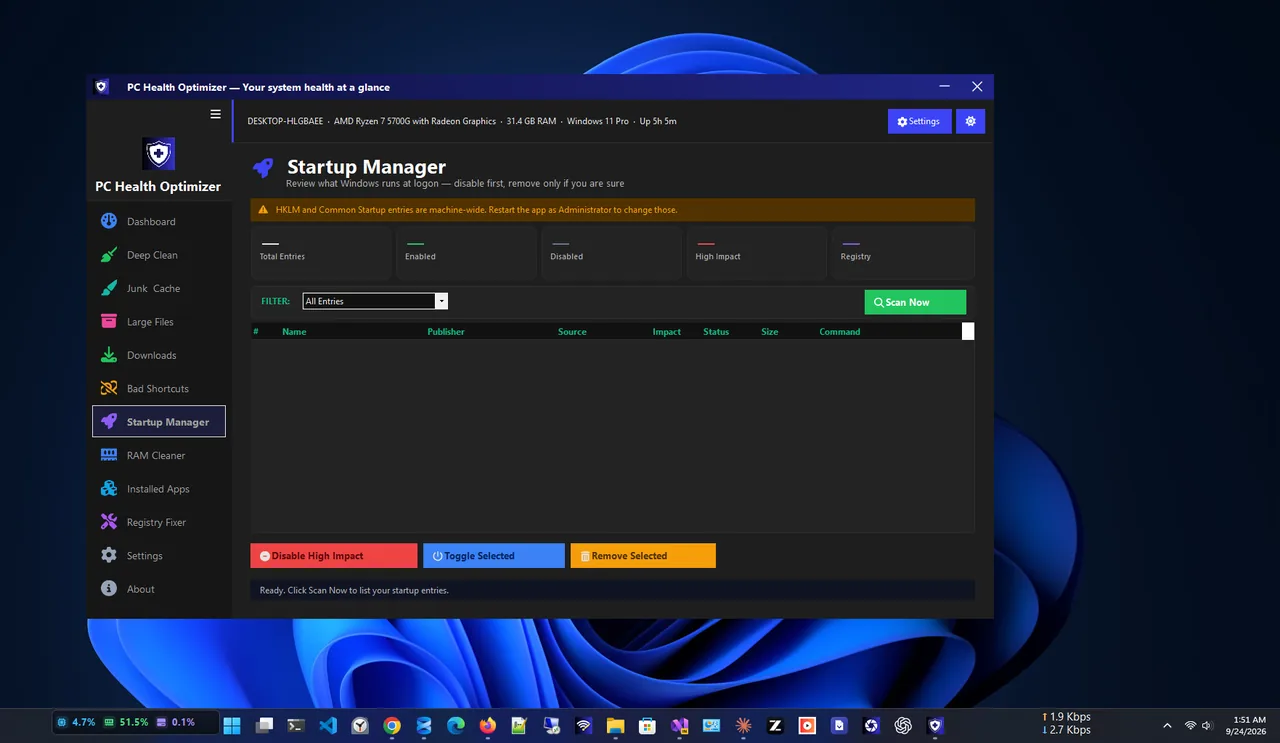
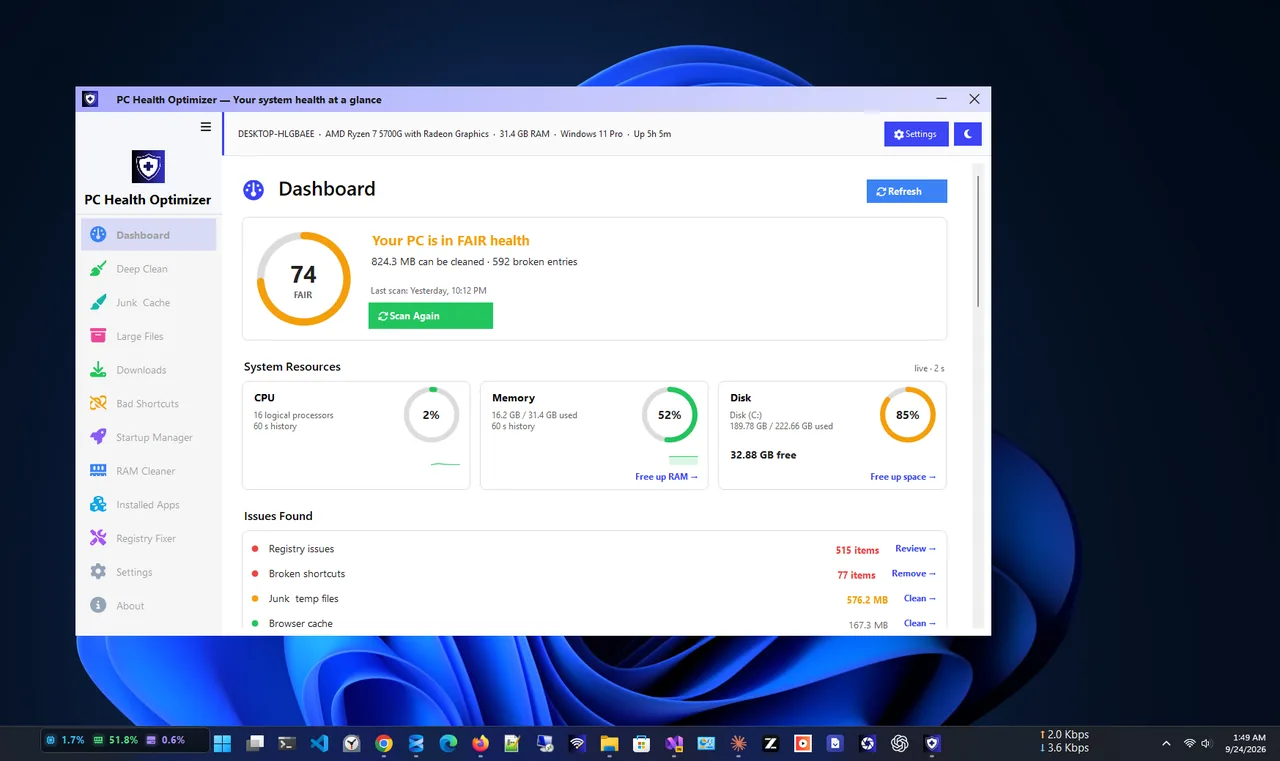
PC Health Optimizer lists every app that starts with Windows in its Startup Manager, with a health score and a deep clean for caches and temporary files, so you can trim start-up and clean the drive from one screen.
What Is a Normal Boot Time?
| Setup | Typical boot to desktop |
|---|---|
| NVMe SSD, few startup apps | 8–20 seconds |
| SATA SSD | 15–30 seconds |
| Hard drive (HDD) | 45 seconds – 2+ minutes |
Windows 11 Slow Boot With a Black Screen
If the logo appears, then the screen stays black for a long time before the sign-in screen, the cause is often the graphics driver or a second monitor. Unplug extra displays and test. Update or reinstall the graphics driver, and if the PC has both integrated and dedicated graphics, make sure the monitor is plugged into the right port (the graphics card on desktops). A long black screen after sign-in usually points to a startup app or Explorer extension instead.
FAQ
Why does my PC take so long to boot after the logo?
Usually a driver or service that waits for a device, or many startup apps after you sign in. Event Viewer's boot performance events name the culprit.
Should I turn Fast Startup off?
Keep it on for faster boots unless it causes problems with dual boot, Wake-on-LAN or devices after start-up.
Does more RAM make Windows boot faster?
Only slightly, if you have very little. An SSD makes a far bigger difference.
Why is restart faster or slower than shut down?
Restart always does a full boot, while shut down with Fast Startup resumes a saved kernel state. A fresh restart is slower but clears more.
Conclusion
A slow Windows 11 boot is fixed by trimming startup apps, keeping drivers and BIOS current, checking Fast Startup and, if you are still on a hard drive, moving to an SSD. Measure boot time before and after so you know what worked. Explore more system utilities for Windows 11.