Network How-to
How to Find MAC Address on Windows 11 (5 Ways)
Find your MAC address on Windows 11 in seconds with Settings, getmac, ipconfig /all or PowerShell. Plus random hardware addresses and which MAC to use.
On this page
To find your MAC address on Windows 11, open Settings > Network & internet > Wi-Fi (or Ethernet) > Hardware properties and read Physical address (MAC). Or open Terminal and run getmac /v or ipconfig /all. A MAC address looks like 3C-52-82-1A-7F-09. Each adapter has its own, so use the one for the connection you need.
Time: 1 minute · Cost: free · Works on: Windows 11 and Windows 10
Your router wants a MAC address to reserve an IP or allow a device. Your school or office network asks for it to register your laptop. Or IT support needs it to troubleshoot. Whatever the reason, it takes a minute to find your MAC address on Windows 11. This guide shows five ways, explains which address to use when a PC has several, and covers Windows' random hardware addresses, which confuse many people.
What Is a MAC Address?
A MAC (Media Access Control) address is a hardware ID for a network adapter. It has 12 hexadecimal characters, written
as six pairs: 3C-52-82-1A-7F-09 on Windows or 3c:52:82:1a:7f:09 on routers and phones. The
first half identifies the maker. Unlike an IP address, which changes with the network, the built-in MAC stays with the
adapter. Your Wi-Fi and Ethernet adapters each have a different one. To find your IP instead, see
how to find your IP address on Windows 11.
Method 1: Windows Settings
-
Open network settings
Press Win+I and go to Network & internet. Choose Wi-Fi or Ethernet.
-
Open the properties
For Wi-Fi, select Hardware properties. For Ethernet, the properties are on the Ethernet page itself.
-
Read the physical address
Find Physical address (MAC). Click Copy to copy all the properties to the clipboard.
Method 2: getmac Command
getmac /v /fo listThis lists every adapter with its connection name (Wi-Fi, Ethernet), the adapter model and the physical address. Adapters that are not connected show "Media disconnected" but still list their MAC.
Method 3: ipconfig /all
ipconfig /allScroll to your adapter (for example "Wireless LAN adapter Wi-Fi") and read Physical Address. The same block shows the IPv4 address, gateway and DNS servers, which is useful if you are setting up a reservation on the router.
Method 4: PowerShell
Get-NetAdapter | Select-Object Name, InterfaceDescription, MacAddress, StatusA clean table of every adapter, including virtual ones from VPNs and Hyper-V. Use the row whose Status is Up and whose name matches the connection you use.
Method 5: IP Address App
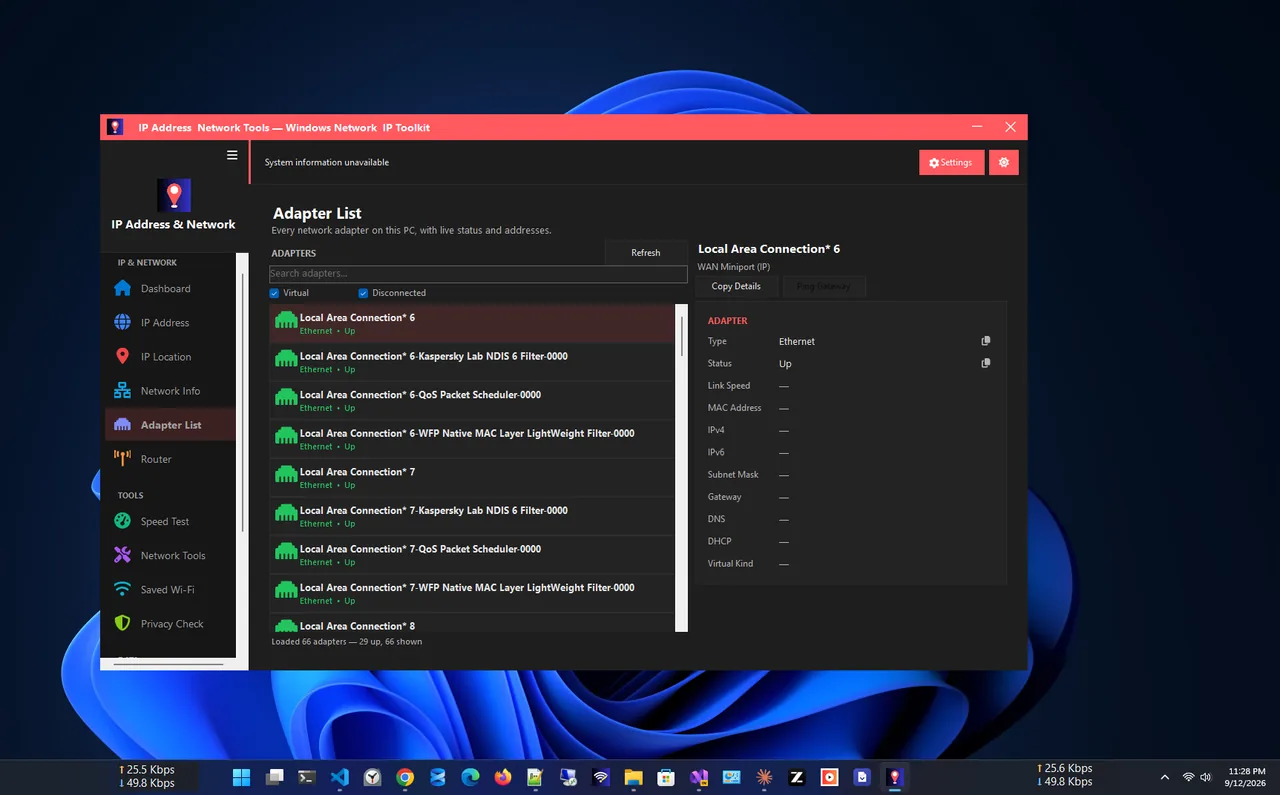
IP Address App shows every network adapter with its status, IP address, gateway and DNS
servers on one screen, with your public IP and ISP at the top. It is quicker than reading through
ipconfig /all when you need several details at once.
Random Hardware Addresses (Why Your MAC Changes)
Windows 11 can use a random hardware address on Wi-Fi to make it harder to track your device between networks. When it is on, the router sees a different MAC from the one printed on the adapter, and it may change per network or daily. That breaks MAC filtering and IP reservations.
To check or change it:
- All networks: Settings > Network & internet > Wi-Fi > Random hardware addresses.
- One network: Settings > Network & internet > Wi-Fi > your network's properties > Random hardware address (Off, On or Change daily).
The Physical address shown in Settings and by getmac is the address currently in use, so if randomisation is on for that network, that is the one the router sees.
Which MAC Address Should You Use?
| Task | Use the MAC of |
|---|---|
| Router IP reservation or MAC filter (on Wi-Fi) | Wi-Fi adapter, with random address off for that network |
| Wired office or school registration | Ethernet adapter (or the USB/dock adapter you will use) |
| Wake-on-LAN | Ethernet adapter |
| Software licence tied to hardware | The adapter the vendor asks for, usually Ethernet |
Reserving an IP on the router is often the easier alternative to a manual static address; see how to set a static IP on Windows 11. For the difference between the address your router assigns and the one websites see, read public vs private IP address.
Find the MAC Address of Other Devices on Your Network
Sometimes you need the MAC of a printer, TV or another PC rather than your own. From Windows:
-
Ping the device
Ping its IP address once, for example
ping 192.168.1.50, so Windows learns its MAC. -
Read the ARP table
Commandarp -aFind the device's IP in the list; the Physical Address next to it is its MAC. Entries marked "dynamic" are real devices.
The router's admin page also lists connected devices with their names, IPs and MAC addresses, usually under Attached Devices, DHCP Clients or Client List. Unknown MACs there can reveal devices you did not expect on your network.
FAQ
Is the physical address the same as the MAC address?
Yes. Windows calls it "Physical address"; routers and other devices call it the MAC address.
Can I change my MAC address on Windows 11?
Yes. Use random hardware addresses for Wi-Fi, or set "Network Address" on the adapter's Advanced tab in Device Manager if the driver supports it.
Can someone find my MAC address over the internet?
No. MAC addresses only travel on your local network. Websites see your public IP address, not your MAC.
Why do I see several MAC addresses?
Each adapter has one: Wi-Fi, Ethernet, Bluetooth and virtual adapters from VPNs or Hyper-V. Use the one for the connection you need.
Conclusion
The quickest way to find your MAC address on Windows 11 is Settings > Network & internet > Wi-Fi > Hardware
properties, or getmac /v in Terminal. Check whether random hardware addresses are on before you give the
address to a router. Explore more network apps for Windows.