Network How-to
Set Static IP on Windows 11: Settings, CMD, PowerShell
Set a static IP on Windows 11 with Settings, netsh or PowerShell. Pick a safe address, avoid conflicts, and see when a router reservation is better.
On this page
To set a static IP on Windows 11, open Settings > Network & internet > Wi-Fi or Ethernet > your connection > IP assignment > Edit. Choose Manual, turn on IPv4, and enter an IP address outside the router's DHCP range (for example 192.168.1.200), subnet mask 255.255.255.0, your router as gateway and a DNS server. Save, then test that websites load.
Time: 5 minutes · Cost: free · Works on: Windows 11 (Windows 10 is similar)
Port forwarding for a game server, a shared printer, Remote Desktop, a media server: all of them work better when the PC keeps the same local address. By default your router hands out addresses that can change. This guide shows how to set a static IP on Windows 11 in three ways, how to pick an address that will not clash with other devices, and why a router reservation is often the better choice.
Before You Start: Collect Four Values
Open Terminal and run ipconfig /all. Under your active adapter, note:
| Value | Example | Where it comes from |
|---|---|---|
| Current IPv4 address | 192.168.1.34 | Shows your network range |
| Subnet mask | 255.255.255.0 (prefix 24) | Keep the same |
| Default gateway | 192.168.1.1 | Your router |
| DNS servers | 192.168.1.1 or 1.1.1.1 | Router or public DNS |
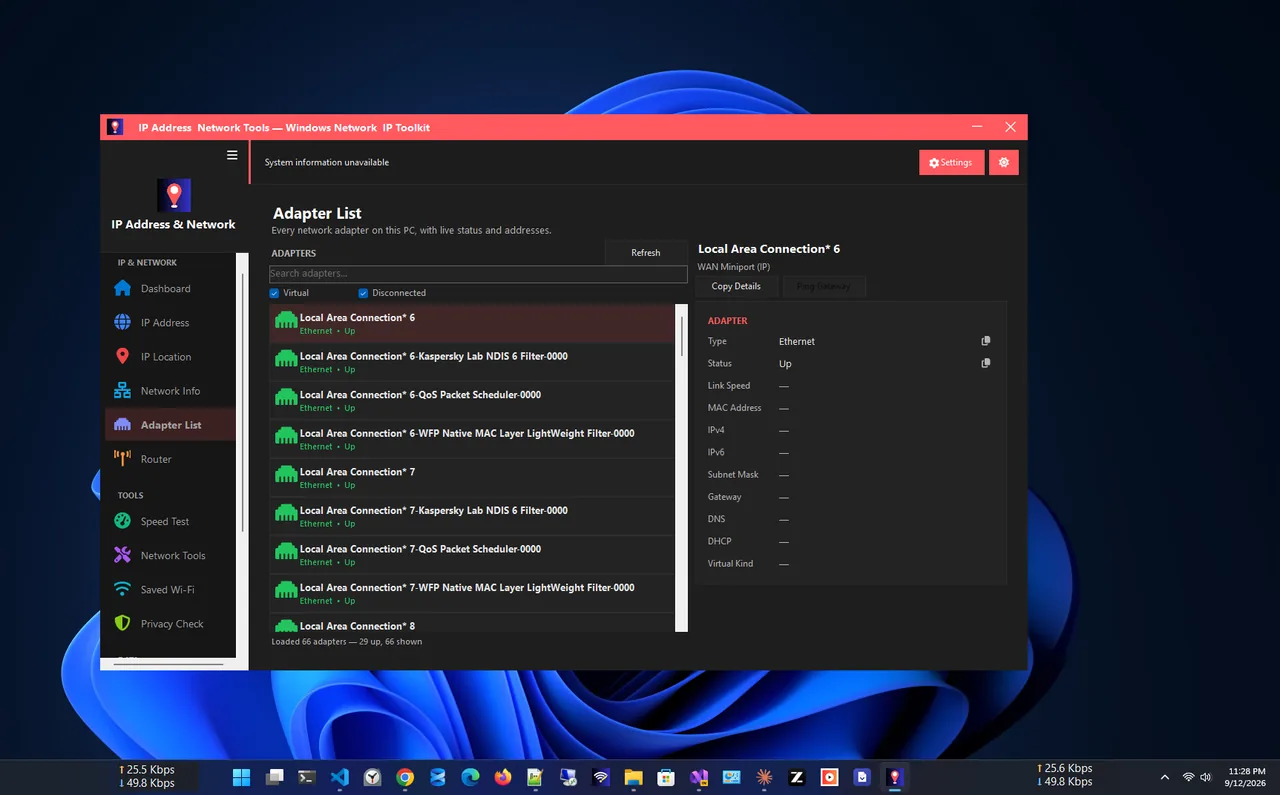
IP Address App shows all four for each adapter on one screen, which is easier than
scrolling through ipconfig /all. If you are not sure what these addresses are, read
how to find your IP address on Windows 11 first.
Choose a Safe Static Address
The address must be in the same range as the router (the first three numbers usually match, such as 192.168.1.x) but must not be handed out to another device. Routers give addresses from a DHCP pool, often 192.168.1.100–199 or 2–254. Log in to the router and check the pool, then pick a number outside it, such as .200–.250 if the pool ends at .199. If the pool covers everything, shrink it first. Before using the address, ping it: no reply suggests it is free.
Method 1: Set a Static IP in Windows Settings
-
Open your connection's properties
Press Win+I > Network & internet. For Wi-Fi, choose Wi-Fi > your network's properties. For a cable, choose Ethernet.
-
Edit IP assignment
Next to IP assignment, click Edit. Change Automatic (DHCP) to Manual and switch IPv4 on.
-
Enter the values
IP address: 192.168.1.200. Subnet mask: 255.255.255.0. Gateway: 192.168.1.1. Preferred DNS: your router or a public DNS such as 1.1.1.1, and an alternate DNS such as 1.0.0.1. Choosing a DNS provider is covered in change DNS server on Windows 11.
-
Save and test
Click Save. Open a website, then run
ipconfigto confirm the new address. On Wi-Fi the setting only applies to that network, so other Wi-Fi networks keep using DHCP.
Method 2: Command Prompt (netsh)
In Terminal (Admin). Replace "Ethernet" with your adapter's name from ipconfig (often "Wi-Fi" or "Ethernet"):
netsh interface ipv4 set address name="Ethernet" static 192.168.1.200 255.255.255.0 192.168.1.1
netsh interface ipv4 set dnsservers name="Ethernet" static 1.1.1.1 primary
netsh interface ipv4 add dnsservers name="Ethernet" 1.0.0.1 index=2
To go back to automatic:
netsh interface ipv4 set address name="Ethernet" source=dhcp
netsh interface ipv4 set dnsservers name="Ethernet" source=dhcp
Method 3: PowerShell
Get-NetAdapter
New-NetIPAddress -InterfaceAlias "Ethernet" -IPAddress 192.168.1.200 -PrefixLength 24 -DefaultGateway 192.168.1.1
Set-DnsClientServerAddress -InterfaceAlias "Ethernet" -ServerAddresses 1.1.1.1,1.0.0.1
If New-NetIPAddress says the address already exists, the adapter still has its DHCP address. Run Set-NetIPInterface -InterfaceAlias "Ethernet" -Dhcp Disabled first, or use the Settings method. To undo: Set-NetIPInterface -InterfaceAlias "Ethernet" -Dhcp Enabled and Set-DnsClientServerAddress -InterfaceAlias "Ethernet" -ResetServerAddresses.
Better Option: DHCP Reservation on the Router
A DHCP reservation (also called static lease or address reservation) tells the router to always give the same IP to your PC. The PC stays on Automatic, so it still works on other networks, and the router knows the address is taken, so conflicts cannot happen. In the router's LAN or DHCP settings, add a reservation using your PC's MAC address; see how to find your MAC address on Windows 11. On Wi-Fi, turn off the random hardware address for your home network first, or the MAC will not match.
| Static IP on the PC | DHCP reservation | |
|---|---|---|
| Set up on | Each PC | The router, once |
| Conflict risk | Yes, if the address is in the pool | None |
| Laptop on other networks | Needs care (Ethernet setting applies everywhere) | Works anywhere |
| Works without router access | Yes | No |
Troubleshooting
- No internet after the change. Check the gateway and DNS. A missing DNS server means sites will not load even though ping to 1.1.1.1 works.
- "Duplicate IP address" or the connection drops. Another device has that address. Pick one outside the DHCP pool.
- Laptop has no internet at a café. A manual Ethernet setting applies on every network. Switch back to Automatic when travelling, or use a reservation instead.
FAQ
Is a static IP the same as a static public IP?
No. This guide sets your local (private) IP. A static public IP comes from your ISP and is usually a paid option.
Does a static IP make internet faster?
No. It only keeps the address the same, which helps port forwarding, printers and remote access.
What subnet mask should I use?
The same one your PC had on DHCP. For most home networks that is 255.255.255.0 (prefix length 24).
How do I switch back to automatic?
Open IP assignment > Edit and choose Automatic (DHCP), or run the netsh commands with source=dhcp.
Conclusion
Setting a static IP on Windows 11 takes a minute in Settings: Manual, IPv4 on, an address outside the DHCP pool, the router as gateway and a DNS server. If you can log in to the router, a DHCP reservation does the same job with no risk of conflicts. Explore more network apps for Windows.