Network How-to
How to Find Your IP Address on Windows 11 (Public & Local)
Find your IP address on Windows 11 in seconds: local IPv4 in Settings or ipconfig, public IP in one command, plus your router's IP. 5 easy methods.
On this page
To find your IP address on Windows 11, open Settings, Network & internet, select Wi-Fi or Ethernet, then your network's properties: the IPv4 address is your local IP. Or open Terminal and type ipconfig. Your public IP is different; run curl https://api.ipify.org or use an IP app to see it.
Time: 30 seconds · Cost: free · Works on: Windows 11 and Windows 10
You need your IP address to set up a printer, a game server, remote desktop, port forwarding or a support ticket. The catch is that every PC has two IP addresses, and most guides do not tell you which one you need. This guide shows how to find your IP address on Windows 11, both the local one and the public one, plus your router's address.
Public vs Local IP: Which One Do You Need?
| Local (private) IP | Public IP | |
|---|---|---|
| Who sees it | Devices on your home or office network | Websites and servers on the internet |
| Assigned by | Your router | Your internet provider (ISP) |
| Looks like | 192.168.x.x, 10.x.x.x or 172.16–31.x.x | Any other address, such as 203.0.113.25 |
| Shared? | Unique to this PC on your network | Shared by every device behind your router |
| You need it for | Printers, file sharing, remote desktop at home | Port forwarding, game servers, allow-lists, VPN checks |
Method 1: Find Your Local IP in Settings
-
Open Network settings
Press Win + I and select Network & internet.
-
Open your connection's properties
Select Wi-Fi, then your network's properties. On a cable, select Ethernet instead.
-
Read the IPv4 address
Scroll down. IPv4 address is your local IP, for example 192.168.1.23. The IPv6 address, DNS servers and MAC address are listed there too, with a Copy button.
Method 2: Use ipconfig in Terminal
This is the fastest way if you are comfortable typing one command. It also shows your router's IP.
-
Open Terminal
Right-click Start and choose Terminal, or press Win + R, type
cmdand press Enter. -
Run ipconfig
CommandipconfigFind the section for your adapter (Wireless LAN adapter Wi-Fi, or Ethernet adapter). IPv4 Address is your local IP and Default Gateway is your router.
Need more detail, such as DNS servers, the MAC address and when your IP lease expires? Run ipconfig /all.
Method 3: Check Task Manager
Press Ctrl + Shift + Esc, open the Performance tab and select Wi-Fi or Ethernet. The IPv4 and IPv6 addresses appear below the live speed graph. Handy when Terminal is blocked on a work PC.
Method 4: Find Your Public IP Address
Windows does not show your public IP anywhere in Settings, because your router holds it, not your PC. You can ask a server to tell you:
curl https://api.ipify.orgThe result is the address websites see. If you use a VPN, you will see the VPN server's address instead, which is a quick way to check that the VPN works.
Method 5: See Everything in One App
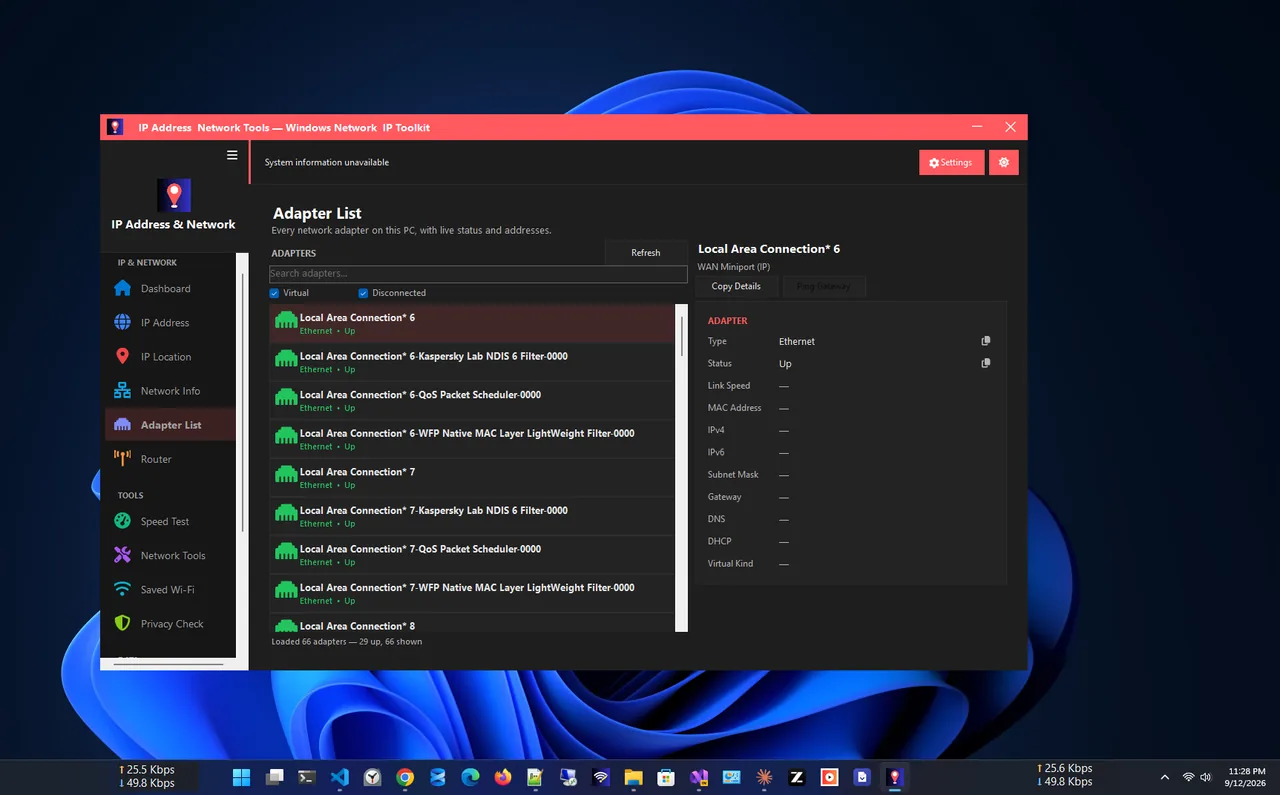
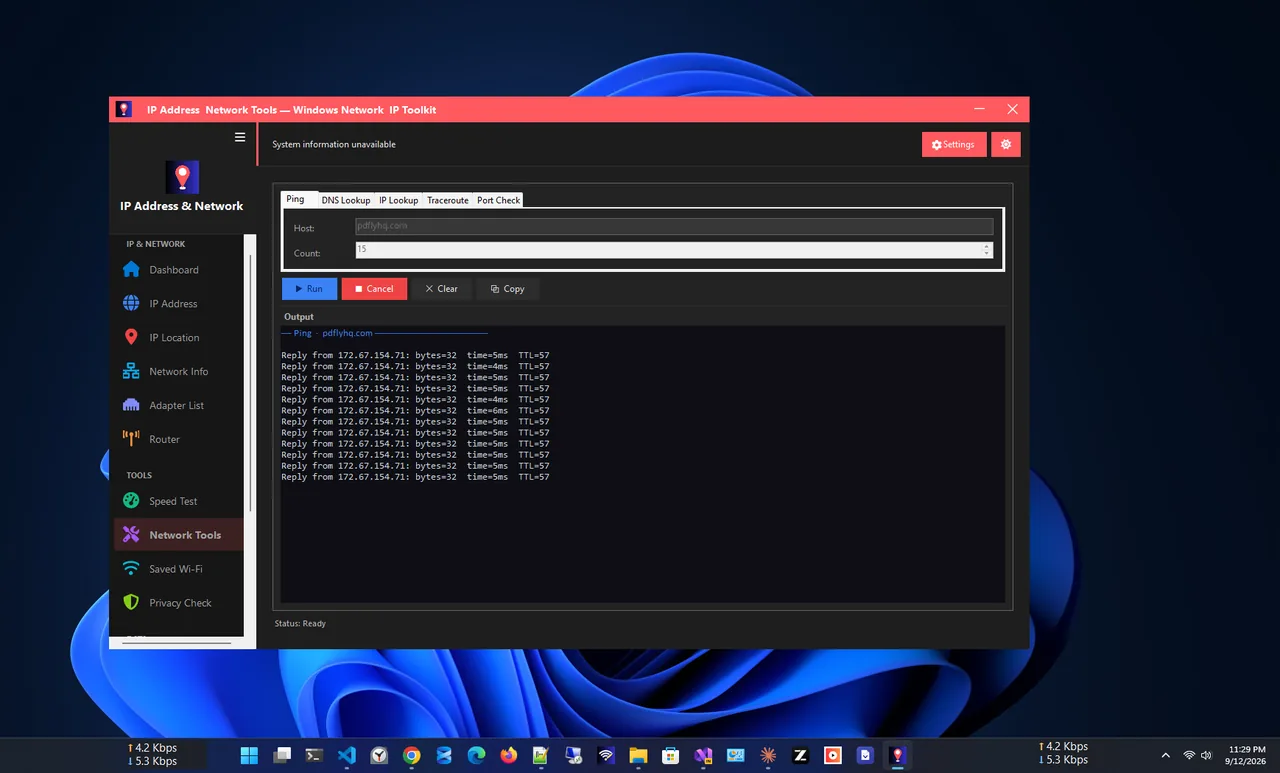
IP Address App shows your public IPv4 and IPv6, ISP, location, local IP, gateway and DNS the moment it opens, with one-click copy. It also lists every adapter, logs IP changes and includes ping, traceroute, DNS lookup and a port checker. It is free, with no account and no ads.
How to Find Your Router's IP Address
Your router's IP is the Default Gateway in ipconfig, often 192.168.0.1 or 192.168.1.1.
Type it into a browser to open the router's admin page, where you can change the Wi-Fi name, the password or the
channel. If you forgot the Wi-Fi password itself, our guide to
seeing your Wi-Fi password on Windows 11 gets it back from your PC.
IPv4 vs IPv6, Dynamic vs Static
- IPv4 looks like 192.168.1.23. It is what most guides and devices ask for.
- IPv6 looks like 2001:db8::1a2b. Many ISPs now give you both. Use IPv4 unless a guide asks for IPv6.
- Dynamic IP is the default. The router can give your PC a different local IP after a restart, and your ISP can change your public IP.
- Static IP stays the same. For a printer or a server, set a DHCP reservation in the router instead of typing a static IP into Windows.
Troubleshooting
- Your IP starts with 169.254. Windows could not get an address from the router. Restart the router, then run
ipconfig /releaseandipconfig /renew, or see connected but no internet. - You see several adapters. VPNs, Hyper-V and virtual machines add their own. Use the one for the adapter you are connected through.
- Your public IP looks like 100.64.x.x on the router. Your ISP uses carrier-grade NAT, so port forwarding will not work without asking them for a public IP.
- Connection works but feels laggy. Check latency with our guide to ping and jitter.
Related guides: public vs private IP address, find your MAC address, set a static IP and IPv4 vs IPv6.
FAQ
What is the command to find my IP address on Windows 11?
ipconfig shows your local IPv4 address and router. curl https://api.ipify.org shows your public IP.
Why is my IP address different on other websites?
Websites see your public IP, which belongs to your router. Windows shows your local IP, which only exists on your home network. Both are correct.
Can someone find my location from my IP?
Only roughly. A public IP usually reveals your ISP and city or region, not your street address. A VPN hides it by showing the VPN server's IP instead.
How do I change my IP address?
For a new local IP, run ipconfig /release then ipconfig /renew. For a new public IP, restart your router or use a VPN; some ISPs keep the same IP for weeks.
Is it the same on Windows 10?
Yes. ipconfig, Task Manager and the curl command work the same. In Windows 10 Settings, go to Network & Internet, Status, then Properties.
Conclusion
Your local IP is in Settings or ipconfig; your public IP needs one quick check online; and your router is
the Default Gateway. Know which one you need and the job takes seconds. If you look these up often, IP Address App
keeps all of them on one screen. For more tools, see all network apps for Windows.