Network How-to
How to Change Wi-Fi Password on Any Router
How to change your Wi-Fi password on any router: find the router address, log in, set a strong WPA2/WPA3 password and reconnect your PC and phones.
On this page
To change your Wi-Fi password, open a browser on a device connected to your network and go to the router's address (usually 192.168.0.1 or 192.168.1.1, also printed on the router label), or open the router's app. Log in, go to Wireless or Wi-Fi Settings > Security, enter a new password of at least 12 characters with WPA2 or WPA3 security, and save. Then reconnect every device with the new password.
Time: 5–10 minutes · Cost: free · Works with: any home router
A neighbour knows your password, a tenant moved out, or you are still using the random code printed on the router. Whatever the reason, it is worth knowing how to change your Wi-Fi password. You do it on the router, not on Windows, and it takes about five minutes. This guide covers every step, how to pick a strong password, and how to get your PC and phones back online afterwards.
Before You Start
- Use a cable or stay close. Once you save the new password, every Wi-Fi device disconnects, including the one you are using. A PC on Ethernet keeps you connected.
- Note the current password. If you need it, see how to see a saved Wi-Fi password on Windows 11.
- Find the router login. The label on the router shows the address, the admin username and the default admin password. This is different from the Wi-Fi password.
How to Change Your Wi-Fi Password
-
Find your router's address
On Windows, open Terminal and run:
CommandipconfigThe Default Gateway is your router's address, for example 192.168.1.1. More ways in find your IP address on Windows 11.
-
Log in to the router
Type the address into the browser's address bar and press Enter. If the browser warns that the connection is not private, that is normal for a router; continue. Enter the admin username and password from the label. Many newer routers (Eero, Google Nest, TP-Link Deco, Netgear Orbi, many ISP routers) use a phone app instead.
-
Open the Wi-Fi settings
Look for Wireless, Wi-Fi, WLAN or Wireless Security. On dual-band routers there may be separate settings for 2.4 GHz and 5 GHz; change both, or turn on Smart Connect so one name and password covers both bands.
-
Set the security type
Choose WPA3-Personal or WPA2/WPA3 mixed if you have older devices. Use WPA2-Personal (AES) if WPA3 is not offered. Avoid WEP, WPA (TKIP) and "Open".
-
Enter the new password and save
The field may be called Password, Passphrase, Pre-Shared Key or Network Key. Type the new password, click Save or Apply, and wait while the router restarts its Wi-Fi.
-
Change the admin password too
While you are logged in, change the router's admin password (often under System or Administration) if it is still the default. Otherwise anyone on your network can log in and read the new Wi-Fi password.
How to Pick a Strong Wi-Fi Password
| Type | Example | Verdict |
|---|---|---|
| Short word | sunshine1 | Weak: guessed in minutes |
| Address or phone number | 12ParkRoad | Weak: easy for neighbours |
| Random 12+ characters | v7Q!m2r#Lp9x | Strong, but hard to share |
| Four or more random words | copper-tulip-rocket-mango | Strong and easy to type |
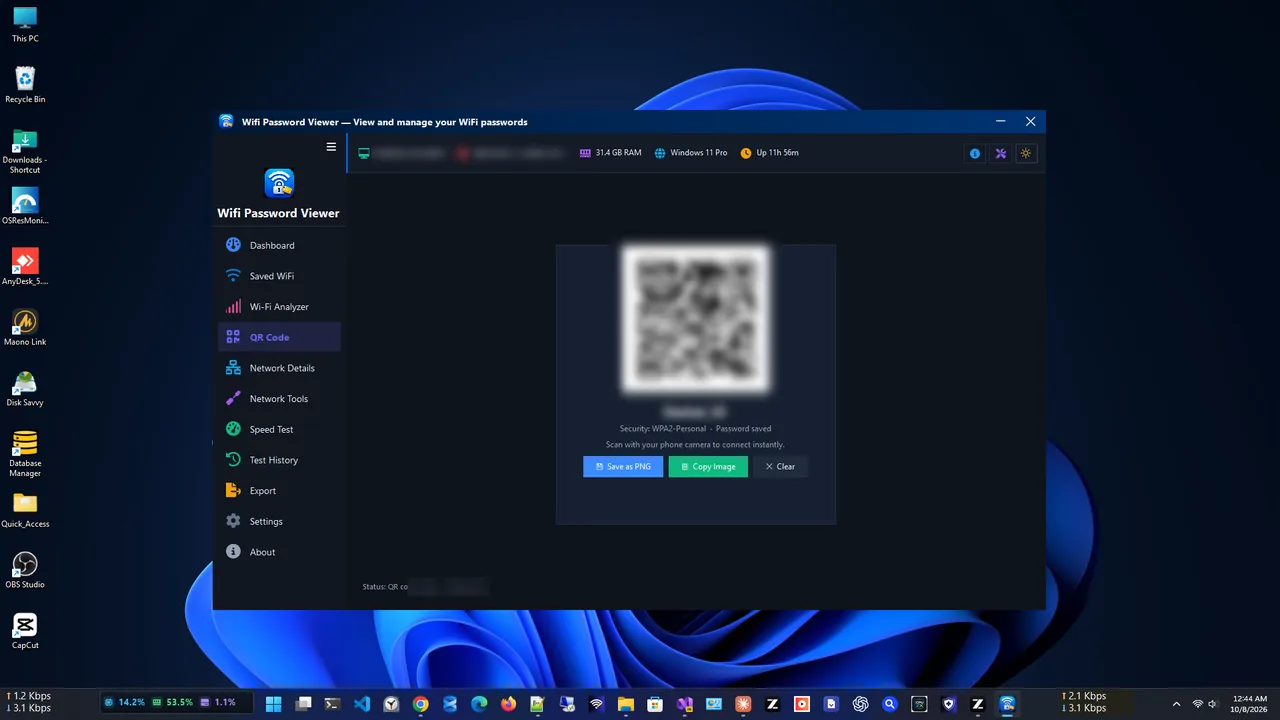
Length beats complexity. A passphrase of four unrelated words is very hard to crack and easy for guests to type, or you can skip typing altogether: share the Wi-Fi password with a QR code.
Reconnect Your Windows PC
Windows still remembers the old password and will fail to connect. To fix it:
-
Forget the network
Settings > Network & internet > Wi-Fi > Manage known networks. Select your network and click Forget.
-
Connect again
Click the network icon on the taskbar, pick your network and type the new password.
Or from Terminal: netsh wlan delete profile name="YourNetwork", then connect again. On phones, tap the network, choose Forget, and rejoin.
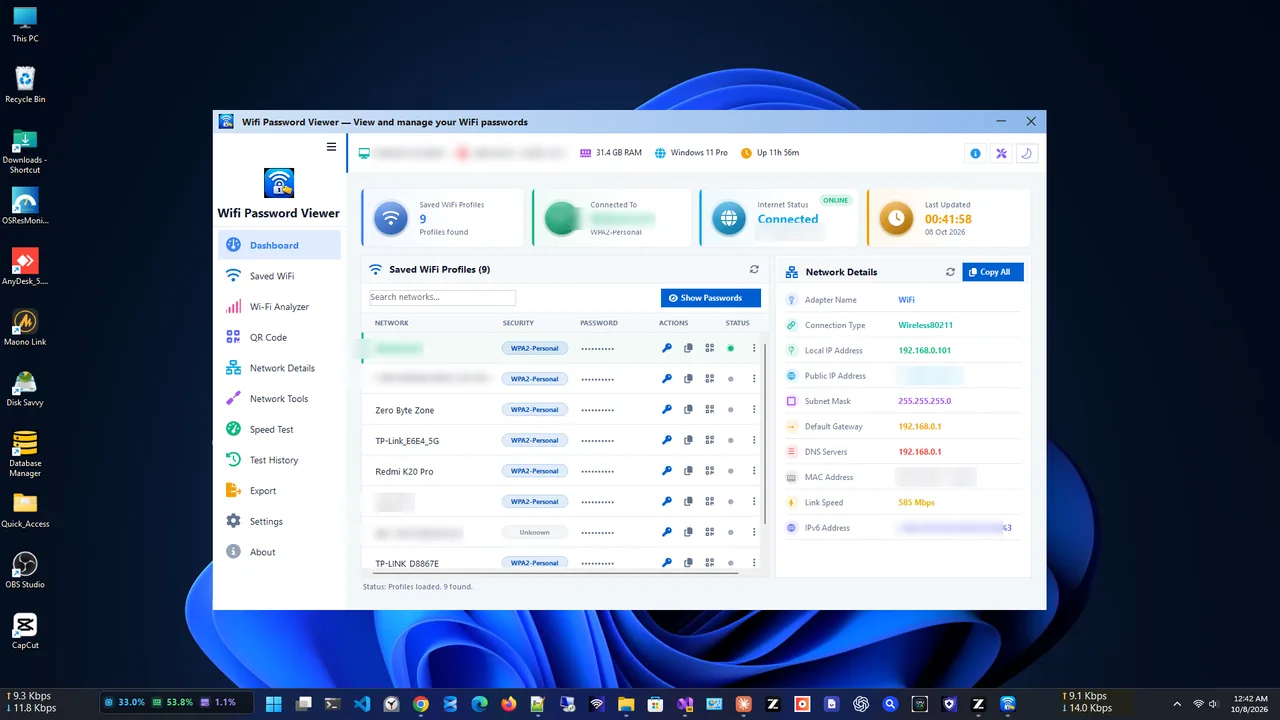
To check which networks your PC has saved and the password stored for each, use WiFi Password Viewer. It lists every saved network with its password and can show a QR code so phones join the updated network in seconds.
Cannot Log In to the Router?
- Wrong address: use the Default Gateway from
ipconfig, not a guess. - Admin password unknown: try the label. If it was changed and forgotten, a factory reset (hold the reset pin for about 10 seconds) restores the defaults, but it also wipes all settings, including your internet login on some routers.
- ISP-managed router: some providers let you change the Wi-Fi password only in their app or online account.
How to Change Wi-Fi Password on ISP Routers
Many people rent the router from their provider. The steps are the same idea, but the place differs:
- Provider app: most large ISPs now have an app with a Wi-Fi or Network section where you can change the name and password without logging in to the router.
- Online account: some providers only allow changes in your account on their website.
- Mesh systems: Eero, Google Nest Wifi, Deco and Orbi change the password for all units at once from the app.
After the change, smart TVs, printers and smart plugs often need to be reconnected one by one. Make a list before you start so nothing is forgotten.
FAQ
Can I change my Wi-Fi password from Windows settings?
No. Windows only stores the password to connect. The password itself is set on the router, through its web page or app.
Will changing my Wi-Fi password kick everyone off?
Yes. Every wireless device disconnects and must reconnect with the new password. Wired devices are not affected.
How often should I change my Wi-Fi password?
There is no need to change a strong password on a schedule. Change it when someone you no longer trust knows it, or if it is still the default.
Should I change the network name too?
It is optional. A new name forces every device to set up the connection again, and avoids broadcasting the router model in a default name.
Conclusion
Changing your Wi-Fi password takes five minutes: log in to the router at the Default Gateway address, set WPA2 or WPA3 with a long passphrase, save, and reconnect your devices. Change the router's admin password at the same time. Explore more network apps for Windows.