System Fix
Laptop Fan Loud or Always On? 10 Fixes
Laptop fan loud or always running? Find the app causing it, clean the vents, change power mode and fan profile, and fix a noisy fan on Windows 11.
On this page
A loud laptop fan usually means the CPU or GPU is busy or the cooling is blocked. Open Task Manager and end any app using lots of CPU, keep the laptop on a hard surface, and blow dust out of the vents. Then set Windows power mode to Balanced or Best power efficiency, choose a Quiet or Balanced fan profile in your laptop maker's app, and update the BIOS. Grinding or clicking noises mean the fan itself needs replacing.
Time: 10–30 minutes · Cost: free (a can of compressed air helps) · Works on: Windows 11 and 10 laptops
Your laptop sounds like a hair dryer while you are only reading email, or the fan never stops spinning, even at idle. A loud laptop fan is the cooling system doing its job: something is producing heat or the heat cannot get out. This guide helps you find out which, fix it, and tell normal fan noise from a fan that is failing.
When Is Fan Noise Normal?
- Normal: loud during games, video export, Windows updates, the first minutes after start-up, or in a hot room.
- Not normal: loud at idle, loud with only a browser open, or fans that ramp up and down every few seconds.
- Hardware problem: grinding, rattling, clicking or a high-pitched whine that changes with fan speed.
Check Temperatures and Load First
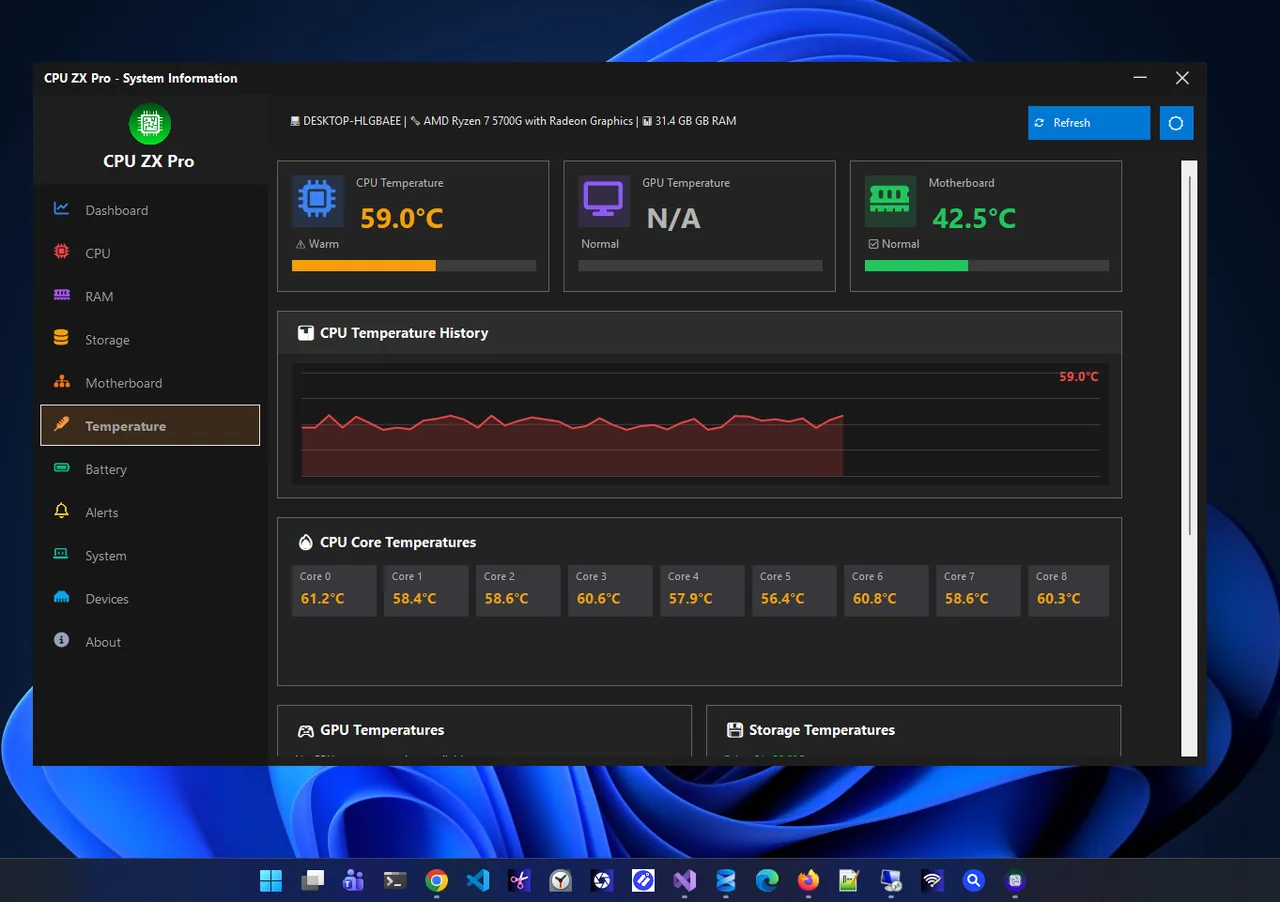
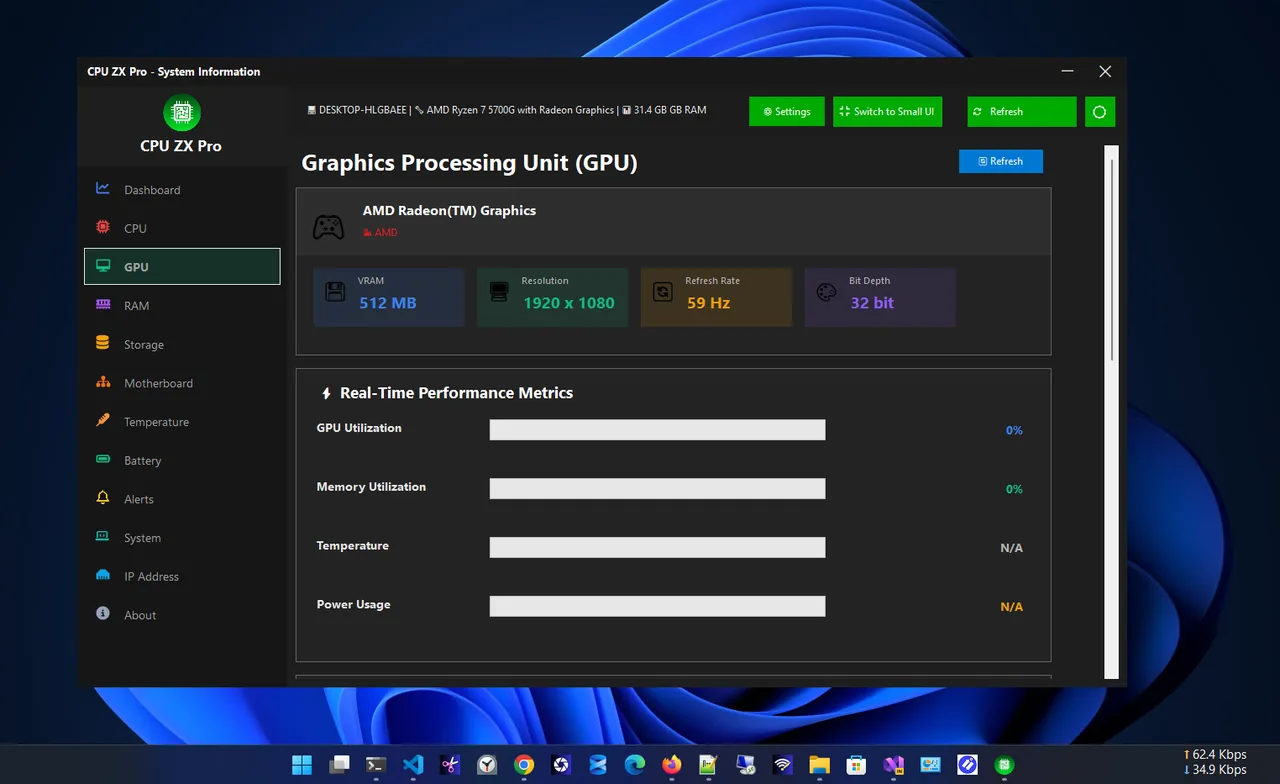
Open Task Manager (Ctrl+Shift+Esc) and sort Processes by CPU. Then look at temperatures. CPU ZX Pro shows CPU core temperatures with a history chart and GPU metrics, so you can see whether the fan is reacting to real heat or spinning while temperatures are low. What counts as normal is covered in normal CPU temperature.
10 Fixes for a Loud Laptop Fan
-
Stop the app that is working the CPU
Browser tabs with video or ads, sync tools, antivirus scans and game launchers are common culprits. End or update them. If a Windows process like "Antimalware Service Executable" or "Windows Update" is busy, let it finish. See high CPU usage on Windows 11.
-
Use a hard, flat surface
Most laptops pull air in from the bottom. Beds, sofas and laps block it. A table or a laptop stand makes an immediate difference.
-
Clean the vents and fan
Shut down, unplug, and blow compressed air into the intake and exhaust vents in short bursts. Dust mats on the heatsink fins force the fan to spin faster. Opening the bottom panel to clean properly is easy on many models.
-
Change the power mode
Settings > System > Power & battery > Power mode: Balanced or Best power efficiency. Best performance raises clock speeds and fan speed.
-
Pick a quiet fan profile
Laptop makers' apps control fans: Lenovo Vantage (Intelligent Cooling), MyASUS / Armoury Crate (Silent), Dell Power Manager / Optimizer (Quiet), HP Command Center or OMEN Gaming Hub, MSI Center. Choose Quiet or Balanced.
-
Limit maximum processor state
Control Panel > Power Options > Change plan settings > Change advanced power settings > Processor power management > Maximum processor state. Setting it to 99% on battery and plugged in turns off turbo boost on many Intel laptops, which can cut heat and fan noise a lot for everyday work.
-
Cap game frame rate
Games running at 200 fps on a 60 Hz screen waste power. Turn on V-Sync or set a frame cap matching your refresh rate.
-
Update BIOS and drivers
Laptop makers often release BIOS updates with improved fan curves. Install BIOS, chipset and graphics driver updates from the maker's support page.
-
Use a cooling pad
A pad with fans lowers temperatures a few degrees and gives the laptop's own fans a break during long gaming sessions.
-
Replace thermal paste or the fan
On laptops older than 3–4 years, dried paste raises temperatures. A grinding or rattling fan needs replacing; parts are inexpensive for most popular models, or a repair shop can do it.
Fan Always On, Even at Idle?
If temperatures are low but the fan never stops, check the BIOS for a fan setting (some laptops have "Fan Always On" for USB charging), update the BIOS, and reset the laptop maker's thermal profile. If temperatures are high at idle, dust or a background process is the cause. Heat-related damage and shutdowns are covered in how to fix laptop overheating.
Is Your Laptop Fan Loud Because of Dust? Quick Check
Compare the idle temperature with when the laptop was new, if you remember it, or with reviews of the same model. If idle is 10–15°C higher and the fan ramps up with light tasks, dust is the likely cause. Shine a torch into the exhaust vent: grey fluff on the fins means it is time to clean.
FAQ
Is a loud laptop fan bad?
Not by itself; it means the laptop is cooling. It is a concern if it happens at idle, comes with high temperatures, or makes mechanical noises.
Why is my laptop fan loud when charging?
Charging produces heat, and many laptops raise performance limits when plugged in. Use Balanced mode and a quiet fan profile.
Can I control laptop fan speed in Windows?
Windows has no fan control. Use the laptop maker's app or BIOS. Generic fan tools rarely work on laptops.
How often should I clean my laptop fan?
Every 6–12 months, more often with pets or dusty rooms.
Conclusion
A loud laptop fan is fixed by reducing heat or helping it escape: stop busy apps, use a hard surface, clean the vents and pick a quieter power mode and fan profile. Mechanical noises mean a worn fan. Check temperatures before and after to confirm the fix. Explore more system utilities for Windows 11.