Network How-to
How to Limit Bandwidth Per App on Windows
Limit bandwidth per app on Windows 11 and 10: find the app hogging your internet, then use in-app limits, Delivery Optimization, QoS or router QoS.
On this page
Windows has no single switch to limit bandwidth per app, but you can do it in four ways. First find the app using the most bandwidth (Task Manager or a per-app monitor). Then use that app's own speed limit (Steam, OneDrive, browsers' download managers), cap Windows Update in Delivery Optimization, set a Policy-based QoS throttle rate for an .exe on Windows Pro (uploads only), or set per-device limits in your router's QoS.
Time: 5–15 minutes · Cost: free · Works on: Windows 11 and Windows 10
One app downloading a game update or syncing photos can make video calls freeze and web pages crawl for everyone on the network. The fix is to cap that app, not to buy a faster plan. This guide shows how to limit bandwidth per app on Windows using built-in tools and app settings, and when the router is the better place to do it.
Step 1: Find the App Using Your Bandwidth
Open Task Manager (Ctrl+Shift+Esc), go to Processes and click the Network column to sort by current use. For a longer view, Resource Monitor (Performance > Open Resource Monitor > Network) lists send and receive bytes per process. Full walkthrough: see which apps use internet on Windows.
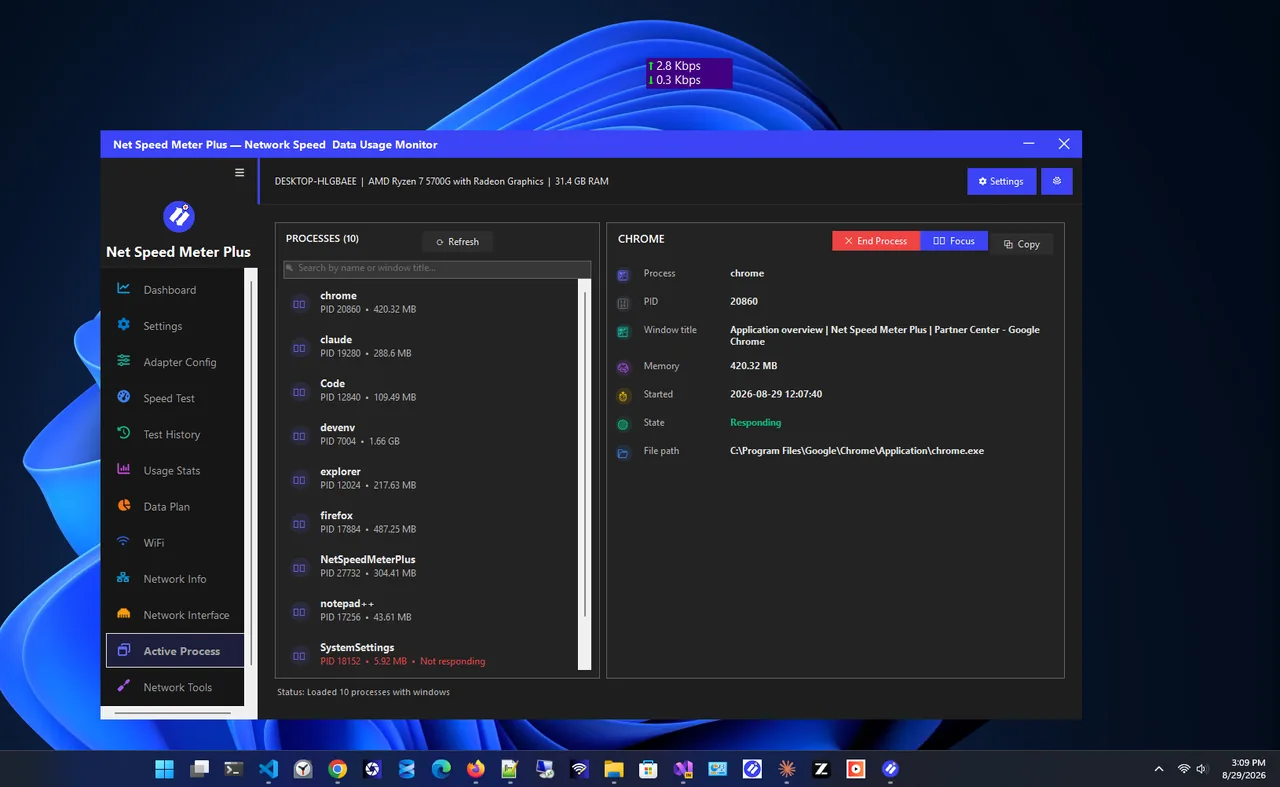
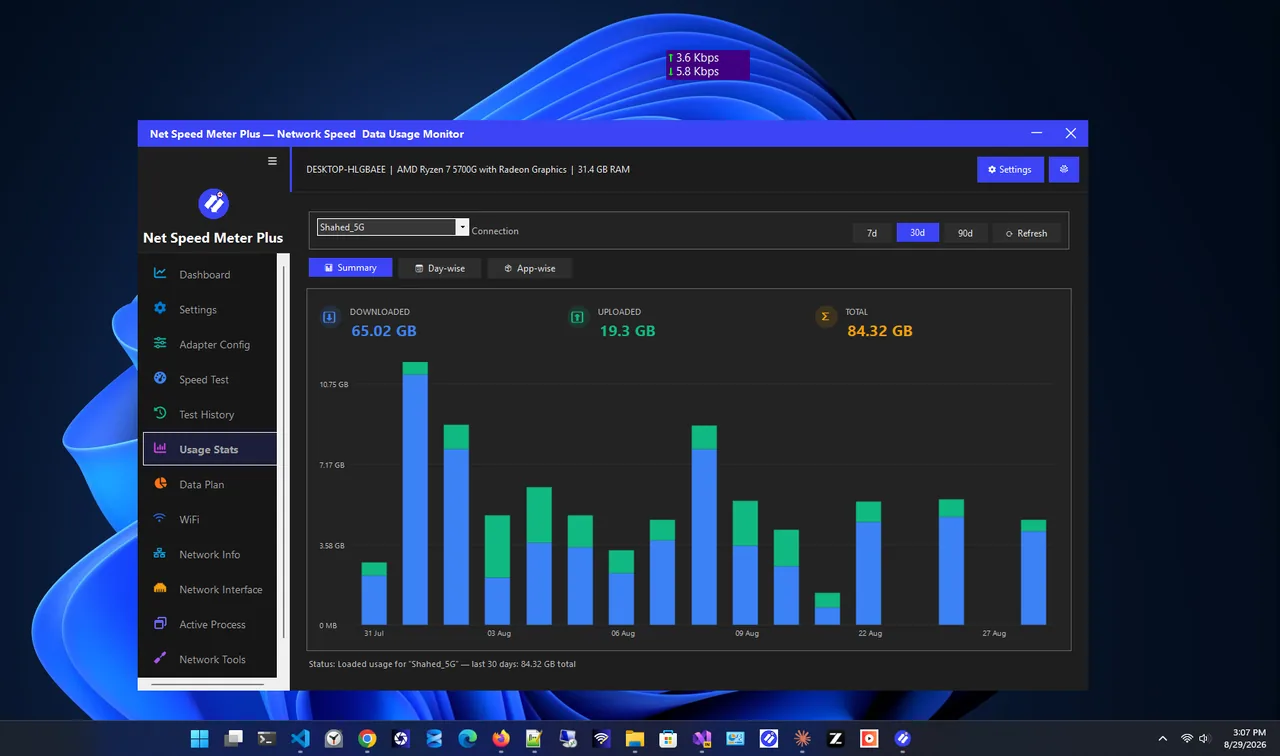
Net Speed Meter Plus makes this quicker: its active process monitor lists the apps using the network right now, next to a live speed widget and daily usage stats, so you can spot the hog before deciding what to limit.
Method 1: Use the App's Own Speed Limit
The simplest and most reliable option. Most heavy apps have a limit built in:
| App | Where to set the limit |
|---|---|
| Steam | Settings > Downloads > Limit download speed |
| Epic Games Launcher | Settings > Throttle downloads |
| Xbox app / Microsoft Store | Uses Delivery Optimization (Method 2) |
| OneDrive | Settings > Sync and back up > Advanced settings > Upload / Download rate |
| Google Drive for desktop | Preferences > gear > Bandwidth settings |
| Dropbox | Preferences > Bandwidth |
| qBittorrent and other torrent apps | Options > Speed > Global rate limits |
Method 2: Limit Windows Update and Store Downloads
Settings > Windows Update > Advanced options > Delivery Optimization > Advanced options. Set a limit for background and foreground downloads (absolute Mbps or a percentage) and a monthly upload limit. This covers Windows updates, Store apps and many Xbox games. More ways to tame updates are in stop Windows Update using data.
Method 3: Policy-based QoS (Windows Pro)
Windows Pro, Enterprise and Education can throttle the outbound (upload) traffic of any program:
-
Open the Group Policy Editor
Press Win+R, type
gpedit.msc. Go to Computer Configuration > Windows Settings > Policy-based QoS. -
Create a new policy
Right-click Policy-based QoS > Create new policy. Give it a name, untick Specify DSCP Value, tick Specify Outbound Throttle Rate and enter a value in KBps or MBps.
-
Pick the app
Choose "Only applications with this executable name" and type the file name, for example
OneDrive.exe. Click through the remaining pages with the defaults and Finish. Restart the app.
This is ideal for upload-heavy apps such as backup tools, which are the most common cause of laggy calls. It does not limit downloads. Windows Home does not include gpedit.
Method 4: Router QoS
Most routers can limit or prioritise traffic per device, and gaming routers often per application type. Set a cap for a kids' console or a media server, or give your work laptop priority. Routers with SQM also stop one heavy download from raising everyone's ping; see what bufferbloat is.
Third-Party Limiters
Paid tools such as NetLimiter and NetBalancer add a per-app download and upload limit on any Windows edition using a network filter driver. They work well, but install a driver that sees all your traffic, so only use well-known, signed tools, and uninstall them when you no longer need them.
Which Method Should You Use?
| Goal | Best method |
|---|---|
| Stop game downloads ruining calls | Launcher's download limit |
| Cloud backup slows everything | App's upload limit or Policy-based QoS |
| Windows updates fill the line | Delivery Optimization limits |
| Limit a whole device | Router QoS |
| Limit any app, both directions | Third-party limiter |
Check That the Bandwidth Limit Works
After setting a limit, start the heavy task (a game download, a backup) and watch live speeds for a minute. The app should level off near the limit you set, and other devices should feel normal again. If speed still spikes, the app may use several processes; apply the limit to each one, or use the router to cap the whole device. Keep a speed meter open for the first day to confirm the limit holds when the app restarts or updates itself.
FAQ
Can Windows 11 limit bandwidth per app without software?
Partly. Delivery Optimization limits updates and Store downloads, and Policy-based QoS throttles uploads on Pro editions. Downloads per app need the app's own setting or a third-party tool.
Does limiting bandwidth reduce data usage?
Not by itself. The app downloads the same amount, just more slowly. To save data, pause the app or use a metered connection.
Why is my upload the problem, not my download?
Upload bandwidth is usually much smaller, so a single backup or video upload can fill it and delay all other traffic.
Is NetLimiter safe?
It is a long-established commercial tool. As with any network driver, download it only from the official site.
Conclusion
To limit bandwidth per app on Windows, find the hog first, then use the app's own limit, Delivery Optimization for updates, Policy-based QoS for uploads on Pro, or router QoS for whole devices. Most homes only need one or two of these. Browse more network apps for Windows.