Network Explainer
What Is Bufferbloat? Test and Fix Lag Under Load
What is bufferbloat? Learn why ping jumps when someone downloads or uploads, how to test for bufferbloat on Windows, and how SQM and QoS fix it for good.

On this page
Bufferbloat is high latency caused by oversized buffers in your router or modem. When your connection is busy, packets wait in a long queue, so ping can jump from 20 ms to 300 ms or more. Games lag and calls freeze whenever someone downloads or uploads. Test it by watching ping during a speed test. Fix it with SQM (Smart Queue Management) or adaptive QoS on the router, set to about 90% of your measured speed.
Your games run fine at night, but the moment someone starts a download, a cloud backup or a video upload, everything lags. Your speed test looks great, yet video calls freeze. That pattern has a name: bufferbloat. This guide explains what bufferbloat is in plain words, how to test for it on Windows, and how to fix it, usually with one router setting.
Bufferbloat Explained Simply
Routers and modems hold packets in a buffer (a waiting line) when data arrives faster than the line can send it. A small buffer smooths out short bursts. But many devices ship with huge buffers. When the connection is full, the queue grows to hundreds of milliseconds, and every packet, including your game's tiny updates, has to wait its turn behind a large file transfer.
Think of a supermarket with one long checkout line: buying one item still takes ten minutes if the trolleys ahead of you are full. The cashier is not slow; the line is just too long. Bufferbloat is the same: your speed (cashier) is fine, but latency (waiting time) explodes.
Symptoms of Bufferbloat
- Ping is low when the network is idle but jumps when anyone downloads, uploads or streams.
- Video calls freeze or go robotic while a file uploads or a phone backs up photos.
- Web pages take seconds to start loading during a big download.
- Speed tests show good Mbps, but games feel laggy at busy times.
Uploads cause the worst bufferbloat, because upload bandwidth is usually much smaller than download; see upload vs download speed.
How to Test for Bufferbloat on Windows
The idea is simple: measure ping when the connection is idle, then measure it again when the connection is full.
-
Start a continuous ping
Commandping -t 1.1.1.1Note the normal ping for 10 seconds. Leave the window open.
-
Load the connection
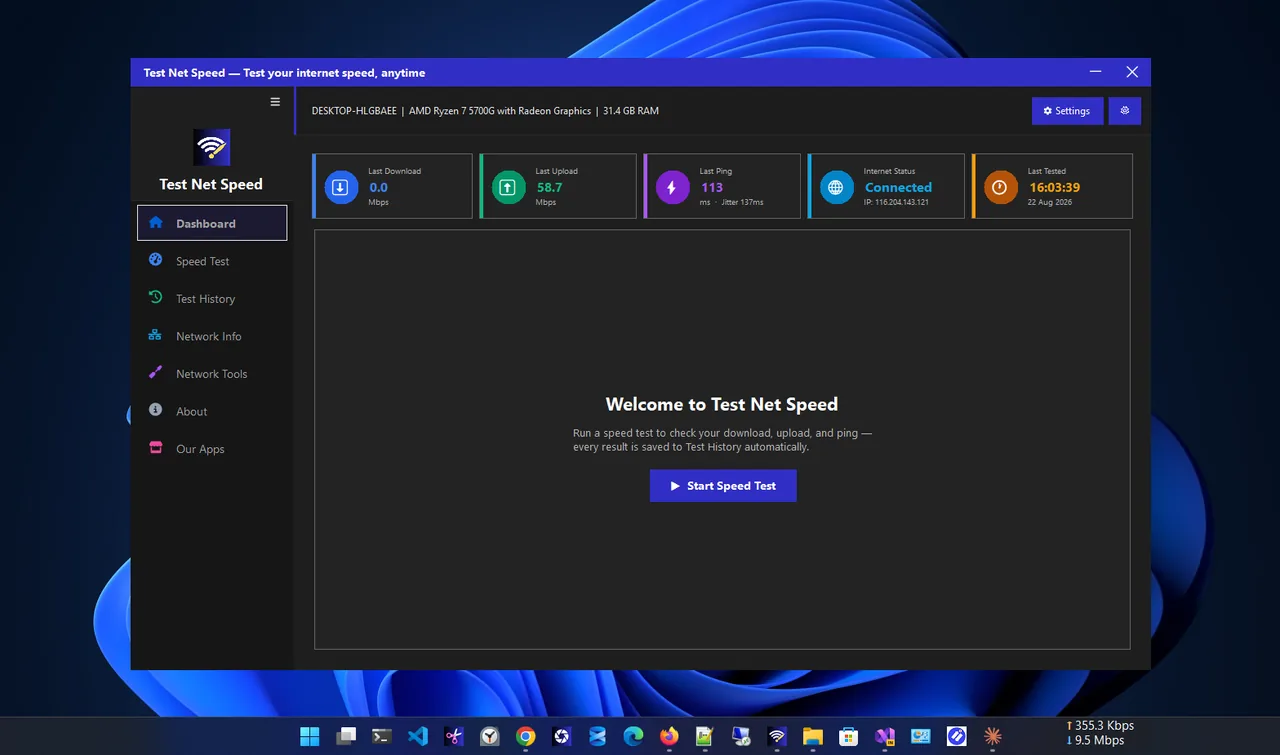
Run a speed test, either in the browser or in Test Net Speed. Watch the ping window during the download phase and again during the upload phase.
-
Compare the numbers
Press Ctrl+C to stop ping. Compare idle ping with ping under load using the table below. Many online speed tests (for example the Waveform bufferbloat test and Cloudflare's speed test) also show "loaded latency" directly.
| Extra ping under load | Grade | Effect |
|---|---|---|
| Under 5 ms | A+ | No bufferbloat |
| 5–30 ms | A–B | Fine for gaming and calls |
| 30–100 ms | C | Noticeable lag when busy |
| Over 100 ms | D–F | Serious bufferbloat; calls and games suffer |
How to Fix Bufferbloat
-
Turn on SQM or adaptive QoS
Smart Queue Management keeps the queue short using algorithms called fq_codel or CAKE. Look for SQM, Smart Queue, Adaptive QoS, Smart Connect QoS or "bufferbloat" in your router settings. OpenWrt, many gaming routers and several mesh systems include it.
-
Set the speed limits slightly below your real speed
Run a speed test, then set SQM's download and upload limits to about 85–95% of the result. The router then becomes the bottleneck and can manage the queue, instead of the ISP modem's bloated buffer. You give up a little peak speed for much lower latency.
-
No SQM? Limit the heavy users
Set bandwidth limits in apps that move large files: Steam, OneDrive, Google Drive, Windows Update (Settings > Windows Update > Advanced options > Delivery Optimization) and backup software. Even a rough cap stops them filling the line.
-
Upgrade the router or plan if needed
An old ISP router without SQM is the most common cause. A router with SQM fixes bufferbloat on almost any line. A plan with more upload bandwidth also helps, because uploads fill up first.
Bufferbloat vs Jitter vs Packet Loss
Bufferbloat shows up as high, jumpy ping under load, which is one cause of jitter. Jitter can also come from Wi-Fi interference. Packet loss is different: packets never arrive. Read what ping and jitter are and what packet loss is to tell them apart, and how to lower ping for the other fixes.
FAQ
Does bufferbloat affect download speed?
Not much. Speed stays high; latency is what suffers. That is why speed tests can look fine while games and calls lag.
Can I fix bufferbloat in Windows settings?
Not really. The queue that grows is in the router or modem. You can only reduce load from the PC by limiting apps' bandwidth; the real fix is SQM on the router.
Does a faster internet plan fix bufferbloat?
It can reduce how often the line is full, but a big download still fills any line. SQM fixes the cause.
Is bufferbloat worse on Wi-Fi?
Wi-Fi has its own buffers and can add bufferbloat when the wireless link is the bottleneck. Modern Wi-Fi 6 routers with airtime fairness handle it better.
Conclusion
Bufferbloat is why ping explodes when your connection is busy. Test it by watching ping during a speed test, and fix it by turning on SQM or adaptive QoS with limits just below your real speed. It is one of the few network problems with a near-perfect fix. Browse more network apps for Windows.