Productivity How-to
How to Search File Contents on Windows 11
Search file contents on Windows 11: find text inside documents with the content: filter, index file contents, or use findstr and Select-String.

On this page
To search file contents on Windows 11, open the folder in File Explorer and type content: followed by your words, for example content:"invoice 2026". It works best in indexed folders such as Documents. For other folders, turn on Always search file names and contents in Folder Options > Search, or use PowerShell: Get-ChildItem -Recurse | Select-String "your text".
Time: 2–5 minutes · Cost: free · Works on: Windows 11 and Windows 10
You remember a phrase from a document but not the file name. Or you need every config file that mentions a server address. File names will not help; you need to search file contents on Windows 11. Windows can do it in File Explorer, and the command line can do it anywhere. This guide covers both, plus how to make content search fast and reliable.
Method 1: File Explorer content: Search
-
Open the folder to search
Open File Explorer and go to the folder (searching a smaller folder is faster than a whole drive).
-
Type a content query
In the search box type
content:budget, or use quotes for a phrase:content:"quarterly budget". Combine with other filters, such ascontent:budget ext:.docxorcontent:budget datemodified:this year. -
Open the result
Turn on the Preview pane (View > Show > Preview pane) to see the text without opening each file.
Make Content Search Reliable: Indexing
Windows searches contents quickly only where it has an index. By default that is your user folders. To include more:
-
Add folders to the index
Settings > Privacy & security > Searching Windows > Customize search locations (or choose Enhanced to index the whole PC).
-
Index contents for a file type
On the same page, open Advanced indexing options > Advanced > File Types. Select an extension (for example .log, .json or .md) and choose Index Properties and File Contents.
-
Search unindexed folders too
File Explorer > ... > Options > Search tab > tick Always search file names and contents. Searches outside the index become slower but complete.
If search misses files you know exist, rebuild the index; see Windows search not finding files.
Method 2: PowerShell Select-String
Get-ChildItem "C:\Projects" -Recurse -Include *.txt,*.md,*.json,*.cs -ErrorAction SilentlyContinue |
  Select-String -Pattern "connectionString" -SimpleMatch |
  Select-Object Path, LineNumber, Line
Shows each file, the line number and the matching line. Remove -SimpleMatch to use regular expressions, and add -CaseSensitive if needed. It works on plain-text formats; Word and PDF files are compressed, so use File Explorer for those.
Method 3: Command Prompt findstr
findstr /s /i /n /c:"error 503" C:\Logs\*.log/s searches subfolders, /i ignores case, /n shows line numbers, and /c: treats the text as one phrase. Built into every version of Windows.
Which Method Should You Use?
| Files | Best method |
|---|---|
| Word, Excel, PDF in Documents | File Explorer content: (indexed) |
| Code, logs, config files | PowerShell Select-String or findstr |
| Markdown and text notes | Index .md contents, then content: |
| You know part of the file name | A fast file name search |
When You Remember the File Name
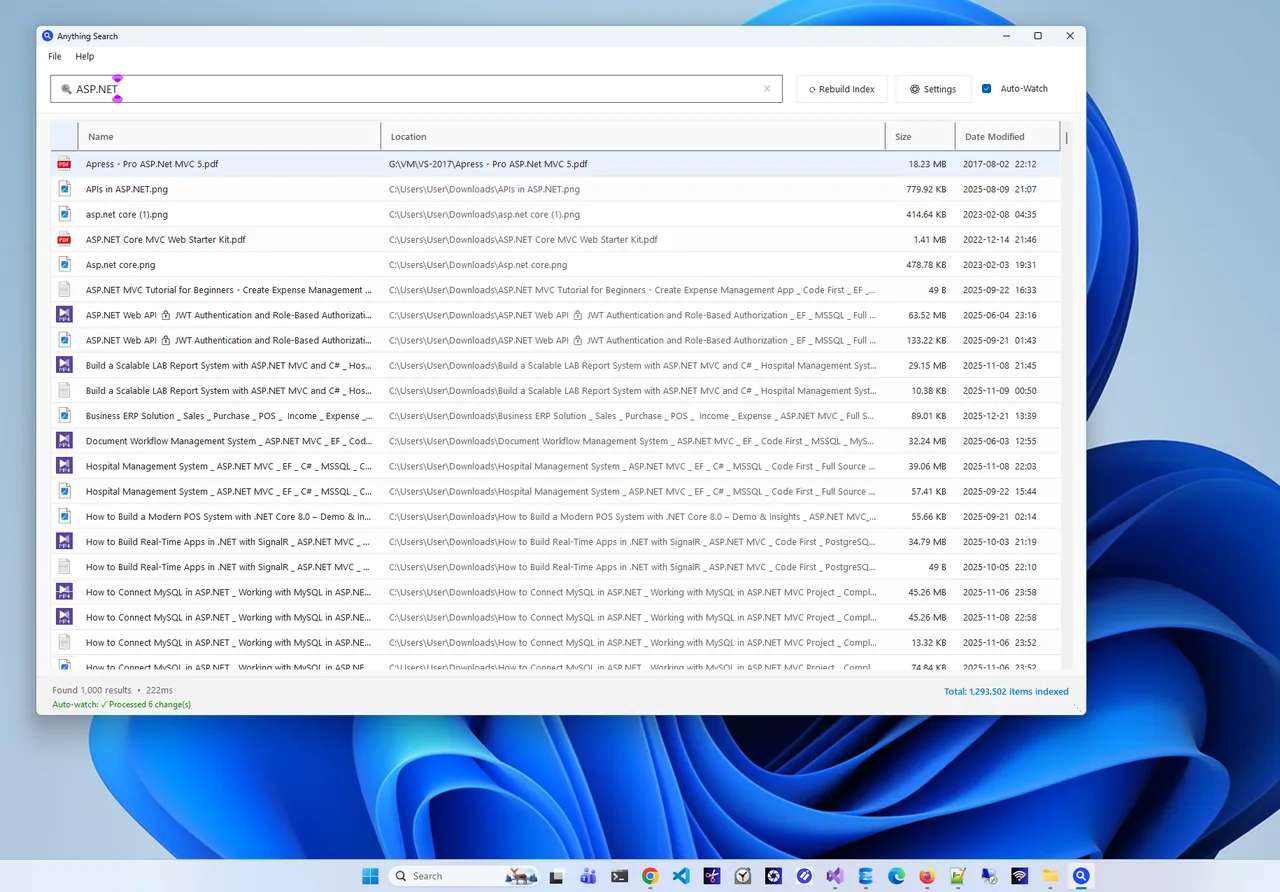
Content search is slow by nature. If you remember even part of the name or the extension, a name search is far quicker. Anything Search finds any file on your PC by name in milliseconds as you type, with folder path, size and date, so you can jump straight to the file and then search inside it. Markdown notes can then be opened in a viewer; see open MD files on Windows.

To hunt down space-hungry files instead, see find large files on Windows 11.
Search File Contents on Windows 11: Useful Query Syntax
| Query | Finds |
|---|---|
content:"exact phrase" | Files containing the exact phrase |
content:budget AND content:2026 | Files containing both words |
content:budget NOT content:draft | Files with one word but not the other |
content:invoice kind:document | Only documents, not images or programs |
content:error datemodified:this week | Recently changed files mentioning the word |
Operators AND, OR and NOT must be in capitals. Save a search you run often with the ... menu > Save search.
Search Inside Word, Excel and PDF Files
Office documents and PDFs are compressed, so command-line tools see them as gibberish. Windows search can read them through built-in filters for Office formats and a PDF filter installed by most PDF readers. Make sure the folder is indexed and the file type is set to "Index Properties and File Contents". Inside Outlook, use its own search box for emails and attachments.
FAQ
Can Windows search inside PDF files?
Yes, if a PDF filter (IFilter) is installed, which most PDF readers add. Then indexed PDFs are found with content:.
Why does content search find nothing?
The folder or file type is not indexed for contents. Add it to the index or enable "Always search file names and contents".
Does indexing slow down my PC?
Only while it builds the index. After that it updates quietly in the background.
Can I search for text in many files with Notepad?
Notepad searches one file at a time. Use PowerShell or findstr for many files, or a code editor's "Find in files".
Conclusion
Use content: in File Explorer to search inside documents, index the folders and file types you care about,
and use PowerShell or findstr for code and logs. When you remember the name, a fast name search wins. Explore more
productivity apps for Windows 11.