Network How-to
How to Set a Metered Connection on Windows 11
Set a metered connection on Windows 11 to save mobile data and hotspot allowance: what it pauses, what it does not, and how to add a monthly data limit.
On this page
To set a metered connection on Windows 11, open Settings, Network & internet, Wi-Fi, select your network's properties and turn on Metered connection. For a cable, do the same under Ethernet. Windows then holds back most updates, Store app updates and some background sync. It does not stop browsers, games or streaming from using data.
Time: 1 minute · Cost: free · Works on: Windows 11 and Windows 10
On a phone hotspot, mobile broadband or a capped plan, one Windows update can eat gigabytes of your allowance. A metered connection on Windows 11 tells the PC to treat data as expensive and hold back the big background downloads. This guide shows how to turn it on, exactly what it does and does not block, and how to set a data limit so you never get a surprise bill.
How to Turn On Metered Connection
-
Open network settings
Press Win + I and select Network & internet.
-
Open your connection's properties
Select Wi-Fi, then the properties of the network you are on. For a cable, select Ethernet; for a SIM card, select Cellular.
-
Switch on Metered connection
Turn on Metered connection. The setting is saved for that network only, so your home Wi-Fi can stay unmetered while your hotspot is metered.
Windows sets cellular connections as metered automatically, and many phone hotspots are detected as metered too.
What a Metered Connection Pauses (and What It Does Not)
| Paused or reduced | Not affected |
|---|---|
| Most Windows updates (only critical ones still download) | Web browsing and video streaming |
| Microsoft Store app updates | Game launchers (Steam, Epic) unless set in their own settings |
| OneDrive sync, if its "pause on metered network" setting is on | Third-party cloud sync apps |
| Delivery Optimization uploads to other PCs | Video calls, music and downloads you start |
| Some live tiles, widgets and offline map downloads | Antivirus definition updates |
Make Sure Updates Really Wait
Go to Settings, Windows Update, Advanced options, and turn off Download updates over metered connections. If it is on, Windows downloads updates even on metered networks. Windows still downloads the few updates it considers essential for security.
Set a Monthly Data Limit
-
Open Data usage
Go to Settings, Network & internet, Advanced network settings, Data usage, and pick the adapter.
-
Enter a limit
Select Enter limit, choose Monthly, set the reset day and your allowance. Windows shows how much is left and warns when you get close.
Our guide to checking data usage on Windows 11 shows how to see which apps used the most.
Track Data in Real Time
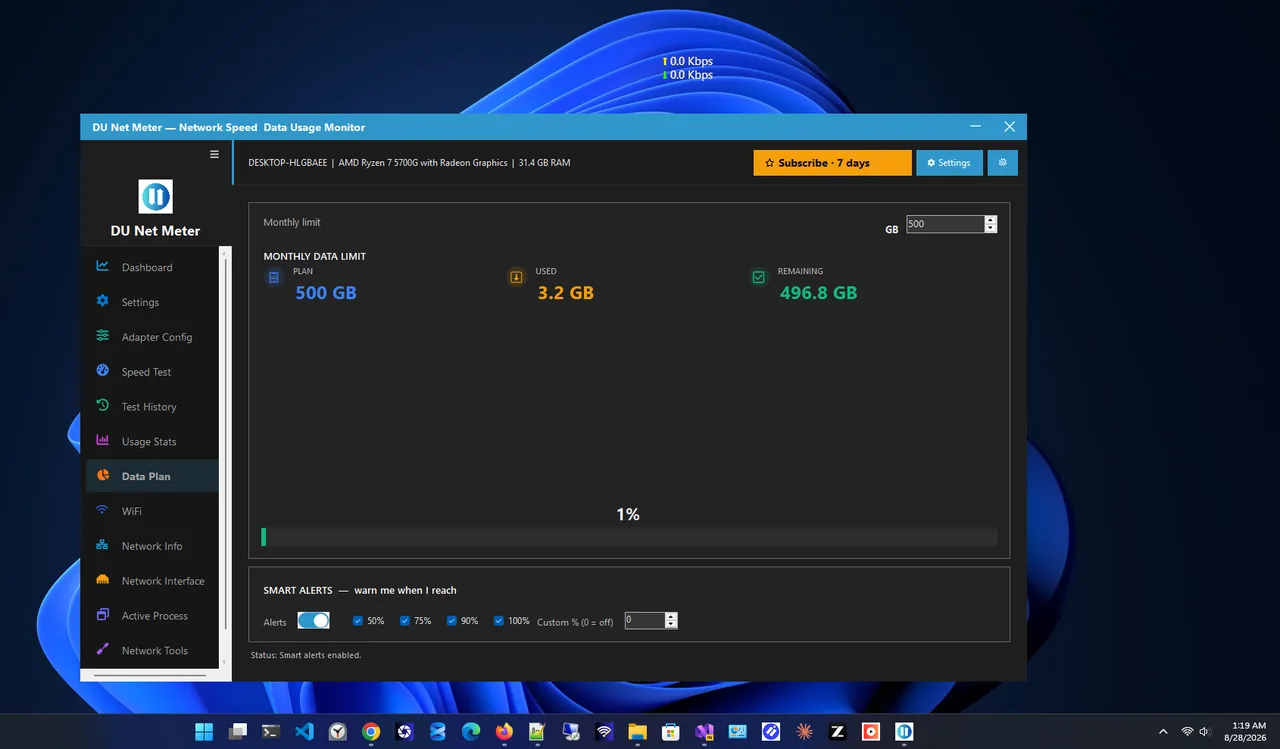
Windows' data usage page updates slowly and hides in Settings. DU Net Meter keeps a live upload and download speed widget on screen for free, so you see the moment something starts eating data. Its Premium data plan tracker adds a monthly allowance with alerts before you hit your cap, plus daily and monthly usage charts and a per-app view of what is using the network right now.
How Much Data Windows Can Use
A monthly cumulative update is often several hundred MB, a yearly feature update 3–5 GB, and a single game update tens of GB. On a 20 GB hotspot plan, one unplanned update can use a quarter of the month. That is why metered mode, plus a limit, matters most in the first days after you connect a PC to a new hotspot.
More Ways to Save Data
- Set game launchers to update only when you start them, and pause their downloads on hotspots.
- Pause OneDrive, Google Drive and Dropbox sync while on mobile data.
- Lower streaming quality: HD video uses about 3 GB an hour, 4K up to 7 GB. See how much internet speed you need for typical rates.
- Turn off auto-play videos in browsers and social sites.
- Download large files later on unmetered Wi-Fi.
Troubleshooting
- The Metered connection switch is missing. Open the properties of the specific network, not the main Wi-Fi page. On some work PCs it is controlled by policy.
- Data use is still high. Something not covered by metered mode is downloading. Check per-app data usage and pause that app.
- Updates never install. Remember to connect to an unmetered network now and then, or Windows will fall behind on updates.
Related: stop Windows Update using data and mobile hotspot on Windows 11.
FAQ
Should I set my home Wi-Fi as metered?
Only if your home plan has a data cap. On an unlimited plan, metered mode just delays updates.
Does a metered connection slow down internet?
No. It only stops some background downloads. Everything you do yourself runs at full speed.
Does metered connection stop all Windows updates?
Most of them. Windows still downloads small critical security updates, and all updates if "Download updates over metered connections" is on.
Is it the same on Windows 10?
Yes. In Windows 10, go to Settings, Network & Internet, Wi-Fi, select the network and turn on Set as metered connection.
Conclusion
Turn on Metered connection for every hotspot and capped network, turn off updates over metered connections, and set a monthly limit. Then keep an eye on live usage so nothing surprises you. For more tools, see all network apps for Windows.