Network How-to
How to Lower Ping: 12 Fixes for Gaming and Calls
Learn how to lower ping on a Windows PC: measure it, switch to Ethernet, stop background downloads, pick nearer servers and fix lag spikes. 12 fixes.
On this page
To lower ping, connect with an Ethernet cable instead of Wi-Fi, stop downloads, updates and streams on your network while you play, and choose the game server nearest to you. Then restart the router, close background apps, and turn on QoS or SQM on the router if ping jumps when others use the internet. Distance to the server sets the minimum ping; no setting can beat it.
Time: 10–30 minutes · Cost: free (an Ethernet cable if you need one) · Works on: Windows 11 and 10
High ping makes games feel delayed, shots miss that should hit, and video calls talk over each other. The good news: most high ping comes from your own home network, not your internet plan, and you can fix it. This guide shows how to lower ping step by step, starting with the changes that make the biggest difference. Measure first, change one thing at a time, and measure again.
Step 1: Measure Your Ping
Ping is the round-trip time in milliseconds (ms) for a small packet to reach a server and come back. Lower is better. New to the terms? Read what ping and jitter are. To measure from Windows, open Terminal and run:
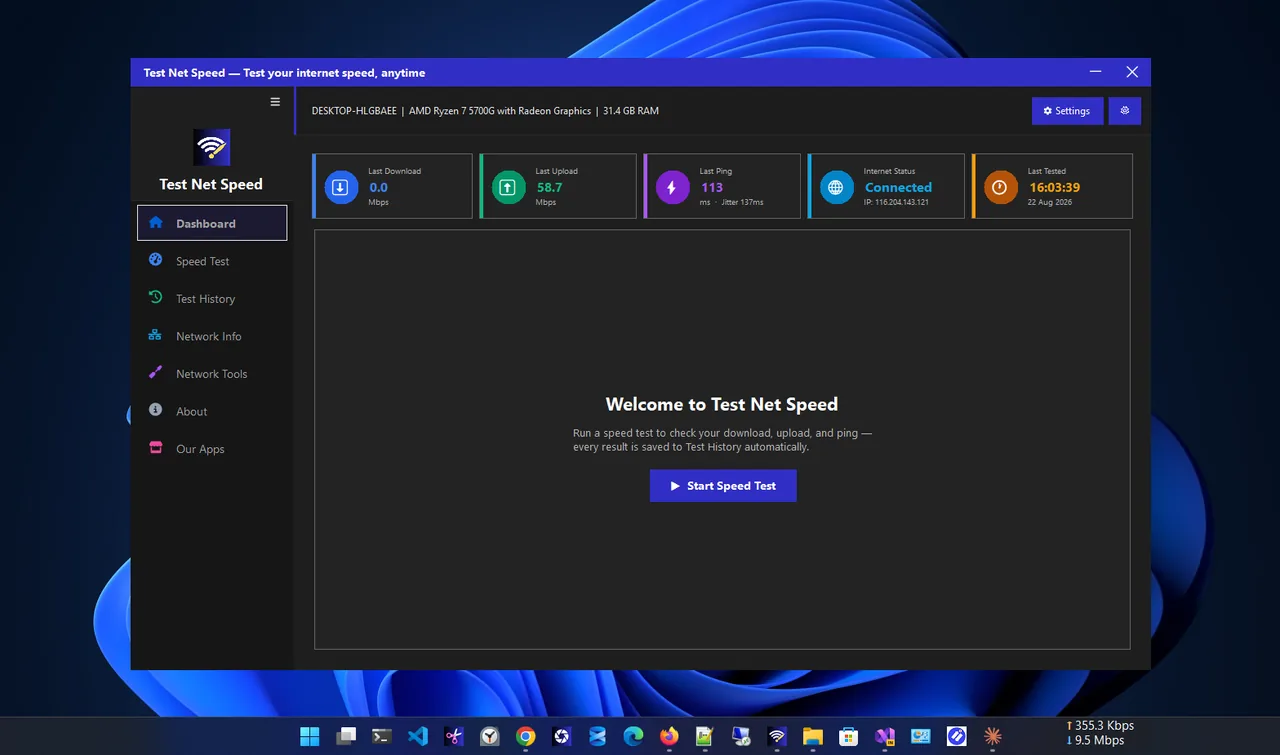
ping -n 20 1.1.1.1Look at the Average and the Maximum at the bottom. A big gap between them means spikes (jitter), which feel worse than a steady high ping. For a fuller picture, run a test in Test Net Speed: it measures download, upload, ping and jitter together and saves every result, so you can compare before and after each fix.
Not sure what number to aim for? See what a good ping for gaming is.
12 Ways to Lower Ping
-
Use an Ethernet cable
The biggest single fix. Wi-Fi adds a few milliseconds and, worse, random spikes from interference and walls. A cable to the router usually removes most jitter. Details in Ethernet vs Wi-Fi.
-
Stop other traffic on the network
A 4K stream, a cloud backup or a game download on another device fills the connection and makes your packets wait in a queue. Pause them while you play. Uploads are the worst offenders because most plans have little upload bandwidth.
-
Pause Windows updates and downloads on the PC
Settings > Windows Update > Pause updates. Also pause game launchers (Steam, Epic, Xbox app), OneDrive and other sync tools. They download in the background without telling you.
-
Choose the nearest server
Light in fibre covers about 200 km per millisecond, and the trip goes both ways with detours. A server on another continent adds 100 ms or more that no tweak can remove. In the game settings pick your region manually instead of "Auto".
-
Restart the router and modem
Routers that run for weeks can build up memory and connection-table problems. A restart is free and often lowers ping and spikes.
-
Fix Wi-Fi if you cannot use a cable
Use the 5 GHz band, move closer to the router with fewer walls between, and pick a less crowded channel. A mesh node or a powerline adapter near the PC can also help.
-
Turn on QoS or SQM on the router
If ping jumps whenever someone else uses the internet, the router is buffering too much. That is called bufferbloat. Routers with SQM (often called Smart Queue, Adaptive QoS or fq_codel/CAKE) fix it by limiting the queue. Set the limit to about 90% of your measured speed.
-
Close background apps on the PC
Open Task Manager (Ctrl+Shift+Esc) > Performance > Open Resource Monitor > Network tab to see which processes send and receive data. Close browsers with many tabs, streaming apps and chat apps you do not need.
-
Turn off the VPN (or pick a nearby server)
A VPN sends traffic through an extra server, which adds distance. Turn it off while gaming, or connect to a VPN server in your own city.
-
Update the network driver
Old Wi-Fi and Ethernet drivers can cause lag spikes. Get the latest from your laptop or motherboard maker. On the adapter's Advanced tab you can also disable Energy-Efficient Ethernet and Wi-Fi power saving.
-
Use Windows' Game Mode and close overlays
Settings > Gaming > Game Mode on. It does not change network ping, but it stops Windows Update from installing drivers and restarting during play, and it gives the game CPU priority, which reduces stutter that feels like lag.
-
Talk to your ISP or change plan
If ping is high even on a cable with nothing else running, test at different times. High ping only in the evening points to ISP congestion. Fibre plans usually have the lowest ping; satellite (except low-orbit services) and some mobile connections have the highest.
What Does Not Lower Ping
- A faster plan alone. Going from 300 to 1000 Mbps barely changes ping if the network is idle. It helps only when the line was full.
- "Ping booster" apps and registry tweaks. Old tricks like disabling Nagle's algorithm help a few old games at most. Many booster apps are just VPNs.
- Changing DNS. DNS affects how fast a site starts loading, not in-game ping.
Check That It Worked
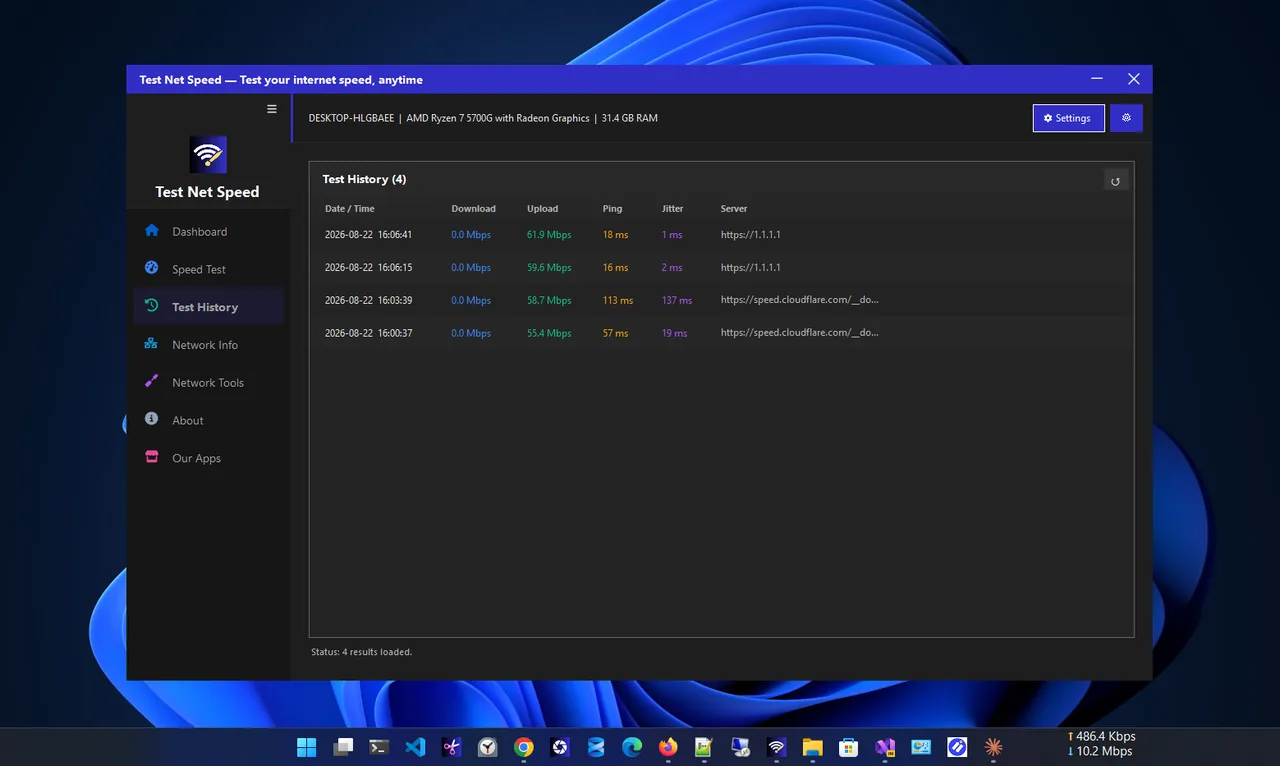
Run the same test after each change and compare. Test Net Speed keeps a history of every result, so you can see which fix made the difference instead of guessing.
FAQ
Why is my ping so high on Wi-Fi?
Wi-Fi shares airtime with other devices and neighbouring networks, and walls weaken the signal, which causes retries and spikes. Ethernet or moving closer to the router lowers it.
Does more Mbps mean lower ping?
Not directly. Speed is how much data fits through; ping is how long a round trip takes. More speed helps only when your connection was full.
Why does my ping spike every few seconds?
Usually Wi-Fi scanning, background uploads or bufferbloat. Test on Ethernet with other devices idle; if spikes stop, the cause is on your network.
Can a VPN lower ping?
Rarely. It can help only if your ISP routes traffic to a game server badly. In most cases a VPN adds ping.
Conclusion
The fastest way to lower ping is to plug in an Ethernet cable, stop other traffic while you play and choose the nearest server. If ping still jumps under load, fix bufferbloat with QoS or SQM on the router. Measure before and after every change. Find more tools in our network apps for Windows.