System Fix
Windows 11 Slow After Update? 10 Fixes
Windows 11 slow after an update? Let background tasks finish, then fix drivers, startup apps and temp files, or uninstall the update. 10 fixes in order.
On this page
If Windows 11 is slow after an update, first leave the PC on and plugged in for 30–60 minutes and restart twice: Windows finishes indexing, optimizing apps and installing drivers in the background. If it is still slow, check Task Manager for a busy process, update the graphics and chipset drivers, disable new startup apps and clean up update files with Disk Cleanup. If the slowdown started with one specific update, uninstall it in Settings > Windows Update > Update history.
Time: 15–60 minutes · Cost: free · Works on: Windows 11
The update finished, the PC restarted, and now everything feels sluggish: apps open slowly, the fan runs and the disk is busy. A Windows 11 slow after update problem is very common, and most of the time it fixes itself once background work finishes. When it does not, the cause is usually a driver, a reset setting or leftover files. Work through these fixes in order.
Why Windows Gets Slow After an Update
- Background maintenance: Windows re-indexes files for search, recompiles .NET and Store apps, and runs Defender scans after big updates.
- New or generic drivers: an update may replace your graphics or chipset driver with an older or generic one.
- Re-enabled features: feature updates sometimes switch on startup apps, widgets, Copilot or tips again.
- Leftover files: the old Windows version and update cache can use 10–30 GB, a problem on small drives.
- A buggy update: rarely, the update itself causes the problem until Microsoft fixes it.
10 Fixes for Windows 11 Slow After Update
-
Give it time and restart twice
Leave the PC on, plugged in and idle for 30–60 minutes. Then restart (not shut down) twice. Check Settings > Windows Update for "Restart required" or pending updates and install them.
-
Find the busy process
Open Task Manager and sort by CPU, Memory and Disk. Search Indexer, Antimalware Service Executable and .NET Runtime Optimization are normal for a while. A third-party app stuck at high usage needs an update. See high CPU usage on Windows 11.
-
Update graphics and chipset drivers
Install the latest graphics driver from NVIDIA, AMD or Intel, and the chipset driver from your PC or motherboard maker. Check Device Manager for "Microsoft Basic Display Adapter" or warning icons.
-
Disable startup apps that came back
Task Manager > Startup apps, sort by Startup impact and disable what you do not need. Full guide: disable startup programs on Windows 11.
-
Clean up update files
Search "Disk Cleanup", choose the C: drive, click Clean up system files, and tick Windows Update Cleanup, Delivery Optimization Files and Temporary files. After a feature update, "Previous Windows installation(s)" frees the most space, but removes the option to go back.
-
Check power mode
Settings > System > Power & battery > Power mode. Updates sometimes reset it; choose Balanced or Best performance when plugged in.
-
Repair system files
In Terminal (Admin), run:
CommandsDISM /Online /Cleanup-Image /RestoreHealth sfc /scannowThis repairs files damaged during an interrupted update. Restart afterwards.
-
Turn off new extras
Settings > Personalization > Taskbar: turn off Widgets if you do not use them. Settings > Privacy & security > General: turn off suggestions. Settings > Accessibility > Visual effects: turn off animations on older PCs.
-
Uninstall the problem update
Settings > Windows Update > Update history > Uninstall updates. Remove the latest quality update and restart. After a feature update, Settings > System > Recovery > Go back is available for 10 days. Pause updates for a week so it does not reinstall immediately.
-
Run a health check and clean-up
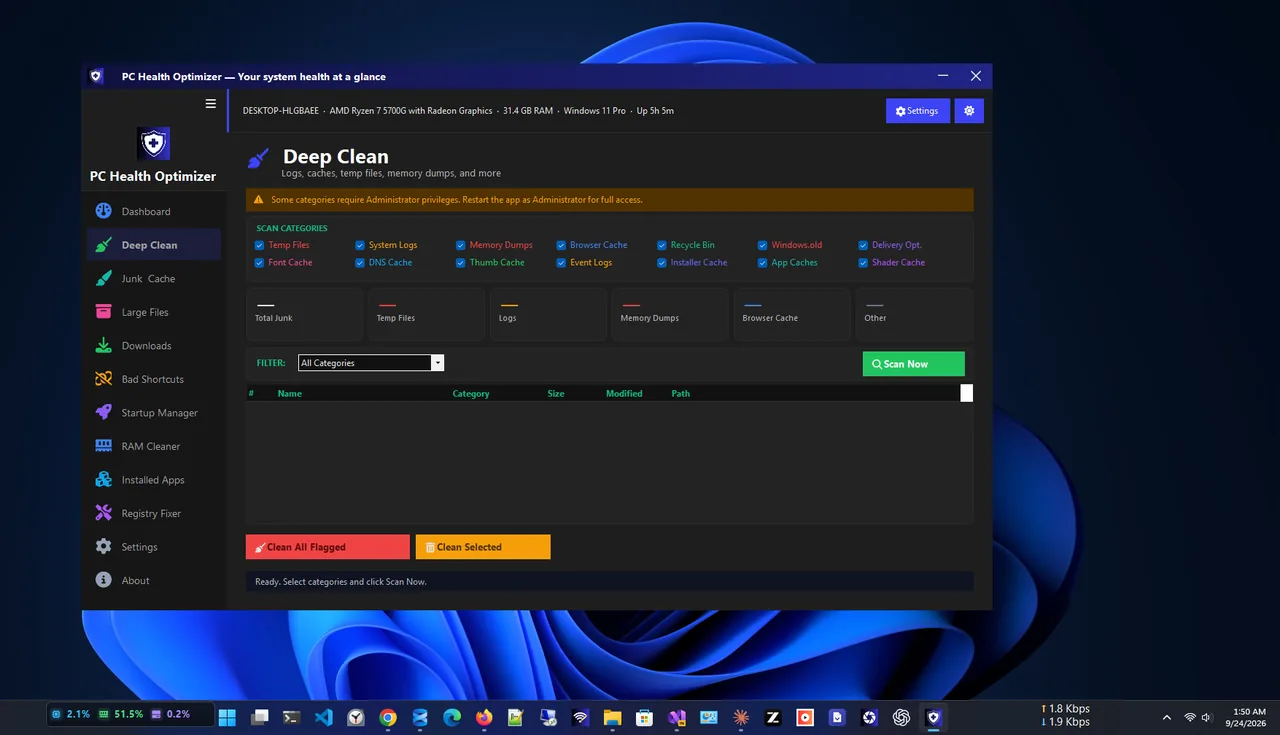
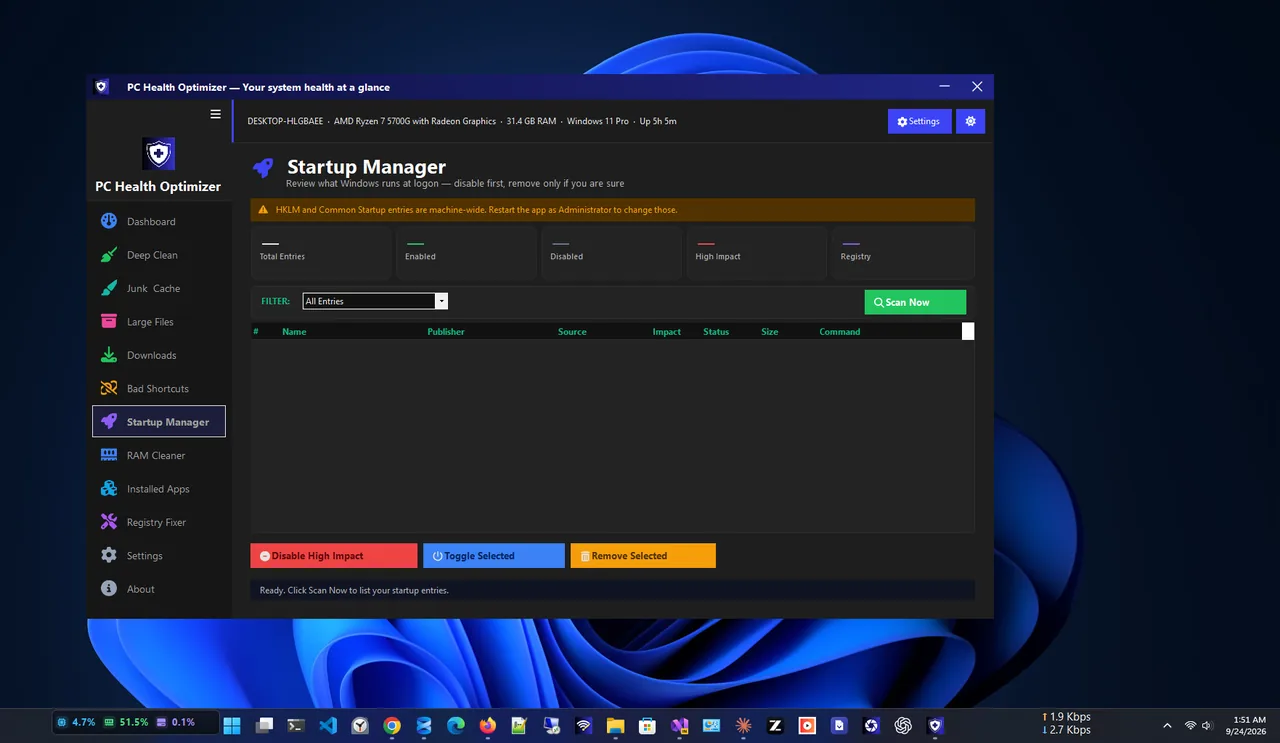
A one-click tool saves time: PC Health Optimizer gives a health score, deep-cleans logs, caches and temporary files, manages startup apps and shows memory use by process, covering several of the steps above on one screen.
Still Slow?
If none of this helps, the PC may have been borderline before the update: an HDD instead of an SSD, 4–8 GB of RAM, or a nearly full drive. The general guide how to speed up Windows 11 covers upgrades and deeper fixes. If only start-up is slow, see Windows 11 slow boot.
Prevent Windows 11 Slowdowns After Future Updates
- Keep 20 GB or more free on C: so updates have room to unpack.
- Install drivers from the PC maker and turn off "Get the latest updates as soon as they're available" if you prefer stability.
- Set active hours so restarts happen when you are not working.
- Create a restore point before big feature updates.
FAQ
How long is Windows slow after an update?
Usually under an hour, sometimes a day on HDDs or after a feature update, while indexing and app optimization finish.
Is it safe to uninstall a Windows update?
Yes, temporarily. Security fixes will come back in later updates, so pause updates and reinstall once a fix is released.
Can I delete the Windows.old folder?
Yes, with Disk Cleanup's "Previous Windows installation(s)". You lose the option to roll back the feature update.
Why is my disk at 100% after an update?
Indexing, Defender and app optimization use the disk heavily at first, especially on hard drives. It should settle; if not, see the 100% disk guide.
Conclusion
Most slowdowns after a Windows 11 update end once background tasks finish. If not, update drivers, disable returning startup apps, clean up update files and repair system files, and uninstall the update as a last resort. Explore more system utilities for Windows 11.