System How-to
How to Check BIOS Version on Windows 11
Check your BIOS version on Windows 11 with System Information, PowerShell or CMD, see if you use UEFI mode, and learn when to update the BIOS safely.
On this page
To check your BIOS version on Windows 11, press Win+R, type msinfo32 and press Enter. In System Summary, read BIOS Version/Date, for example "American Megatrends International, LLC. 1.40, 03/12/2026". The same page shows BIOS Mode (UEFI or Legacy). In PowerShell, Get-CimInstance Win32_BIOS | Select SMBIOSBIOSVersion, ReleaseDate gives the same version.
Time: 30 seconds · Cost: free · Works on: Windows 11 and Windows 10
Support asks for your BIOS version, a new CPU needs a minimum BIOS, or you read that an update fixes fan noise or stability. Before you change anything, you need to know what you have. You do not have to restart into the firmware screen. This guide shows how to check your BIOS version on Windows 11 in four ways and explains when an update is worth it.
Method 1: System Information
-
Open System Information
Press Win+R, type
msinfo32, press Enter. -
Read BIOS Version/Date and BIOS Mode
BIOS Version/Date shows the vendor, version and release date. BIOS Mode should say UEFI on Windows 11. Secure Boot State shows whether Secure Boot is on. BaseBoard lines show the motherboard; see check your motherboard model.
Method 2: PowerShell
Get-CimInstance Win32_BIOS | Select-Object Manufacturer, SMBIOSBIOSVersion, ReleaseDateSMBIOSBIOSVersion is the version the maker uses on its download page.
Method 3: Command Prompt
systeminfo | findstr /I /C:"BIOS Version"The older wmic bios get smbiosbiosversion may not exist on recent Windows 11 versions, because WMIC is being removed. Use PowerShell or systeminfo instead.
Method 4: CPU ZX Pro
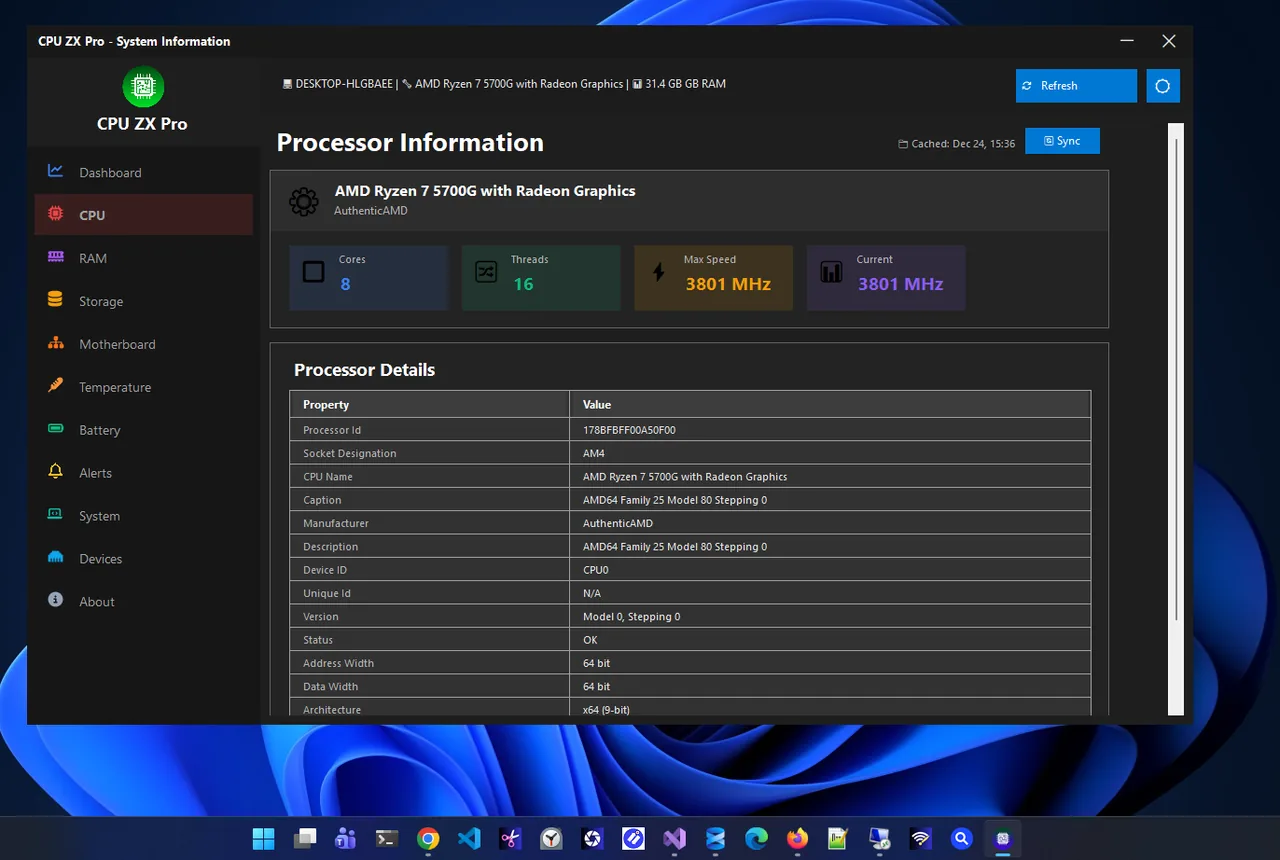
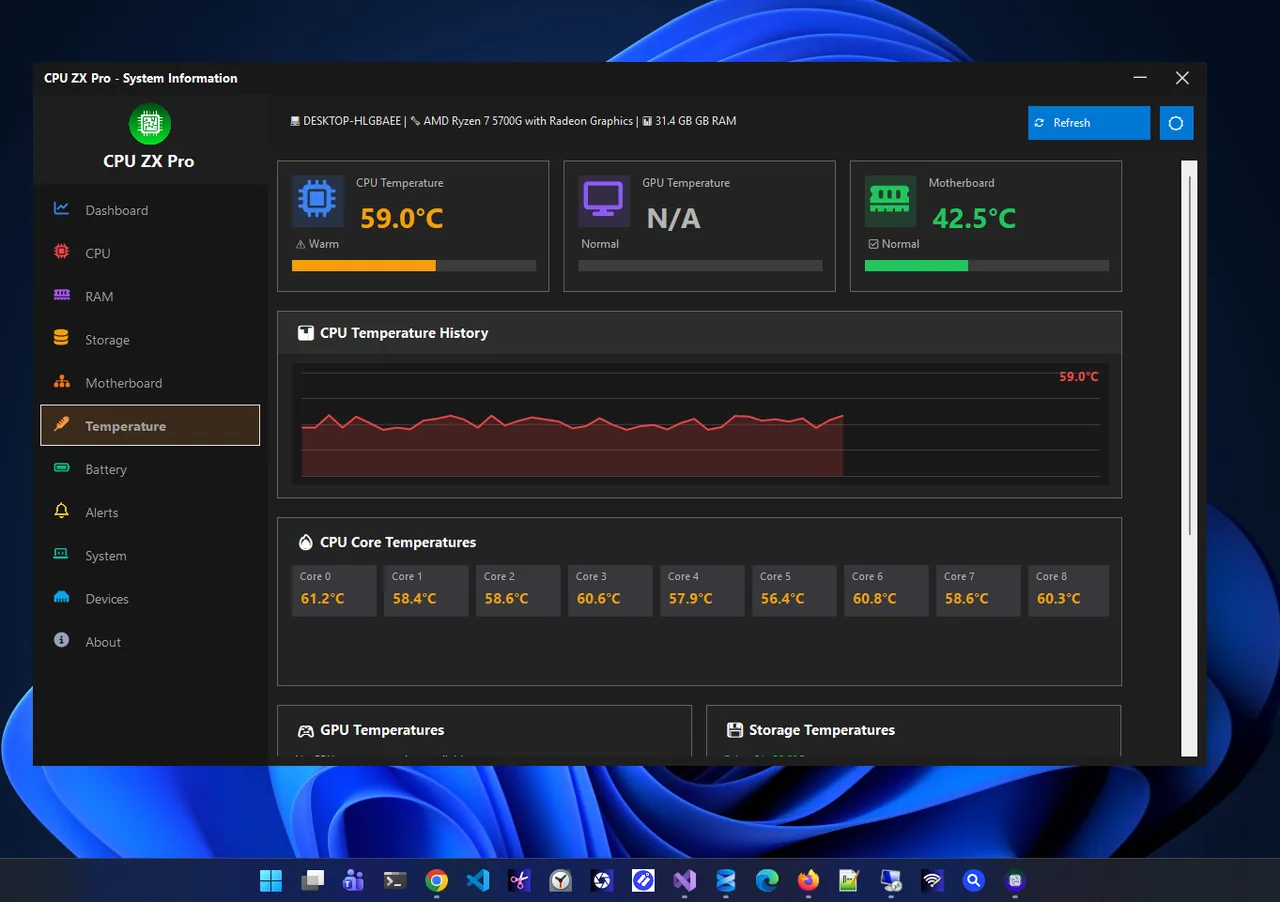
CPU ZX Pro lists BIOS details next to the processor, graphics card and temperature sensors, which is useful when you are checking a BIOS update's effect on clocks or temperatures. Everything else about your PC is covered in check PC specs on Windows 11.
Check It in the BIOS Itself
Settings > System > Recovery > Advanced startup > Restart now, then Troubleshoot > Advanced options > UEFI Firmware Settings. The version is on the main screen. Or press Del, F2, F10 or F12 (depending on the maker) while the PC starts.
Should You Update the BIOS?
| Reason | Update? |
|---|---|
| Installing a newer CPU the board supports only with a new BIOS | Yes, required |
| Security fix listed by the maker | Yes |
| Known bug you are experiencing (stability, fan, sleep, USB) | Yes |
| Windows Update offers a firmware update from the PC maker | Usually fine to install |
| Everything works and the notes list nothing relevant | Optional |
Laptop BIOS updates often include better fan and battery behaviour; see laptop fan loud for other fan fixes.
How to Update the BIOS Safely
-
Download from the maker only
Go to the support page for your exact PC model (laptops, brand PCs) or motherboard model (custom desktops). Compare the newest version with yours.
-
Use the maker's method
Brand PCs: run the Windows updater (Dell, HP, Lenovo) or let Windows Update install it. Motherboards: use the BIOS's built-in flash tool (EZ Flash, Q-Flash, M-Flash) with the file on a USB stick.
-
Keep power stable
Plug in laptops and keep the battery above 50%. Never turn off the PC during the update; an interrupted flash can leave it unbootable.
-
Suspend BitLocker first
If the drive is encrypted, open Control Panel > BitLocker > Suspend protection before updating, or have your recovery key ready.
Compare Your BIOS Version With the Latest
-
Find the exact model
In msinfo32, note System Model (laptops and brand PCs) or BaseBoard Product (custom desktops).
-
Open the maker's support page
Search the model on the maker's support site and open BIOS or Firmware downloads.
-
Read the release notes
Compare version numbers and dates with yours, and read what each newer version fixes. Install only if a fix or feature applies to you, or a security issue is listed.
Some makers number versions by date (for example 2026.03), others with letters (F12, 1.40). Newer is always higher in the same scheme.
Why You May Need to Check the BIOS Version
- CPU upgrade: newer processors on an existing board often need a minimum BIOS version, listed on the board's CPU support page.
- Windows 11 requirements: TPM 2.0 and Secure Boot settings live in the BIOS; older versions may hide or lack them.
- Troubleshooting: support teams ask for the version to rule out known bugs, such as sleep problems, USB drop-outs or fan behaviour.
- Security advisories: makers publish BIOS updates for firmware vulnerabilities and list the fixed version.
Write the version down before any update, so you can tell whether it changed and roll back on boards that allow it. If msinfo32 shows a very old date, for example several years before the PC was bought, check the maker's site for important fixes.
FAQ
Is BIOS the same as UEFI?
UEFI is the modern replacement for BIOS, but most people and tools still call it BIOS. Windows 11 requires UEFI mode.
Can I check the BIOS version without restarting?
Yes. System Information, PowerShell and systeminfo read it from Windows.
Does updating the BIOS improve performance?
Sometimes, through better memory compatibility or CPU microcode, but usually the gains are fixes rather than speed.
Is it risky to update the BIOS?
The risk is small with the maker's tool and stable power. Many modern boards also have a backup BIOS or a recovery feature.
Conclusion
System Information (msinfo32) shows your BIOS version and mode in seconds, and PowerShell gives the same with one line. Update only from the maker, for a real reason, with stable power. Explore more system utilities for Windows 11.