System How-to
How to Find Duplicate Photos on Windows (Safely)
Find duplicate photos on Windows 11 or 10 and delete them safely. Scan Pictures and phone backups, keep the best copy and protect your originals.
On this page
To find duplicate photos on Windows, use a duplicate finder that compares file contents, not just names. Point it at your Pictures folder, phone backup folders and external drives, limit the scan to image types (JPG, PNG, HEIC, RAW), review each group and keep one copy, ideally the largest or original. Choose a tool that sends deletes to the Recycle Bin so mistakes can be undone, and back up first.
Time: 10–30 minutes · Cost: free · Works on: Windows 11 and Windows 10
Phone backups, imports from the same camera card twice, WhatsApp copies and synced cloud folders can leave you with thousands of identical pictures. They waste gigabytes and make albums a mess. This guide shows how to find duplicate photos on Windows safely, keep the right copy, and stop new duplicates from piling up.
Why You Have Duplicate Photos
- Importing the same phone or SD card more than once.
- OneDrive, Google Photos or iCloud syncing into a folder you also copy to manually.
- Messaging apps saving their own copy of every photo you receive or send.
- Edited versions saved next to the originals, and "photo (1).jpg" downloads.
- Backups of backups on external drives.
Exact Duplicates vs Similar Photos
| Exact duplicates | Similar photos | |
|---|---|---|
| What they are | Byte-for-byte identical files, even with different names | Burst shots, resized or edited copies |
| How they are found | Size and content hash comparison | Visual comparison |
| Safe to delete automatically? | Yes, keep one | No, review by eye |
Start with exact duplicates: they are risk-free to remove and usually free the most space.
How to Find Duplicate Photos
-
Back up first
Copy your photo library to an external drive or make sure cloud backup is complete. Photos are irreplaceable.
-
Choose the folders
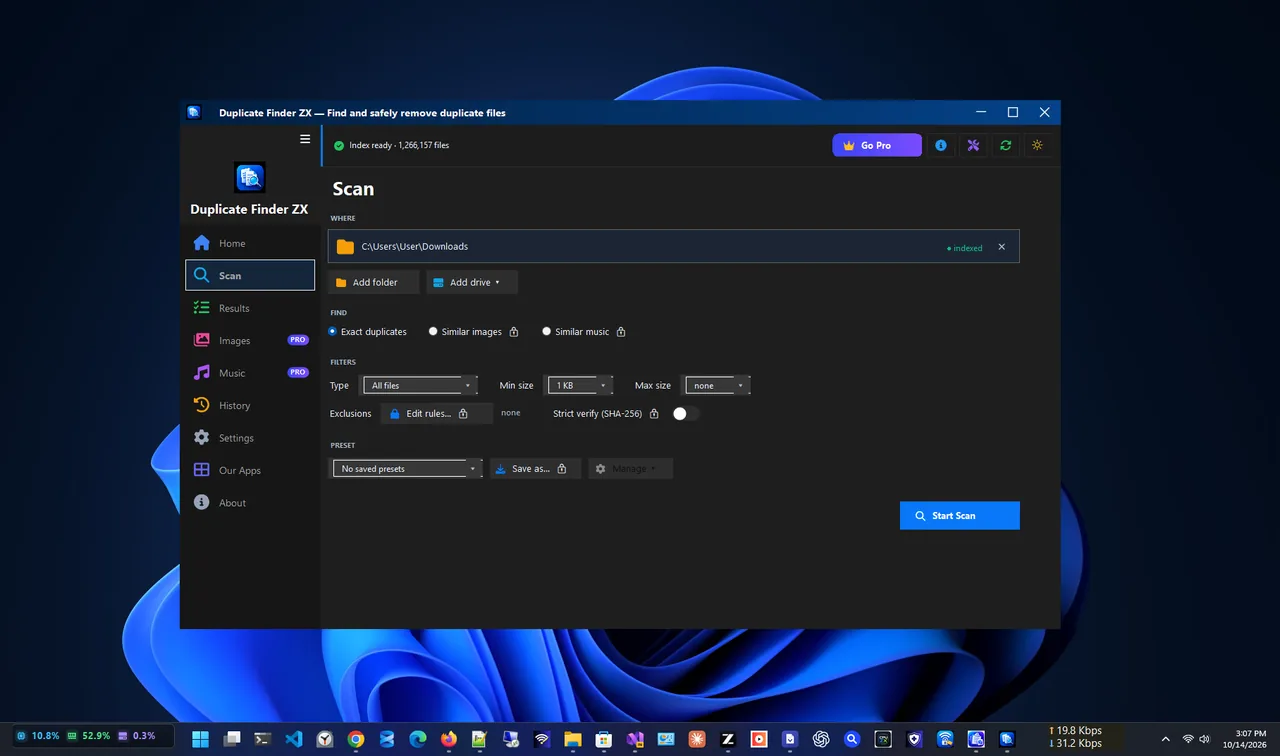
Add Pictures, Downloads, phone import folders (often Pictures\Camera Roll or DCIM copies), messaging app folders and any external drive with old backups. Scanning them together catches copies across locations.
-
Limit to image files
Filter by type (.jpg, .jpeg, .png, .heic, .gif, .webp and RAW formats such as .cr2, .nef, .arw) and set a minimum size to skip thumbnails and icons.
-
Run the scan
Duplicate Finder ZX lets you choose folders, file types and size filters, compares files by content, and groups identical copies even when names differ.
-
Keep the best copy
In each group keep the one in your main library folder, the oldest original, or the one with the most complete folder name. Select the others for removal.
-
Delete to the Recycle Bin
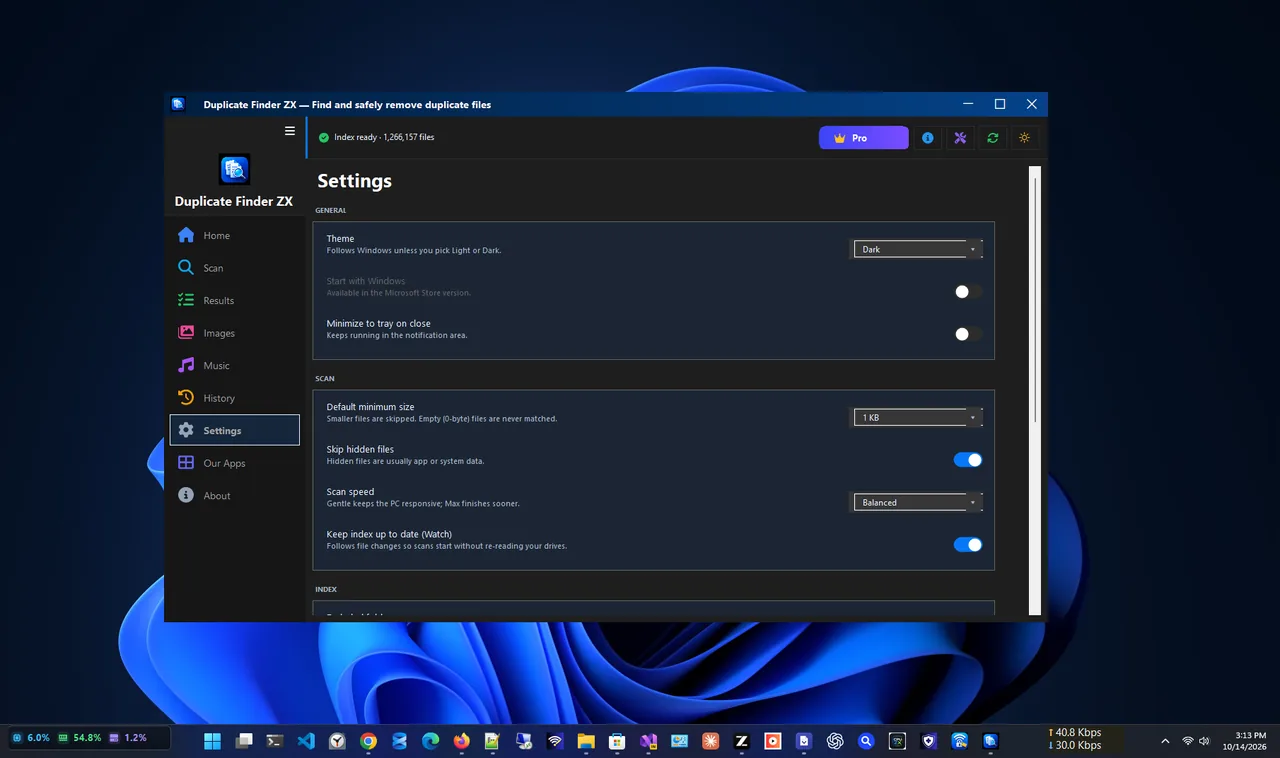
Duplicate Finder ZX sends every delete to the Recycle Bin, so you can restore anything removed by mistake. Check your albums for a few days before emptying it.
The same approach works for any file type; see find and remove duplicate files on Windows.
Handling Similar Photos
For burst shots and near-identical pictures, sort the folder by Date taken in File Explorer's Details view, switch to Large icons, and use the Preview pane to compare. Keep the sharpest one. Microsoft Photos' gallery view also makes it quick to scroll through bursts. Do this by eye; automatic "similar" matching can group photos you want to keep.
Prevent New Duplicates
- Use one import method only (Photos app or the cloud service, not both).
- In the Windows Photos import, keep "Delete after import" off but import only new items.
- Turn off auto-save in messaging apps on your phone if photos already sync elsewhere.
- Shrink huge originals you only share online; see resize multiple images at once.
How Much Space Will You Save?
A typical phone photo is 2–6 MB, and RAW files 20–60 MB. 5,000 duplicates can easily free 15–30 GB. For other ways to reclaim space, read free up disk space on Windows 11.
Find Duplicate Photos in Cloud Folders
OneDrive, Google Drive and iCloud folders on your PC can contain duplicates too. Before scanning them, make sure files are downloaded (right-click > Always keep on this device), or the tool may skip online-only files. Delete duplicates in the synced folder and the cloud copy is removed as well, so check the cloud service's recycle bin if you need to restore something.
Organise Photos After Removing Duplicates
With duplicates gone, it is a good moment to organise. Create one folder per year with subfolders by month or event, move imports there, and keep a single "Inbox" folder for new photos. A simple structure makes future duplicate scans faster and backups smaller.
FAQ
Does Windows have a built-in duplicate photo finder?
No. File Explorer can sort by name, size and date, but it cannot compare file contents. Use a duplicate finder.
Is it safe to delete duplicate photos?
Yes for exact duplicates, as long as you keep one copy and delete to the Recycle Bin with a backup in place.
Will deleting duplicates break my photo albums?
Albums in some apps point to a specific file. Keep the copy in your main library folder to avoid broken links.
Can I find duplicates on an external drive?
Yes. Add the external drive to the scan, alongside your PC folders, to find copies across both.
Conclusion
To find duplicate photos safely, back up, scan all photo locations by content, keep one copy per group and delete to the Recycle Bin. Handle similar shots by eye. You will free gigabytes and get a tidier library. Explore more system utilities for Windows 11.