System Fix
Laptop Battery Draining Fast? 12 Fixes for Windows
Laptop battery draining fast on Windows 11? Find apps using power, fix drain in sleep, lower brightness and refresh rate, and check battery wear.
On this page
If your laptop battery is draining fast, open Settings > System > Power & battery > Battery usage to find the app using the most power and close or update it. Then turn on Energy saver, lower screen brightness and refresh rate, and check that sleep works (powercfg /sleepstudy). Finally run powercfg /batteryreport: if full charge capacity is below about 70% of design capacity, the battery is worn and needs replacing.
Time: 15–20 minutes · Cost: free · Works on: Windows 11 and Windows 10 laptops
Your laptop used to last a full day and now dies by lunchtime. Or it loses 20% overnight with the lid closed. A laptop battery draining fast is caused either by something using too much power, or by a battery that has lost capacity with age. This guide helps you tell which, and fixes both. If you want everyday tips for longer runtime instead, see how to extend laptop battery life.
Step 1: Power Hog or Worn Battery?
Run a battery report. In Terminal:
powercfg /batteryreport /output "%USERPROFILE%\battery-report.html"Open the file. Compare Design capacity with Full charge capacity. Above 80% is healthy; below 70% means the battery itself holds much less energy and no setting will bring the old runtime back. The Battery usage and Battery life estimates sections show how runtime has changed. Details in check battery health on Windows 11.
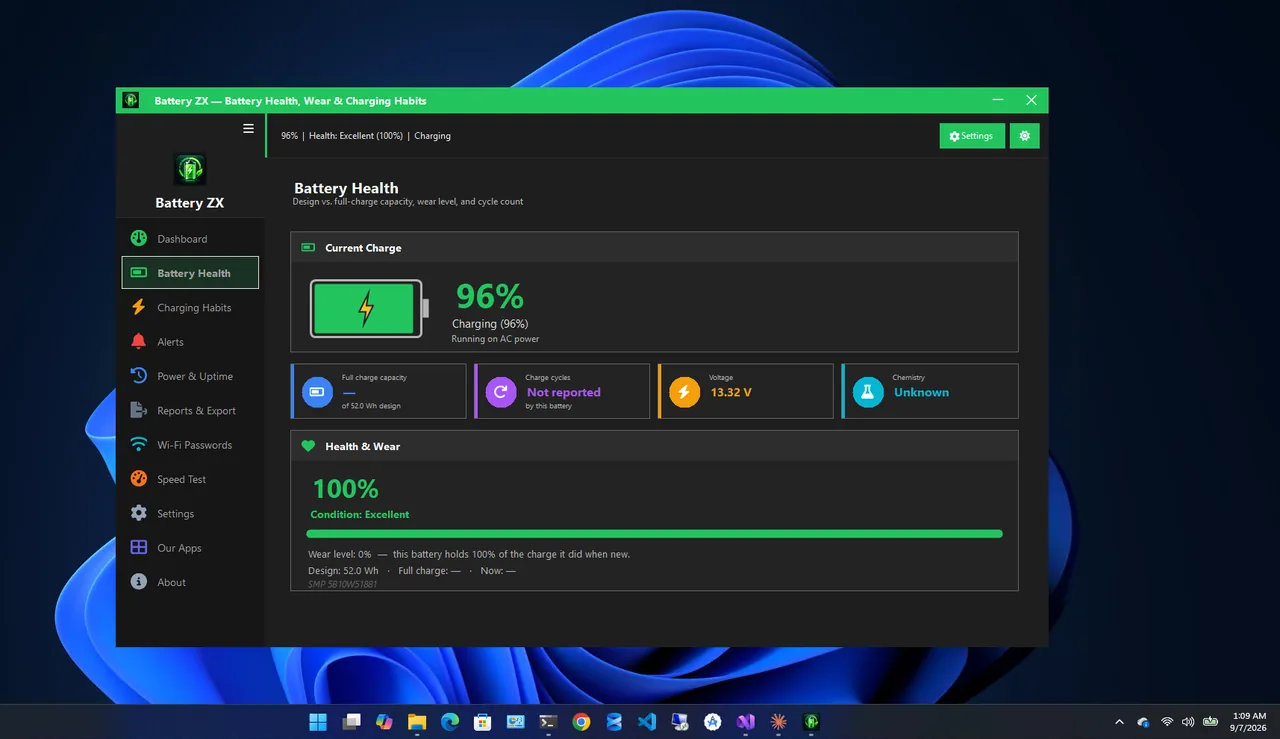
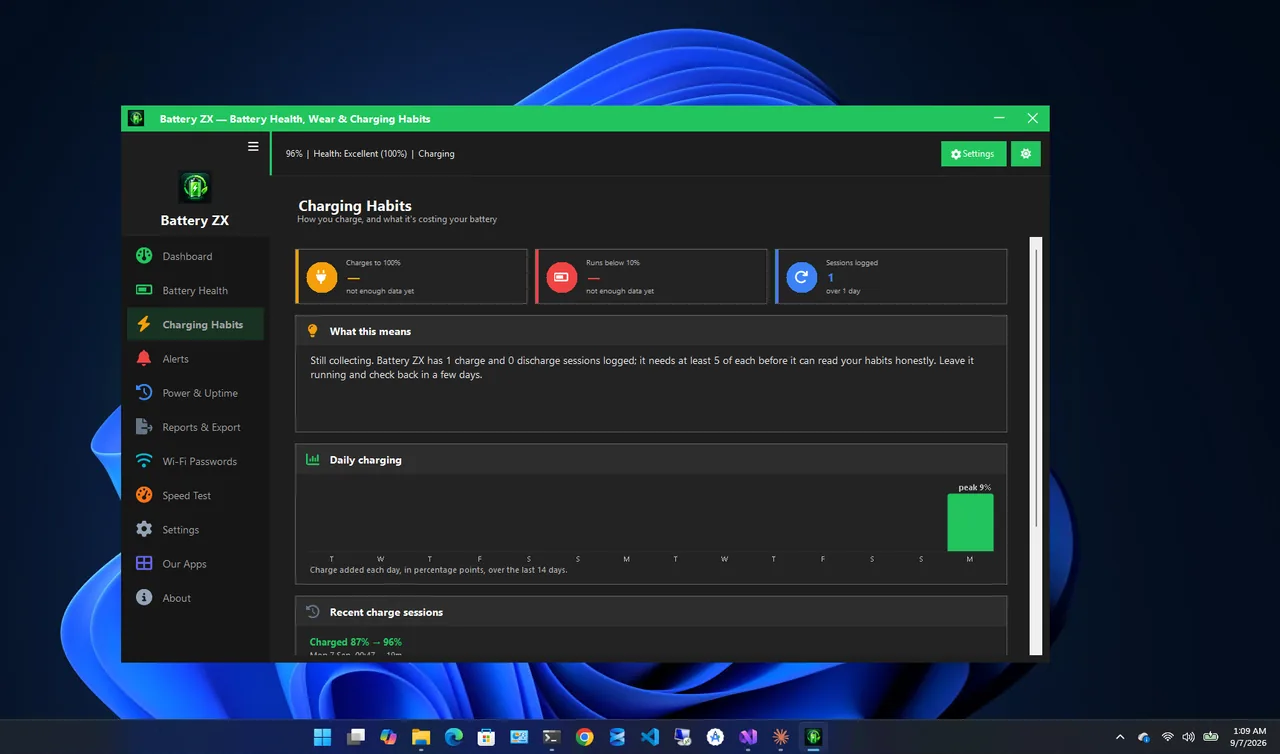
Battery ZX shows the same health, wear level and full-charge capacity in a dashboard, tracks charge and discharge over time, and can alert you at low charge or a wear threshold, so you see whether drain is getting worse.
12 Fixes for Fast Battery Drain
-
Find power-hungry apps
Settings > System > Power & battery > Battery usage, set to Last 24 hours. Browsers, video calls, game launchers and sync tools are frequent offenders. Close them or switch their settings to battery-friendly modes.
-
Lower screen brightness
The display is often the biggest single consumer. 50–70% brightness indoors saves a lot of power.
-
Use a lower or dynamic refresh rate
Settings > System > Display > Advanced display. 120–165 Hz screens use noticeably more power than 60 Hz. Choose 60 Hz on battery, or Dynamic if offered.
-
Turn on Energy saver
Settings > System > Power & battery > Energy saver (Battery saver on older versions). Set it to turn on automatically at 30% or higher.
-
Pick the best power efficiency mode
Power mode on battery: Best power efficiency or Balanced. Best performance drains much faster.
-
Stop the dedicated GPU from running
Gaming laptops drain fast when the NVIDIA or AMD GPU stays active. Task Manager > Performance > GPU 1 shows whether it is busy. In Settings > System > Display > Graphics, set non-gaming apps to Power saving.
-
Fix drain during sleep
Run
powercfg /sleepstudyand open the report to see what kept the laptop awake in Modern Standby. Common causes: network connected in standby, Bluetooth devices, and apps with background activity. Use Hibernate for long breaks (enable it under "Choose what the power buttons do"). -
Limit background apps
Settings > Apps > Installed apps > app > Advanced options > Background app permissions: Never or Power optimized, for apps that do not need to run in the background.
-
Turn off keyboard backlight and unused radios
RGB and keyboard backlights, Bluetooth and unused USB devices all draw power.
-
Update BIOS, drivers and Windows
Power management fixes arrive in BIOS, chipset and graphics updates. Install them from the laptop maker.
-
Check for malware and runaway processes
A process using CPU constantly drains the battery even at idle. Sort Task Manager by CPU and run a Defender scan.
-
Replace a worn battery
If health is below 70% or the cycle count is near the rated maximum, a new battery is the only fix. See check battery cycle count on Windows.
Battery Drains When the Laptop Is Off
A small loss of 1–3% per day is normal. More than that usually means the laptop is in sleep or Fast Startup's hybrid state instead of fully off, or USB charging is enabled for a port with a device attached. Use Shut down with Shift held, or turn off USB charging when off in the BIOS.
Is Your Browser Draining the Laptop Battery?
Browsers are often the top entry in Battery usage. Turn on Edge's Efficiency mode or Chrome's Energy Saver, close tabs with video and animated ads, and remove extensions you do not use. Watching video in a browser tab with hardware acceleration on uses less power than software decoding; check that it is enabled in the browser's System settings.
FAQ
Why is my new laptop battery draining fast?
Usually background setup after first use: updates, indexing and syncing. Give it a few days, then check Battery usage for a specific app.
How much battery should a laptop lose overnight in sleep?
About 1–5% over eight hours on most modern laptops. More means something is waking it; use the sleep study report.
Does a high refresh rate really drain the battery?
Yes. Running a 144 Hz screen at 60 Hz can add 30–60 minutes of runtime on many laptops.
When should I replace my laptop battery?
When full charge capacity is below about 70% of design capacity, or runtime no longer covers your day.
Conclusion
Fast battery drain comes from power-hungry apps and settings, or from a worn battery. Check health with a battery report first, then fix the apps, screen, GPU and sleep settings. If capacity is under 70%, replacing the battery is the real fix. Explore more system utilities for Windows 11.