System How-to
How to Extend Laptop Battery Life: 15 Tips for Windows
Extend laptop battery life on Windows 11: get more hours per charge with Energy saver, screen and app settings, and keep the battery healthy for years.
On this page
To extend laptop battery life per charge, turn on Energy saver (battery saver), lower screen brightness and refresh rate, set Power mode to Best power efficiency, and stop background apps. To keep the battery healthy for years, avoid sitting at 100% all day (use an 80% charge limit), avoid heat, and do not run it to 0% often.
There are two kinds of battery life: how many hours you get today, and how many years the battery lasts before it wears out. Both can be improved with a few settings and habits. This guide shows how to extend laptop battery life on Windows 11 and 10, with quick wins first and long-term care after.
Part 1: More Hours per Charge
-
Turn on Energy saver
Open Settings, System, Power & battery, and turn on Energy saver (called Battery saver on older versions). Set it to turn on automatically at 20–30%. It limits background activity and lowers brightness.
-
Choose Best power efficiency
On the same page, set Power mode on battery to Best power efficiency.
-
Lower brightness
The screen is usually the biggest power user. Drop brightness to a comfortable minimum in Quick Settings (Win + A), and turn on content-adaptive brightness if available.
-
Use 60 Hz or Dynamic refresh rate
On 120–165 Hz screens, go to Settings, System, Display, Advanced display and choose 60 Hz or Dynamic on battery.
-
Stop background apps
In Settings, Apps, Installed apps, open an app's Advanced options and set Background app permissions to Never for apps that do not need it. Disable unneeded startup apps too.
More quick wins
- Dark mode saves real power on OLED screens.
- Turn off keyboard backlight and Bluetooth when you do not need them.
- Use the browser's efficiency features: Edge's Efficiency mode and sleeping tabs, Chrome's Energy Saver.
- Use Efficiency mode in Task Manager on heavy background apps (right-click the process).
- Unplug USB devices such as drives and dongles you are not using.
- Avoid video calls and games on battery when you need it to last; they are the heaviest loads.
- Check what drains it: Settings, System, Power & battery, Battery usage lists apps by consumption.
Part 2: Keep the Battery Healthy for Years
Lithium-ion batteries wear faster when they are hot, full or empty for long periods. These habits slow that down:
- Use a charge limit. If you mostly work plugged in, cap charging at 80% in Windows' Smart charging option or your maker's app (Lenovo Conservation mode, ASUS Battery Health Charging, Dell, HP and Samsung equivalents).
- Keep it cool. Heat is the battery's worst enemy. Do not leave the laptop in a hot car or charge it on a bed.
- Avoid deep discharges. Recharge around 20–30% rather than letting it shut down often.
- Store it at about 50% if you will not use the laptop for weeks.
- Use the original or a proper-rated charger.
Track Your Battery's Health and Habits
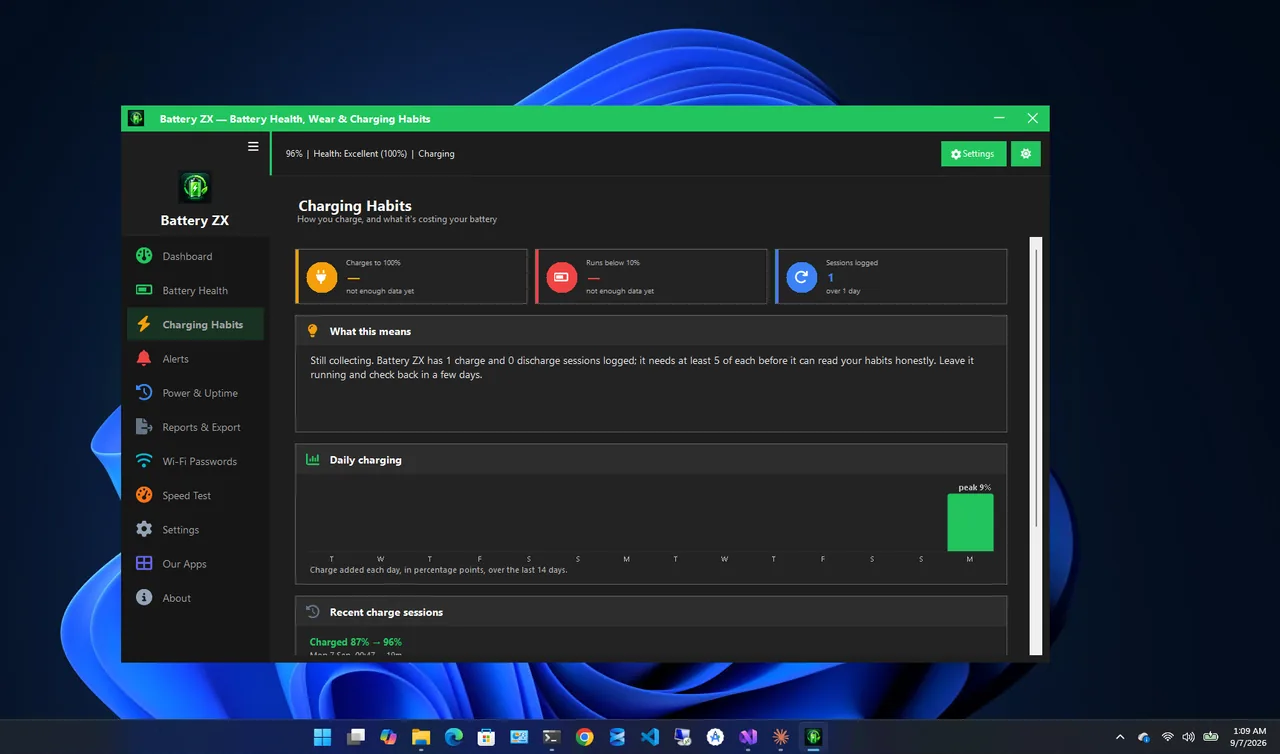
Battery ZX shows health and wear, design versus full-charge capacity and cycle count, and it tracks your charging habits, such as how often you charge to 100% or run it low. It gives a 0–100 longevity score with tips, plus unplug reminders at high charge and low-battery alerts.
For the built-in battery report and how to read it, see how to check battery health on Windows 11.
What to Expect
| Age / cycles | Typical capacity left |
|---|---|
| 1 year / 300 cycles | 90–95% |
| 2–3 years / 500–800 cycles | 80–85% |
| 4+ years / 1,000 cycles | 60–80% |
Most makers consider a battery worn once it drops below about 80% of its design capacity. If it suddenly stops charging properly, see laptop battery not charging.
Common Myths
- "Let it drain to 0% to calibrate it every week." That wears modern batteries faster. Calibrate rarely, only if the percentage is wrong.
- "Leaving it plugged in ruins the battery." Not with a charge limit. Without one, sitting at 100% and warm does age it faster.
- "Closing all apps saves lots of power." Idle apps use little. Brightness, refresh rate and busy background apps matter far more.
Related: laptop battery draining fast and should I leave my laptop plugged in.
FAQ
Should I keep my laptop plugged in all the time?
It is fine if you set an 80% charge limit. Otherwise unplug now and then, and keep it cool.
Does battery saver damage anything?
No. It only reduces background activity and brightness. Some notifications may arrive later.
How long should a laptop battery last?
Typically 3–5 years, or 500–1,000 charge cycles, before capacity drops noticeably.
Can I replace a laptop battery?
Usually, yes, though some thin laptops need a repair shop. Use the maker's part or a reputable supplier.
Conclusion
For more hours today, use Energy saver, lower brightness and refresh rate, and stop background apps. For more years, cap charging at 80%, avoid heat and deep discharges, and keep an eye on battery health. For more tools, see all system apps for Windows.