System Fix
Laptop Battery Not Charging? 10 Fixes for Windows
Laptop battery not charging or stuck at 80%? Check charge limits, the charger and port, reset the battery driver and power, and test battery health.
On this page
If your laptop battery is not charging, first check for a charge limit: many laptops stop at 60–80% on purpose to protect the battery. Then try another outlet and the original charger, check the port, and do a power reset (shut down, unplug, hold the power button for 30 seconds). Reinstalling the battery driver in Device Manager fixes most "plugged in, not charging" messages.
The battery icon says "Plugged in, not charging", or the percentage will not move past 80%, or the laptop dies the moment you unplug it. A laptop battery not charging is not always a broken battery. Often it is a setting, the charger or a stuck driver. Work through these fixes in order, from the most common to the least.
Symptoms
- "Plugged in, not charging" when you hover over the battery icon.
- Charging stops at the same level every time, such as 60% or 80%.
- The charging light is off, or charging is very slow.
- The laptop works on the charger but shuts down when unplugged.
Common Causes
- A battery-care charge limit set in Windows or the maker's app.
- A wrong, low-power or damaged charger, cable or USB-C port.
- A stuck battery driver or firmware state.
- The battery is too hot to charge safely.
- A worn-out battery.
Fix 1: Check for a Charge Limit
Battery-care modes stop charging at 60–80% to slow battery wear, and then show "not charging". This is intended. Look in Settings, System, Power & battery for a Smart charging or battery health option, and in your maker's app: Lenovo Vantage (Conservation mode), ASUS MyASUS (Battery Health Charging), Dell Power Manager or Dell Optimizer, HP Smart or the BIOS (Adaptive Battery Optimizer), Samsung Settings (Protect battery). Turn it off if you need 100% today.
Fix 2: Check the Outlet, Charger and Cable
Try a different wall outlet, not a power strip. Use the original charger. Check the cable and brick for kinks, burns or a loose tip. On USB-C laptops, make sure the charger supplies enough watts (often 45–100 W); a phone charger may only slow the drain.
Fix 3: Inspect the Charging Port
With the laptop off, look into the port with a torch. Remove dust or lint gently with a wooden toothpick or a puff of air. A wobbly connector that charges only at certain angles needs a repair.
Fix 4: Do a Power Reset
-
Shut down and unplug
Shut down fully (hold Shift while selecting Shut down) and unplug the charger and all USB devices.
-
Hold the power button
Hold it for 30 seconds to drain leftover power. Some laptops have a small reset pinhole on the bottom instead; check your manual.
-
Plug in and start
Connect only the charger, wait a minute and start the laptop.
Fix 5: Reinstall the Battery Driver
Right-click Start, open Device Manager and expand Batteries. Right-click Microsoft ACPI-Compliant Control Method Battery, choose Uninstall device, then restart. Windows reinstalls it automatically. This clears most "plugged in, not charging" glitches.
Fix 6: Let It Cool Down
Batteries stop charging when they are too hot, for example during gaming or on a bed. Let the laptop cool on a hard surface; charging should resume.
Fix 7: Update BIOS and Chipset Drivers
Charging is controlled by firmware. Install BIOS and chipset updates from your laptop maker's support app or website, plugged in and with the battery above 20% if possible.
Fix 8: Check Battery Health
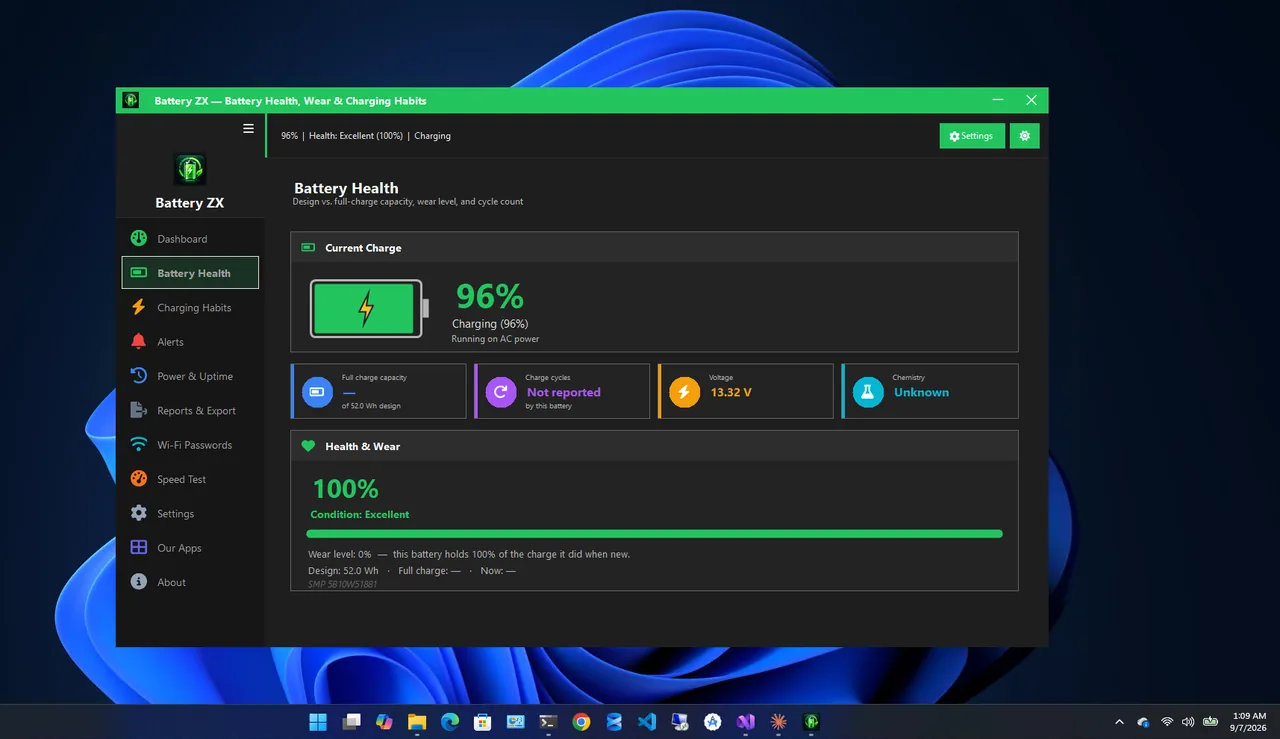
A worn battery may charge only partly or drop suddenly. Battery ZX shows health and wear percentage, design versus full-charge capacity and the charge cycle count without any commands. If full-charge capacity is under about 60% of design, replacement is due. Our guide to checking battery health on Windows 11 also shows the built-in battery report.
Fix 9: Recalibrate the Charge Reading
If the percentage jumps around, charge to 100% (limit off), use the laptop until it shuts down, then charge to 100% again without interruption. This resets the battery's charge estimate, not its health. Do it rarely.
Fix 10: Replace the Battery or Charger
If a known-good charger does not work and the battery is worn, replace the battery. Use the maker's part or a reputable supplier, and check the warranty first: many batteries are covered for one or two years.
If it stops at 80% on purpose, a charge limit may be on; see should I leave my laptop plugged in.
FAQ
Why does my laptop stop charging at 80%?
Almost always a battery-care setting in Windows or the maker's app. It protects the battery; turn it off only when you need a full charge.
Is "plugged in, not charging" bad?
Not if a charge limit is on or the battery is full and resting. If it stays at a low level, try the fixes above.
Can I use my laptop without the battery charging?
Yes, on the charger. But a sudden unplug or power cut will turn it off, so save often.
How do I make my battery last longer?
See our guide to extending laptop battery life for daily and long-term tips.
Conclusion
Check for a charge limit first, then the outlet, charger and port. A power reset and a battery driver reinstall fix most remaining cases. If health is low, it is time for a new battery. For more tools, see all system apps for Windows.